Als u automatisch een back-up maakt naar iCloud, neemt de capaciteit van uw iCloud snel toe, waardoor u onvoldoende vrije ruimte meer heeft. Als u handmatig een back-up van iCloud wilt maken om het gebruik van iCloud-opslagruimte te beperken, moet u de automatische iCloud-back-up op uw iPhone uitschakelen. Dan worden de gegevens niet langer automatisch gesynchroniseerd met iCloud. In het onderstaande artikel wordt u begeleid bij het uitschakelen van de automatische iCloud-back-up op de iPhone.
Instructies voor het uitschakelen van automatische iCloud-back-up op iPhone
Stap 1:
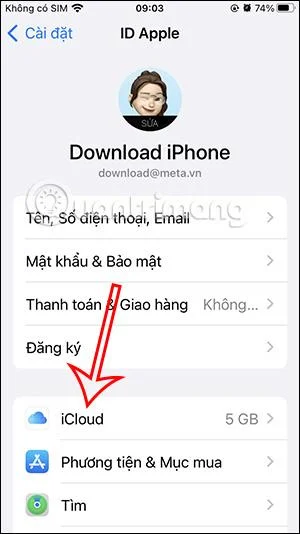
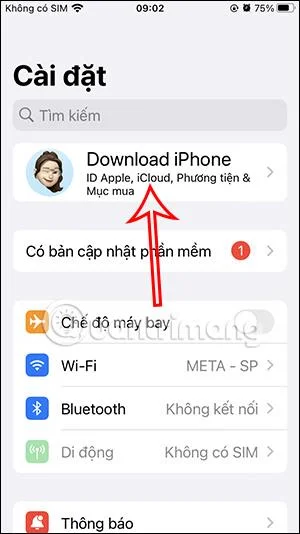
Ga eerst naar Instellingen op de iPhone . Vervolgens klikken we op ons Apple-account . Schakel over naar de nieuwe interface, klik op iCloud .

Stap 2:
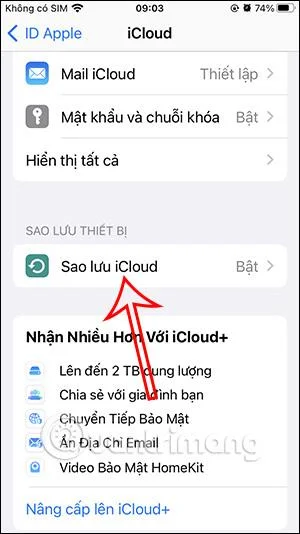
Klik in de iCloud-aanpassingsinterface op iCloud-back-up om aan te passen. Op dit punt schakelen we de automatische back-upmodus op iCloud uit door de ronde knop naar links te schuiven om deze uit te schakelen .


Stap 3:
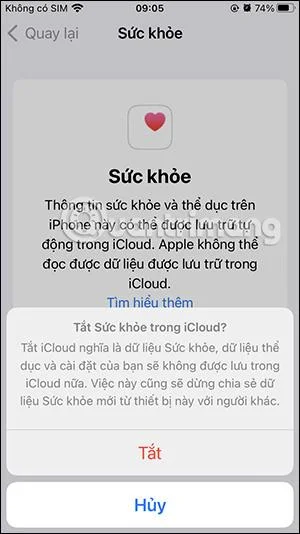
Vervolgens wordt u gevraagd of u akkoord gaat met het uitschakelen van de gegevensback-up naar iCloud. Als u uw telefoon verliest, gaan uw gegevens verloren, dus u moet opletten. Tik op Uit om automatische back-ups op iCloud uit te schakelen.
U hebt dus de automatische iCloud-back-up op de iPhone uitgeschakeld.

Instructies voor het uitschakelen van iCloud-back-up voor applicaties
Stap 1:
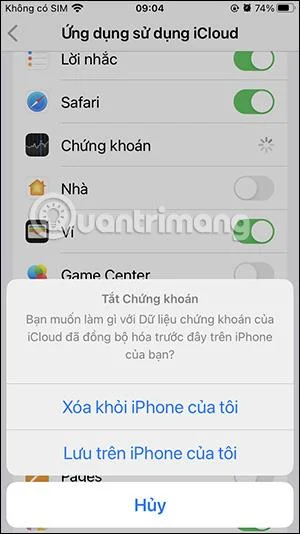
In de iCloud-interface scrollen we naar het gedeelte Toepassingen met iCloud en klikken op Alles weergeven. Nu ziet u alle applicaties die op uw iPhone zijn geïnstalleerd om de back-upmodus aan te passen aan iCloud.


Stap 2:
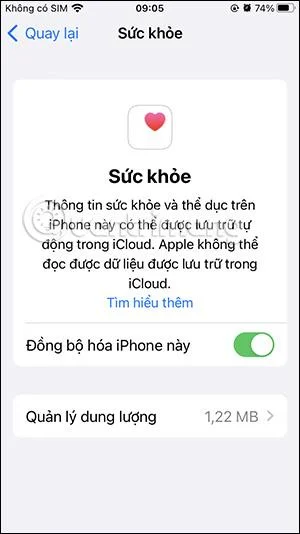
Om het maken van back-ups van applicatiegegevens naar iCloud uit te schakelen , hoeven we alleen maar de witte cirkelknop naar links te schuiven om deze uit te schakelen . Sommige applicaties hebben extra opties om back-upgegevens in de applicatie te verwerken, zoals hieronder.


Video-tutorial om automatische back-up op iCloud uit te schakelen