Um arquivo PS1 é um script ou cmdlet usado pelo Windows PowerShell .
Este guia mostrará como adicionar ou remover um menu Editar ou Executar com personalizado no menu de contexto dos arquivos .ps1 do PowerShell para todos os usuários do Windows 10 .
O menu de contexto Editar ou Executar com inclui os seguintes itens para arquivos PS1:
- Execute com PowerShell
- Execute com PowerShell como administrador
- Execute com PowerShell 7
- Execute com PowerShell 7 como administrador
- Editar com PowerShell ISE
- Edite com PowerShell ISE como administrador
- Editar com PowerShell ISE (x86)
- Edite com PowerShell ISE (x86) como administrador
- Editar com o bloco de notas
- Edite com o Bloco de Notas como administrador
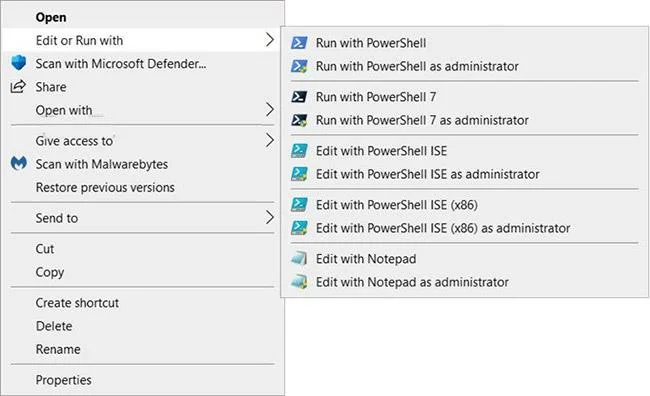
Adicione “Editar ou Executar com” ao menu do botão direito do arquivo PS1 no Windows 10
Como adicionar “Editar ou Executar com” ao menu do botão direito do arquivo PS1 no Windows 10
Veja como:
1. Execute a etapa 2 (adicionar - clique com o botão direito), etapa 3 (adicionar - Shift + clique com o botão direito) ou etapa 4 (excluir) abaixo, dependendo do que você deseja fazer.
2. Para adicionar o menu de contexto do arquivo PS1 "Editar ou Executar com" (basta clicar com o botão direito para exibir), baixe o arquivo Add_Edit_or_Run_with_to_PS1_context_menu.reg .
Conteúdo do arquivo REG) - Código:
Windows Registry Editor Version 5.00

[-HKEY_CLASSES_ROOT\.ps1]

[HKEY_CLASSES_ROOT\.ps1]
@="Microsoft.PowerShellScript.1"

[-HKEY_CLASSES_ROOT\Microsoft.PowerShellScript.1]

[HKEY_CLASSES_ROOT\Microsoft.PowerShellScript.1]
"EditFlags"=dword:00020000
"FriendlyTypeName"=hex(2):40,00,22,00,25,00,73,00,79,00,73,00,74,00,65,00,6d,\
  00,72,00,6f,00,6f,00,74,00,25,00,5c,00,73,00,79,00,73,00,74,00,65,00,6d,00,\
  33,00,32,00,5c,00,77,00,69,00,6e,00,64,00,6f,00,77,00,73,00,70,00,6f,00,77,\
  00,65,00,72,00,73,00,68,00,65,00,6c,00,6c,00,5c,00,76,00,31,00,2e,00,30,00,\
  5c,00,70,00,6f,00,77,00,65,00,72,00,73,00,68,00,65,00,6c,00,6c,00,2e,00,65,\
  00,78,00,65,00,22,00,2c,00,2d,00,31,00,30,00,33,00,00,00

[HKEY_CLASSES_ROOT\Microsoft.PowerShellScript.1\DefaultIcon]
@="\"C:\\Windows\\System32\\WindowsPowerShell\\v1.0\\powershell_ise.exe\",1"

[HKEY_CLASSES_ROOT\Microsoft.PowerShellScript.1\Shell]
@="Open"

[HKEY_CLASSES_ROOT\Microsoft.PowerShellScript.1\Shell\Open\Command]
@="\"C:\\Windows\\System32\\notepad.exe\" \"%1\""


[HKEY_CLASSES_ROOT\Microsoft.PowerShellScript.1\Shell\Edit-Run-with]
"MUIVerb"="Edit or Run with"
"Extended"=-
"SubCommands"=""


[HKEY_CLASSES_ROOT\Microsoft.PowerShellScript.1\Shell\Edit-Run-with\shell\001flyout]
"MUIVerb"="Run with PowerShell"
"Icon"="powershell.exe"

[HKEY_CLASSES_ROOT\Microsoft.PowerShellScript.1\Shell\Edit-Run-with\shell\001flyout\Command]
@="\"C:\\Windows\\System32\\WindowsPowerShell\\v1.0\\powershell.exe\" \"-Command\" \"if((Get-ExecutionPolicy ) -ne 'AllSigned') { Set-ExecutionPolicy -Scope Process Bypass }; & '%1'\""


[HKEY_CLASSES_ROOT\Microsoft.PowerShellScript.1\Shell\Edit-Run-with\shell\002flyout]
"MUIVerb"="Run with PowerShell as administrator"
"HasLUAShield"=""
"Icon"="powershell.exe"

[HKEY_CLASSES_ROOT\Microsoft.PowerShellScript.1\Shell\Edit-Run-with\shell\002flyout\Command]
@="\"C:\\Windows\\System32\\WindowsPowerShell\\v1.0\\powershell.exe\" \"-Command\" \"\"& {Start-Process PowerShell.exe -ArgumentList '-ExecutionPolicy RemoteSigned -File \\\"%1\\\"' -Verb RunAs}\""


[HKEY_CLASSES_ROOT\Microsoft.PowerShellScript.1\Shell\Edit-Run-with\shell\003flyout]
"MUIVerb"="Run with PowerShell 7"
"Icon"="pwsh.exe"
"CommandFlags"=dword:00000020

[HKEY_CLASSES_ROOT\Microsoft.PowerShellScript.1\Shell\Edit-Run-with\shell\003flyout\Command]
@="\"C:\\Program Files\\PowerShell\\7\\pwsh.exe\" \"-Command\" \"if((Get-ExecutionPolicy ) -ne 'AllSigned') { Set-ExecutionPolicy -Scope Process Bypass }; & '%1'\""


[HKEY_CLASSES_ROOT\Microsoft.PowerShellScript.1\Shell\Edit-Run-with\shell\004flyout]
"MUIVerb"="Run with PowerShell 7 as administrator"
"HasLUAShield"=""
"Icon"="pwsh.exe"

[HKEY_CLASSES_ROOT\Microsoft.PowerShellScript.1\Shell\Edit-Run-with\shell\004flyout\Command]
@="\"C:\\Program Files\\PowerShell\\7\\pwsh.exe\" \"-Command\" \"\"& {Start-Process pwsh.exe -ArgumentList '-ExecutionPolicy RemoteSigned -File \\\"%1\\\"' -Verb RunAs}\""


[HKEY_CLASSES_ROOT\Microsoft.PowerShellScript.1\Shell\Edit-Run-with\shell\005flyout]
"MUIVerb"="Edit with PowerShell ISE"
"Icon"="powershell_ise.exe"
"CommandFlags"=dword:00000020

[HKEY_CLASSES_ROOT\Microsoft.PowerShellScript.1\Shell\Edit-Run-with\shell\005flyout\Command]
@="\"C:\\Windows\\System32\\WindowsPowerShell\\v1.0\\powershell_ise.exe\" \"%1\""


[HKEY_CLASSES_ROOT\Microsoft.PowerShellScript.1\Shell\Edit-Run-with\shell\006flyout]
"MUIVerb"="Edit with PowerShell ISE as administrator"
"HasLUAShield"=""
"Icon"="powershell_ise.exe"

[HKEY_CLASSES_ROOT\Microsoft.PowerShellScript.1\Shell\Edit-Run-with\shell\006flyout\Command]
@="PowerShell -windowstyle hidden -Command \"Start-Process cmd -ArgumentList '/s,/c,start PowerShell_ISE.exe \"\"%1\"\"'  -Verb RunAs\""


[HKEY_CLASSES_ROOT\Microsoft.PowerShellScript.1\Shell\Edit-Run-with\shell\007flyout]
"MUIVerb"="Edit with PowerShell ISE (x86)"
"Icon"="powershell_ise.exe"
"CommandFlags"=dword:00000020

[HKEY_CLASSES_ROOT\Microsoft.PowerShellScript.1\Shell\Edit-Run-with\shell\007flyout\Command]
@="\"C:\\WINDOWS\\syswow64\\WindowsPowerShell\\v1.0\\powershell_ise.exe\" \"%1\""


[HKEY_CLASSES_ROOT\Microsoft.PowerShellScript.1\Shell\Edit-Run-with\shell\008flyout]
"MUIVerb"="Edit with PowerShell ISE (x86) as administrator"
"HasLUAShield"=""
"Icon"="powershell_ise.exe"

[HKEY_CLASSES_ROOT\Microsoft.PowerShellScript.1\Shell\Edit-Run-with\shell\008flyout\Command]
@="PowerShell -windowstyle hidden -Command \"Start-Process cmd -ArgumentList '/s,/c,start C:\\WINDOWS\\syswow64\\WindowsPowerShell\\v1.0\\powershell_ise.exe \"\"%1\"\"'  -Verb RunAs\""


[HKEY_CLASSES_ROOT\Microsoft.PowerShellScript.1\Shell\Edit-Run-with\shell\009flyout]
"MUIVerb"="Edit with Notepad"
"Icon"="notepad.exe"
"CommandFlags"=dword:00000020

[HKEY_CLASSES_ROOT\Microsoft.PowerShellScript.1\Shell\Edit-Run-with\shell\009flyout\Command]
@="\"C:\\Windows\\System32\\notepad.exe\" \"%1\""


[HKEY_CLASSES_ROOT\Microsoft.PowerShellScript.1\Shell\Edit-Run-with\shell\010flyout]
"MUIVerb"="Edit with Notepad as administrator"
"HasLUAShield"=""
"Icon"="notepad.exe"

[HKEY_CLASSES_ROOT\Microsoft.PowerShellScript.1\Shell\Edit-Run-with\shell\010flyout\Command]
@="PowerShell -windowstyle hidden -Command \"Start-Process cmd -ArgumentList '/s,/c,start C:\\Windows\\System32\\notepad.exe \"\"%1\"\"'  -Verb RunAs\""
3. Para adicionar o menu de contexto do arquivo PS1 "Editar ou Executar com" (pressione Shift + clique com o botão direito para exibir), baixe o arquivo Add_Shift + Edit_or_Run_with_to_PS1_context_menu.reg .
Conteúdo do REG - Arquivo de código:
Windows Registry Editor Version 5.00

[-HKEY_CLASSES_ROOT\.ps1]

[HKEY_CLASSES_ROOT\.ps1]
@="Microsoft.PowerShellScript.1"

[-HKEY_CLASSES_ROOT\Microsoft.PowerShellScript.1]

[HKEY_CLASSES_ROOT\Microsoft.PowerShellScript.1]
"EditFlags"=dword:00020000
"FriendlyTypeName"=hex(2):40,00,22,00,25,00,73,00,79,00,73,00,74,00,65,00,6d,\
  00,72,00,6f,00,6f,00,74,00,25,00,5c,00,73,00,79,00,73,00,74,00,65,00,6d,00,\
  33,00,32,00,5c,00,77,00,69,00,6e,00,64,00,6f,00,77,00,73,00,70,00,6f,00,77,\
  00,65,00,72,00,73,00,68,00,65,00,6c,00,6c,00,5c,00,76,00,31,00,2e,00,30,00,\
  5c,00,70,00,6f,00,77,00,65,00,72,00,73,00,68,00,65,00,6c,00,6c,00,2e,00,65,\
  00,78,00,65,00,22,00,2c,00,2d,00,31,00,30,00,33,00,00,00

[HKEY_CLASSES_ROOT\Microsoft.PowerShellScript.1\DefaultIcon]
@="\"C:\\Windows\\System32\\WindowsPowerShell\\v1.0\\powershell_ise.exe\",1"

[HKEY_CLASSES_ROOT\Microsoft.PowerShellScript.1\Shell]
@="Open"

[HKEY_CLASSES_ROOT\Microsoft.PowerShellScript.1\Shell\Open\Command]
@="\"C:\\Windows\\System32\\notepad.exe\" \"%1\""


[HKEY_CLASSES_ROOT\Microsoft.PowerShellScript.1\Shell\Edit-Run-with]
"MUIVerb"="Edit or Run with"
"Extended"=""
"SubCommands"=""


[HKEY_CLASSES_ROOT\Microsoft.PowerShellScript.1\Shell\Edit-Run-with\shell\001flyout]
"MUIVerb"="Run with PowerShell"
"Icon"="powershell.exe"

[HKEY_CLASSES_ROOT\Microsoft.PowerShellScript.1\Shell\Edit-Run-with\shell\001flyout\Command]
@="\"C:\\Windows\\System32\\WindowsPowerShell\\v1.0\\powershell.exe\" \"-Command\" \"if((Get-ExecutionPolicy ) -ne 'AllSigned') { Set-ExecutionPolicy -Scope Process Bypass }; & '%1'\""


[HKEY_CLASSES_ROOT\Microsoft.PowerShellScript.1\Shell\Edit-Run-with\shell\002flyout]
"MUIVerb"="Run with PowerShell as administrator"
"HasLUAShield"=""
"Icon"="powershell.exe"

[HKEY_CLASSES_ROOT\Microsoft.PowerShellScript.1\Shell\Edit-Run-with\shell\002flyout\Command]
@="\"C:\\Windows\\System32\\WindowsPowerShell\\v1.0\\powershell.exe\" \"-Command\" \"\"& {Start-Process PowerShell.exe -ArgumentList '-ExecutionPolicy RemoteSigned -File \\\"%1\\\"' -Verb RunAs}\""


[HKEY_CLASSES_ROOT\Microsoft.PowerShellScript.1\Shell\Edit-Run-with\shell\003flyout]
"MUIVerb"="Run with PowerShell 7"
"Icon"="pwsh.exe"
"CommandFlags"=dword:00000020

[HKEY_CLASSES_ROOT\Microsoft.PowerShellScript.1\Shell\Edit-Run-with\shell\003flyout\Command]
@="\"C:\\Program Files\\PowerShell\\7\\pwsh.exe\" \"-Command\" \"if((Get-ExecutionPolicy ) -ne 'AllSigned') { Set-ExecutionPolicy -Scope Process Bypass }; & '%1'\""


[HKEY_CLASSES_ROOT\Microsoft.PowerShellScript.1\Shell\Edit-Run-with\shell\004flyout]
"MUIVerb"="Run with PowerShell 7 as administrator"
"HasLUAShield"=""
"Icon"="pwsh.exe"

[HKEY_CLASSES_ROOT\Microsoft.PowerShellScript.1\Shell\Edit-Run-with\shell\004flyout\Command]
@="\"C:\\Program Files\\PowerShell\\7\\pwsh.exe\" \"-Command\" \"\"& {Start-Process pwsh.exe -ArgumentList '-ExecutionPolicy RemoteSigned -File \\\"%1\\\"' -Verb RunAs}\""


[HKEY_CLASSES_ROOT\Microsoft.PowerShellScript.1\Shell\Edit-Run-with\shell\005flyout]
"MUIVerb"="Edit with PowerShell ISE"
"Icon"="powershell_ise.exe"
"CommandFlags"=dword:00000020

[HKEY_CLASSES_ROOT\Microsoft.PowerShellScript.1\Shell\Edit-Run-with\shell\005flyout\Command]
@="\"C:\\Windows\\System32\\WindowsPowerShell\\v1.0\\powershell_ise.exe\" \"%1\""


[HKEY_CLASSES_ROOT\Microsoft.PowerShellScript.1\Shell\Edit-Run-with\shell\006flyout]
"MUIVerb"="Edit with PowerShell ISE as administrator"
"HasLUAShield"=""
"Icon"="powershell_ise.exe"

[HKEY_CLASSES_ROOT\Microsoft.PowerShellScript.1\Shell\Edit-Run-with\shell\006flyout\Command]
@="PowerShell -windowstyle hidden -Command \"Start-Process cmd -ArgumentList '/s,/c,start PowerShell_ISE.exe \"\"%1\"\"'  -Verb RunAs\""


[HKEY_CLASSES_ROOT\Microsoft.PowerShellScript.1\Shell\Edit-Run-with\shell\007flyout]
"MUIVerb"="Edit with PowerShell ISE (x86)"
"Icon"="powershell_ise.exe"
"CommandFlags"=dword:00000020

[HKEY_CLASSES_ROOT\Microsoft.PowerShellScript.1\Shell\Edit-Run-with\shell\007flyout\Command]
@="\"C:\\WINDOWS\\syswow64\\WindowsPowerShell\\v1.0\\powershell_ise.exe\" \"%1\""


[HKEY_CLASSES_ROOT\Microsoft.PowerShellScript.1\Shell\Edit-Run-with\shell\008flyout]
"MUIVerb"="Edit with PowerShell ISE (x86) as administrator"
"HasLUAShield"=""
"Icon"="powershell_ise.exe"

[HKEY_CLASSES_ROOT\Microsoft.PowerShellScript.1\Shell\Edit-Run-with\shell\008flyout\Command]
@="PowerShell -windowstyle hidden -Command \"Start-Process cmd -ArgumentList '/s,/c,start C:\\WINDOWS\\syswow64\\WindowsPowerShell\\v1.0\\powershell_ise.exe \"\"%1\"\"'  -Verb RunAs\""


[HKEY_CLASSES_ROOT\Microsoft.PowerShellScript.1\Shell\Edit-Run-with\shell\009flyout]
"MUIVerb"="Edit with Notepad"
"Icon"="notepad.exe"
"CommandFlags"=dword:00000020

[HKEY_CLASSES_ROOT\Microsoft.PowerShellScript.1\Shell\Edit-Run-with\shell\009flyout\Command]
@="\"C:\\Windows\\System32\\notepad.exe\" \"%1\""


[HKEY_CLASSES_ROOT\Microsoft.PowerShellScript.1\Shell\Edit-Run-with\shell\010flyout]
"MUIVerb"="Edit with Notepad as administrator"
"HasLUAShield"=""
"Icon"="notepad.exe"

[HKEY_CLASSES_ROOT\Microsoft.PowerShellScript.1\Shell\Edit-Run-with\shell\010flyout\Command]
@="PowerShell -windowstyle hidden -Command \"Start-Process cmd -ArgumentList '/s,/c,start C:\\Windows\\System32\\notepad.exe \"\"%1\"\"'  -Verb RunAs\""
4. Para remover o menu de contexto do arquivo PS1 "Editar ou Executar com", baixe o arquivo Remove_Edit_or_Run_with_from_PS1_context_menu.reg .
Conteúdo do REG - Arquivo de código:
Windows Registry Editor Version 5.00

[-HKEY_CLASSES_ROOT\Microsoft.PowerShellScript.1\Shell\Edit-Run-with]
5. Salve o arquivo .reg na área de trabalho.
6. Clique duas vezes no arquivo .reg baixado para mesclar.
7. Quando solicitado, clique em Executar > Sim (UAC) > Sim > OK para aprovar a mesclagem.
8. Agora, você pode excluir o arquivo .reg baixado, se desejar.
Espero que você tenha sucesso.