เมื่อเปิดตัว Windows 11 Microsoft ประกาศว่าระบบปฏิบัติการจะรองรับเฉพาะคอมพิวเตอร์ที่มีชิปรักษาความปลอดภัย TPM 2.0 เท่านั้น จากข้อมูลของ Microsoft TMP 2.0เป็นองค์ประกอบสำคัญในการรักษาความปลอดภัยด้วย Windows Hello และ BitLoker ซึ่งจะช่วยให้ Windows 11 ปกป้องข้อมูลประจำตัวและข้อมูลของผู้ใช้ได้ดียิ่งขึ้น
เพื่อช่วยให้ผู้ใช้และผู้ดูแลระบบควบคุมข้อมูลที่จัดเก็บไว้ใน TPM ได้อย่างง่ายดาย Microsoft ได้เพิ่มเครื่องมือที่เรียกว่า TPM Diagnostics นี่เป็นเครื่องมือเพิ่มเติม ดังนั้นคุณต้องติดตั้งก่อนจึงจะใช้งานได้
หากต้องการติดตั้งและใช้การวินิจฉัย TPM บน Windows 11 ให้ทำตามคำแนะนำเหล่านี้:
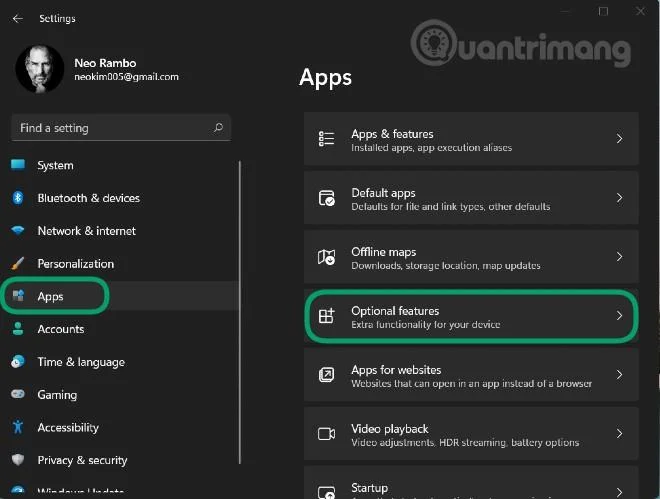
ขั้นตอนที่ 1 : กดWindows + Iเพื่อเปิดการตั้งค่าจากนั้นเข้าถึง ส่วน แอพในแถบด้านซ้าย
ขั้นตอนที่ 2 : คลิกคุณสมบัติเสริม
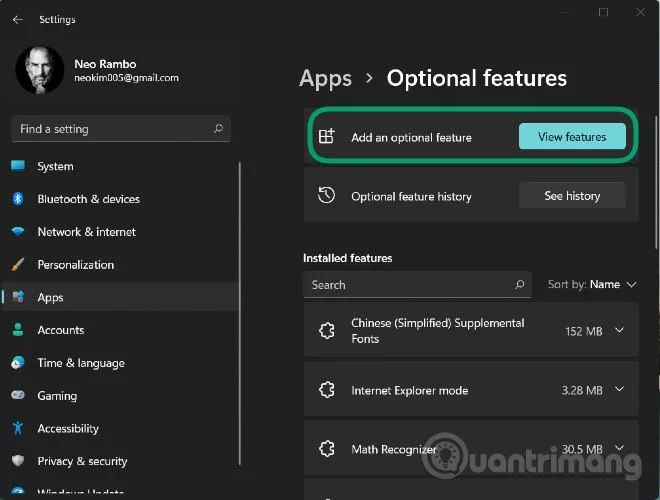
ขั้นตอนที่ 3 : คลิกดูคุณสมบัติใน ส่วน เพิ่มคุณสมบัติเสริม
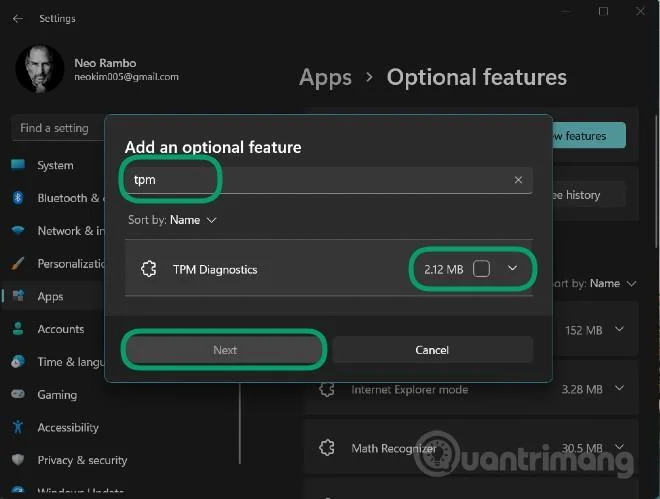
ขั้นตอนที่ 4 : ป้อนtpmในช่องค้นหา จากนั้นคลิกถัดจาก เครื่องมือ วินิจฉัย TPMที่แสดงด้านล่าง และคลิกถัดไป > ติดตั้งเพื่อยืนยันการติดตั้ง
ขั้นตอนที่ 5 : หลังจากรอให้ระบบติดตั้ง คุณสามารถใช้ TPM Diagnostics ผ่านทางหน้าต่างคำสั่ง Windows Terminal (Admin) (ชื่อใหม่ของ Command Prompt)
ขั้นตอนที่ 6 : กดWindows + Xเพื่อเปิด เมนู Power Userจากนั้นเลือกWindows Terminal (ผู้ดูแลระบบ)
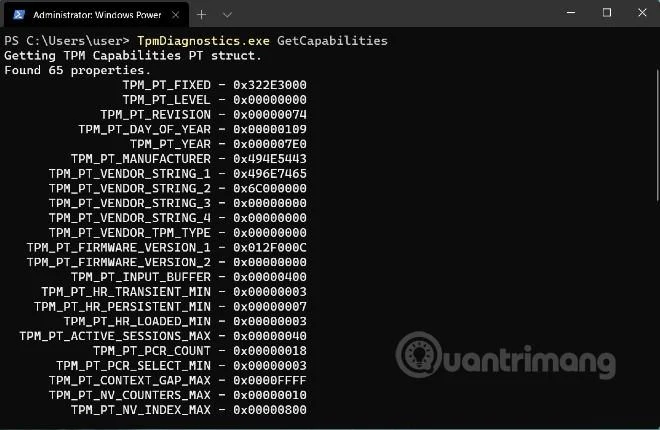
ที่นี่คุณสามารถป้อนคำสั่งควบคุมการวินิจฉัย TPM ตัวอย่างเช่น คำสั่ง TpmDiagnostics.exe GetCapabilitiesจะแสดงรายการความสามารถและการตั้งค่าของชิป TPM บนเครื่องของคุณดังที่แสดงด้านล่าง:
นอกเหนือจากการสอบถามคีย์ความปลอดภัยที่เก็บไว้และข้อมูลอื่นๆ แล้ว คุณยังสามารถใช้การวินิจฉัย TPM เพื่อเข้ารหัส/ถอดรหัสไฟล์ Base64, เลขฐานสิบหก และไบนารีได้
ด้วยการวินิจฉัย TPM คุณสามารถเรียนรู้ข้อมูลมากมายเกี่ยวกับกลไกความปลอดภัยพื้นฐานของ Windows 11 อย่างไรก็ตาม เราขอแนะนำให้คุณอย่า "ตะลุย" เครื่องมือวินิจฉัย TPM นี้มากเกินไปหากคุณไม่เข้าใจ ชัดเจนเกี่ยวกับมัน หากกำหนดค่าไม่ถูกต้อง คุณอาจสูญเสียคีย์ที่จำเป็นสำหรับการทำงานบนคอมพิวเตอร์ของคุณ
ด้านล่างนี้คือรายการคำสั่งทั้งหมดที่มีอยู่ในเครื่องมือวินิจฉัย TPM:
Flags:
	PrintHelp ( /h -h )
	PromptOnExit ( -x /x )
	UseECC ( -ecc /ecc )
	UseAes256 ( -aes256 /aes256 )
	QuietPrint ( -q /q )
	PrintVerbosely ( -v /v )

Use the 'help' command to get more information about a command.
Commands:

TpmInfo:
	GetLockoutInfo
	IsOwned
	PlatformType
	CheckFIPS
	ReadClock
	GetDeviceInformation
	IfxRsaKeygenVulnerability
	GatherLogs [full directory path]
	PssPadding
	IsReadyInformation

TpmTask:
	MaintenanceTaskStatus
	ShowTaskStatus
	IsEULAAccepted
	ProvisionTpm [force clear] [allow PPI prompt]

TpmProvisioning:
	PrepareTPM
	CanUseLockoutPolicyClear
	CanClearByPolicy

AutoProvisioning:
	IsAutoProvisioningEnabled
	EnableAutoProvisioning
	DisableAutoProvisioning [-o]

EK:
	EkInfo
	ekchain
	EkCertStoreRegistry
	GetEkCertFromWeb [-ecc] [cert file]
	GetEkCertFromNVR [-ecc] [cert file]
	GetEkCertFromReg [-ecc] [ output file ]
	GetEk [-ecc] [key file]
	CheckEkCertState
	InstallEkCertFromWeb
	InstallEkCertFromNVR
	InstallEkCertThroughCoreProv
	EKCertificateURL

WindowsAIK:
	InstallWindowsAIK [-skipCert]
	WinAikPersistedInTpm
	UninstallWindowsAIKCert
	GetWindowsAIKCert [cert file]
	IsWindowsAIKInstalledInNCrypt
	EnrollWindowsAIKCert
	GetWindowsAIKPlatformClaim ["fresh"] [output file]

OtherKeys:
	PrintPublicInfo [ srk / aik / ek / handle ] [-asBcryptBlob / -RsaKeyBitsOnly / -RsaSymKeyBitsOnly] [-ecc]
	TestParms [ SYMCIPHER | RSA ] [ algorithm specific arguments ]
	EnumerateKeys

NVStorage:
	EnumNVIndexes
	DefineIndex [index] [size] [attribute flags]
	UndefineIndex [index]
	ReadNVIndexPublic [index]
	WriteNVIndex [index] [data in hex format | -file filename]
	ReadNVIndex [index]
	NVSummary

NVBootCounter:
	CheckBootCounter
	ReadBootCounter [/f]

PCRs:
	PrintPcrs

PhysicalPresence:
	GetPPTransition
	GetPPVersionInfo
	GetPPResponse
	GetPPRequest

TPMCommandsAndResponses:
	CommandCode [hex command code]
	ResponseCode [hex response code]

Tracing:
	EnableDriverTracing
	DisableDriverTracing
	FormatTrace [etl file] [output json file]

DRTM:
	DescribeMle [MLE Binary File]

Misc:
	Help [command name]
	DecodeBase64File [file to decode from base 64]
	EncodeToBase64File [file to encode]
	ReadFileAsHex [file to read]
	ConvertBinToHex [file to read] [file to write to]
	ConvertHexToBin [file to read] [file to write to]
	Hash [hex bytes or raw value to hash]
	GetCapabilities