Un archivo PS1 es un script o cmdlet utilizado por Windows PowerShell .
Esta guía le mostrará cómo agregar o eliminar un menú Editar o Ejecutar personalizado en el menú contextual de los archivos .ps1 de PowerShell para todos los usuarios de Windows 10 .
El menú Editar o Ejecutar con contexto incluye los siguientes elementos para archivos PS1:
- Ejecutar con PowerShell
- Ejecutar con PowerShell como administrador
- Ejecutar con PowerShell 7
- Ejecutar con PowerShell 7 como administrador
- Editar con PowerShell ISE
- Editar con PowerShell ISE como administrador
- Editar con PowerShell ISE (x86)
- Editar con PowerShell ISE (x86) como administrador
- Editar con el Bloc de notas
- Editar con el Bloc de notas como administrador
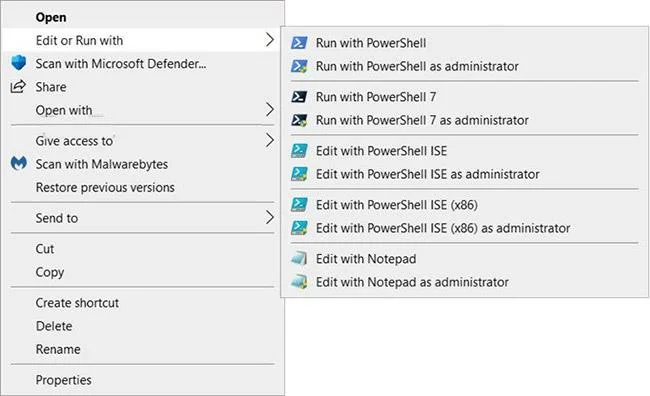
Agregue "Editar o ejecutar con" al menú contextual del archivo PS1 en Windows 10
Cómo agregar "Editar o ejecutar con" al menú contextual del archivo PS1 en Windows 10
Así es cómo:
1. Realice el paso 2 (agregar - clic derecho), el paso 3 (agregar - Mayús + clic derecho) o el paso 4 (eliminar) a continuación, según lo que desee hacer.
2. Para agregar el menú contextual del archivo PS1 "Editar o ejecutar con" (simplemente haga clic derecho para mostrarlo), descargue el archivo Add_Edit_or_Run_with_to_PS1_context_menu.reg .
Contenido del archivo REG) - Código:
Windows Registry Editor Version 5.00

[-HKEY_CLASSES_ROOT\.ps1]

[HKEY_CLASSES_ROOT\.ps1]
@="Microsoft.PowerShellScript.1"

[-HKEY_CLASSES_ROOT\Microsoft.PowerShellScript.1]

[HKEY_CLASSES_ROOT\Microsoft.PowerShellScript.1]
"EditFlags"=dword:00020000
"FriendlyTypeName"=hex(2):40,00,22,00,25,00,73,00,79,00,73,00,74,00,65,00,6d,\
  00,72,00,6f,00,6f,00,74,00,25,00,5c,00,73,00,79,00,73,00,74,00,65,00,6d,00,\
  33,00,32,00,5c,00,77,00,69,00,6e,00,64,00,6f,00,77,00,73,00,70,00,6f,00,77,\
  00,65,00,72,00,73,00,68,00,65,00,6c,00,6c,00,5c,00,76,00,31,00,2e,00,30,00,\
  5c,00,70,00,6f,00,77,00,65,00,72,00,73,00,68,00,65,00,6c,00,6c,00,2e,00,65,\
  00,78,00,65,00,22,00,2c,00,2d,00,31,00,30,00,33,00,00,00

[HKEY_CLASSES_ROOT\Microsoft.PowerShellScript.1\DefaultIcon]
@="\"C:\\Windows\\System32\\WindowsPowerShell\\v1.0\\powershell_ise.exe\",1"

[HKEY_CLASSES_ROOT\Microsoft.PowerShellScript.1\Shell]
@="Open"

[HKEY_CLASSES_ROOT\Microsoft.PowerShellScript.1\Shell\Open\Command]
@="\"C:\\Windows\\System32\\notepad.exe\" \"%1\""


[HKEY_CLASSES_ROOT\Microsoft.PowerShellScript.1\Shell\Edit-Run-with]
"MUIVerb"="Edit or Run with"
"Extended"=-
"SubCommands"=""


[HKEY_CLASSES_ROOT\Microsoft.PowerShellScript.1\Shell\Edit-Run-with\shell\001flyout]
"MUIVerb"="Run with PowerShell"
"Icon"="powershell.exe"

[HKEY_CLASSES_ROOT\Microsoft.PowerShellScript.1\Shell\Edit-Run-with\shell\001flyout\Command]
@="\"C:\\Windows\\System32\\WindowsPowerShell\\v1.0\\powershell.exe\" \"-Command\" \"if((Get-ExecutionPolicy ) -ne 'AllSigned') { Set-ExecutionPolicy -Scope Process Bypass }; & '%1'\""


[HKEY_CLASSES_ROOT\Microsoft.PowerShellScript.1\Shell\Edit-Run-with\shell\002flyout]
"MUIVerb"="Run with PowerShell as administrator"
"HasLUAShield"=""
"Icon"="powershell.exe"

[HKEY_CLASSES_ROOT\Microsoft.PowerShellScript.1\Shell\Edit-Run-with\shell\002flyout\Command]
@="\"C:\\Windows\\System32\\WindowsPowerShell\\v1.0\\powershell.exe\" \"-Command\" \"\"& {Start-Process PowerShell.exe -ArgumentList '-ExecutionPolicy RemoteSigned -File \\\"%1\\\"' -Verb RunAs}\""


[HKEY_CLASSES_ROOT\Microsoft.PowerShellScript.1\Shell\Edit-Run-with\shell\003flyout]
"MUIVerb"="Run with PowerShell 7"
"Icon"="pwsh.exe"
"CommandFlags"=dword:00000020

[HKEY_CLASSES_ROOT\Microsoft.PowerShellScript.1\Shell\Edit-Run-with\shell\003flyout\Command]
@="\"C:\\Program Files\\PowerShell\\7\\pwsh.exe\" \"-Command\" \"if((Get-ExecutionPolicy ) -ne 'AllSigned') { Set-ExecutionPolicy -Scope Process Bypass }; & '%1'\""


[HKEY_CLASSES_ROOT\Microsoft.PowerShellScript.1\Shell\Edit-Run-with\shell\004flyout]
"MUIVerb"="Run with PowerShell 7 as administrator"
"HasLUAShield"=""
"Icon"="pwsh.exe"

[HKEY_CLASSES_ROOT\Microsoft.PowerShellScript.1\Shell\Edit-Run-with\shell\004flyout\Command]
@="\"C:\\Program Files\\PowerShell\\7\\pwsh.exe\" \"-Command\" \"\"& {Start-Process pwsh.exe -ArgumentList '-ExecutionPolicy RemoteSigned -File \\\"%1\\\"' -Verb RunAs}\""


[HKEY_CLASSES_ROOT\Microsoft.PowerShellScript.1\Shell\Edit-Run-with\shell\005flyout]
"MUIVerb"="Edit with PowerShell ISE"
"Icon"="powershell_ise.exe"
"CommandFlags"=dword:00000020

[HKEY_CLASSES_ROOT\Microsoft.PowerShellScript.1\Shell\Edit-Run-with\shell\005flyout\Command]
@="\"C:\\Windows\\System32\\WindowsPowerShell\\v1.0\\powershell_ise.exe\" \"%1\""


[HKEY_CLASSES_ROOT\Microsoft.PowerShellScript.1\Shell\Edit-Run-with\shell\006flyout]
"MUIVerb"="Edit with PowerShell ISE as administrator"
"HasLUAShield"=""
"Icon"="powershell_ise.exe"

[HKEY_CLASSES_ROOT\Microsoft.PowerShellScript.1\Shell\Edit-Run-with\shell\006flyout\Command]
@="PowerShell -windowstyle hidden -Command \"Start-Process cmd -ArgumentList '/s,/c,start PowerShell_ISE.exe \"\"%1\"\"'  -Verb RunAs\""


[HKEY_CLASSES_ROOT\Microsoft.PowerShellScript.1\Shell\Edit-Run-with\shell\007flyout]
"MUIVerb"="Edit with PowerShell ISE (x86)"
"Icon"="powershell_ise.exe"
"CommandFlags"=dword:00000020

[HKEY_CLASSES_ROOT\Microsoft.PowerShellScript.1\Shell\Edit-Run-with\shell\007flyout\Command]
@="\"C:\\WINDOWS\\syswow64\\WindowsPowerShell\\v1.0\\powershell_ise.exe\" \"%1\""


[HKEY_CLASSES_ROOT\Microsoft.PowerShellScript.1\Shell\Edit-Run-with\shell\008flyout]
"MUIVerb"="Edit with PowerShell ISE (x86) as administrator"
"HasLUAShield"=""
"Icon"="powershell_ise.exe"

[HKEY_CLASSES_ROOT\Microsoft.PowerShellScript.1\Shell\Edit-Run-with\shell\008flyout\Command]
@="PowerShell -windowstyle hidden -Command \"Start-Process cmd -ArgumentList '/s,/c,start C:\\WINDOWS\\syswow64\\WindowsPowerShell\\v1.0\\powershell_ise.exe \"\"%1\"\"'  -Verb RunAs\""


[HKEY_CLASSES_ROOT\Microsoft.PowerShellScript.1\Shell\Edit-Run-with\shell\009flyout]
"MUIVerb"="Edit with Notepad"
"Icon"="notepad.exe"
"CommandFlags"=dword:00000020

[HKEY_CLASSES_ROOT\Microsoft.PowerShellScript.1\Shell\Edit-Run-with\shell\009flyout\Command]
@="\"C:\\Windows\\System32\\notepad.exe\" \"%1\""


[HKEY_CLASSES_ROOT\Microsoft.PowerShellScript.1\Shell\Edit-Run-with\shell\010flyout]
"MUIVerb"="Edit with Notepad as administrator"
"HasLUAShield"=""
"Icon"="notepad.exe"

[HKEY_CLASSES_ROOT\Microsoft.PowerShellScript.1\Shell\Edit-Run-with\shell\010flyout\Command]
@="PowerShell -windowstyle hidden -Command \"Start-Process cmd -ArgumentList '/s,/c,start C:\\Windows\\System32\\notepad.exe \"\"%1\"\"'  -Verb RunAs\""
3. Para agregar el menú contextual del archivo PS1 "Editar o ejecutar con" (presione Shift + clic derecho para mostrar), descargue el archivo Add_Shift + Edit_or_Run_with_to_PS1_context_menu.reg .
Contenido de REG - Archivo de código:
Windows Registry Editor Version 5.00

[-HKEY_CLASSES_ROOT\.ps1]

[HKEY_CLASSES_ROOT\.ps1]
@="Microsoft.PowerShellScript.1"

[-HKEY_CLASSES_ROOT\Microsoft.PowerShellScript.1]

[HKEY_CLASSES_ROOT\Microsoft.PowerShellScript.1]
"EditFlags"=dword:00020000
"FriendlyTypeName"=hex(2):40,00,22,00,25,00,73,00,79,00,73,00,74,00,65,00,6d,\
  00,72,00,6f,00,6f,00,74,00,25,00,5c,00,73,00,79,00,73,00,74,00,65,00,6d,00,\
  33,00,32,00,5c,00,77,00,69,00,6e,00,64,00,6f,00,77,00,73,00,70,00,6f,00,77,\
  00,65,00,72,00,73,00,68,00,65,00,6c,00,6c,00,5c,00,76,00,31,00,2e,00,30,00,\
  5c,00,70,00,6f,00,77,00,65,00,72,00,73,00,68,00,65,00,6c,00,6c,00,2e,00,65,\
  00,78,00,65,00,22,00,2c,00,2d,00,31,00,30,00,33,00,00,00

[HKEY_CLASSES_ROOT\Microsoft.PowerShellScript.1\DefaultIcon]
@="\"C:\\Windows\\System32\\WindowsPowerShell\\v1.0\\powershell_ise.exe\",1"

[HKEY_CLASSES_ROOT\Microsoft.PowerShellScript.1\Shell]
@="Open"

[HKEY_CLASSES_ROOT\Microsoft.PowerShellScript.1\Shell\Open\Command]
@="\"C:\\Windows\\System32\\notepad.exe\" \"%1\""


[HKEY_CLASSES_ROOT\Microsoft.PowerShellScript.1\Shell\Edit-Run-with]
"MUIVerb"="Edit or Run with"
"Extended"=""
"SubCommands"=""


[HKEY_CLASSES_ROOT\Microsoft.PowerShellScript.1\Shell\Edit-Run-with\shell\001flyout]
"MUIVerb"="Run with PowerShell"
"Icon"="powershell.exe"

[HKEY_CLASSES_ROOT\Microsoft.PowerShellScript.1\Shell\Edit-Run-with\shell\001flyout\Command]
@="\"C:\\Windows\\System32\\WindowsPowerShell\\v1.0\\powershell.exe\" \"-Command\" \"if((Get-ExecutionPolicy ) -ne 'AllSigned') { Set-ExecutionPolicy -Scope Process Bypass }; & '%1'\""


[HKEY_CLASSES_ROOT\Microsoft.PowerShellScript.1\Shell\Edit-Run-with\shell\002flyout]
"MUIVerb"="Run with PowerShell as administrator"
"HasLUAShield"=""
"Icon"="powershell.exe"

[HKEY_CLASSES_ROOT\Microsoft.PowerShellScript.1\Shell\Edit-Run-with\shell\002flyout\Command]
@="\"C:\\Windows\\System32\\WindowsPowerShell\\v1.0\\powershell.exe\" \"-Command\" \"\"& {Start-Process PowerShell.exe -ArgumentList '-ExecutionPolicy RemoteSigned -File \\\"%1\\\"' -Verb RunAs}\""


[HKEY_CLASSES_ROOT\Microsoft.PowerShellScript.1\Shell\Edit-Run-with\shell\003flyout]
"MUIVerb"="Run with PowerShell 7"
"Icon"="pwsh.exe"
"CommandFlags"=dword:00000020

[HKEY_CLASSES_ROOT\Microsoft.PowerShellScript.1\Shell\Edit-Run-with\shell\003flyout\Command]
@="\"C:\\Program Files\\PowerShell\\7\\pwsh.exe\" \"-Command\" \"if((Get-ExecutionPolicy ) -ne 'AllSigned') { Set-ExecutionPolicy -Scope Process Bypass }; & '%1'\""


[HKEY_CLASSES_ROOT\Microsoft.PowerShellScript.1\Shell\Edit-Run-with\shell\004flyout]
"MUIVerb"="Run with PowerShell 7 as administrator"
"HasLUAShield"=""
"Icon"="pwsh.exe"

[HKEY_CLASSES_ROOT\Microsoft.PowerShellScript.1\Shell\Edit-Run-with\shell\004flyout\Command]
@="\"C:\\Program Files\\PowerShell\\7\\pwsh.exe\" \"-Command\" \"\"& {Start-Process pwsh.exe -ArgumentList '-ExecutionPolicy RemoteSigned -File \\\"%1\\\"' -Verb RunAs}\""


[HKEY_CLASSES_ROOT\Microsoft.PowerShellScript.1\Shell\Edit-Run-with\shell\005flyout]
"MUIVerb"="Edit with PowerShell ISE"
"Icon"="powershell_ise.exe"
"CommandFlags"=dword:00000020

[HKEY_CLASSES_ROOT\Microsoft.PowerShellScript.1\Shell\Edit-Run-with\shell\005flyout\Command]
@="\"C:\\Windows\\System32\\WindowsPowerShell\\v1.0\\powershell_ise.exe\" \"%1\""


[HKEY_CLASSES_ROOT\Microsoft.PowerShellScript.1\Shell\Edit-Run-with\shell\006flyout]
"MUIVerb"="Edit with PowerShell ISE as administrator"
"HasLUAShield"=""
"Icon"="powershell_ise.exe"

[HKEY_CLASSES_ROOT\Microsoft.PowerShellScript.1\Shell\Edit-Run-with\shell\006flyout\Command]
@="PowerShell -windowstyle hidden -Command \"Start-Process cmd -ArgumentList '/s,/c,start PowerShell_ISE.exe \"\"%1\"\"'  -Verb RunAs\""


[HKEY_CLASSES_ROOT\Microsoft.PowerShellScript.1\Shell\Edit-Run-with\shell\007flyout]
"MUIVerb"="Edit with PowerShell ISE (x86)"
"Icon"="powershell_ise.exe"
"CommandFlags"=dword:00000020

[HKEY_CLASSES_ROOT\Microsoft.PowerShellScript.1\Shell\Edit-Run-with\shell\007flyout\Command]
@="\"C:\\WINDOWS\\syswow64\\WindowsPowerShell\\v1.0\\powershell_ise.exe\" \"%1\""


[HKEY_CLASSES_ROOT\Microsoft.PowerShellScript.1\Shell\Edit-Run-with\shell\008flyout]
"MUIVerb"="Edit with PowerShell ISE (x86) as administrator"
"HasLUAShield"=""
"Icon"="powershell_ise.exe"

[HKEY_CLASSES_ROOT\Microsoft.PowerShellScript.1\Shell\Edit-Run-with\shell\008flyout\Command]
@="PowerShell -windowstyle hidden -Command \"Start-Process cmd -ArgumentList '/s,/c,start C:\\WINDOWS\\syswow64\\WindowsPowerShell\\v1.0\\powershell_ise.exe \"\"%1\"\"'  -Verb RunAs\""


[HKEY_CLASSES_ROOT\Microsoft.PowerShellScript.1\Shell\Edit-Run-with\shell\009flyout]
"MUIVerb"="Edit with Notepad"
"Icon"="notepad.exe"
"CommandFlags"=dword:00000020

[HKEY_CLASSES_ROOT\Microsoft.PowerShellScript.1\Shell\Edit-Run-with\shell\009flyout\Command]
@="\"C:\\Windows\\System32\\notepad.exe\" \"%1\""


[HKEY_CLASSES_ROOT\Microsoft.PowerShellScript.1\Shell\Edit-Run-with\shell\010flyout]
"MUIVerb"="Edit with Notepad as administrator"
"HasLUAShield"=""
"Icon"="notepad.exe"

[HKEY_CLASSES_ROOT\Microsoft.PowerShellScript.1\Shell\Edit-Run-with\shell\010flyout\Command]
@="PowerShell -windowstyle hidden -Command \"Start-Process cmd -ArgumentList '/s,/c,start C:\\Windows\\System32\\notepad.exe \"\"%1\"\"'  -Verb RunAs\""
4. Para eliminar el menú contextual del archivo PS1 "Editar o ejecutar con", descargue el archivo Remove_Edit_or_Run_with_from_PS1_context_menu.reg .
Contenido de REG - Archivo de código:
Windows Registry Editor Version 5.00

[-HKEY_CLASSES_ROOT\Microsoft.PowerShellScript.1\Shell\Edit-Run-with]
5. Guarde el archivo .reg en el escritorio.
6. Haga doble clic en el archivo .reg descargado para fusionarlo.
7. Cuando se le solicite, haga clic en Ejecutar > Sí (UAC) > Sí > Aceptar para aprobar la combinación.
8. Ahora, puedes eliminar el archivo .reg descargado si lo deseas.
Espero que tengas éxito.