In this blog post, we’ll take a look at how you can extract values from records and lists using Power Query. As you can see, the first column in my table contains records. You can watch the full video of this tutorial at the bottom of this blog.
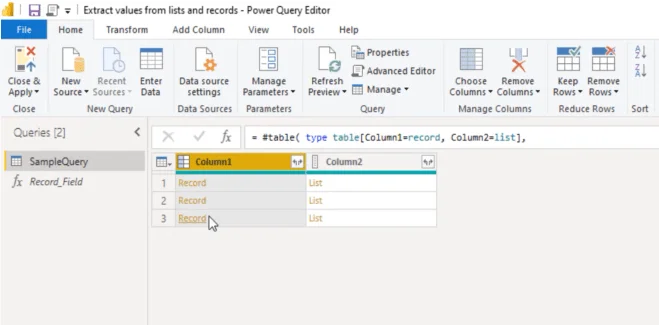
When I click off to the side in the white space, I can see a preview of that record below.
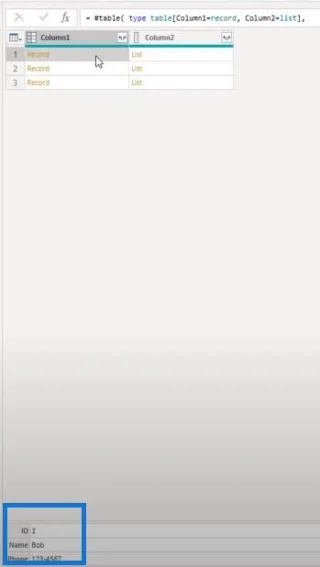
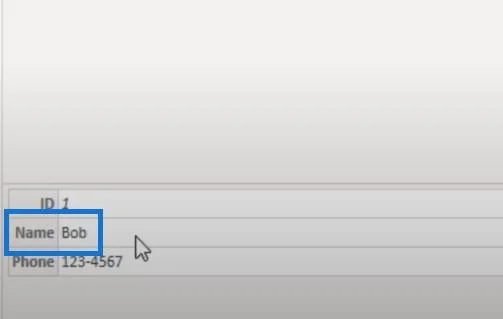
Let’s say I want to extract a single value from this record, and I don’t want to expand the entire record. I just want to retrieve the name.
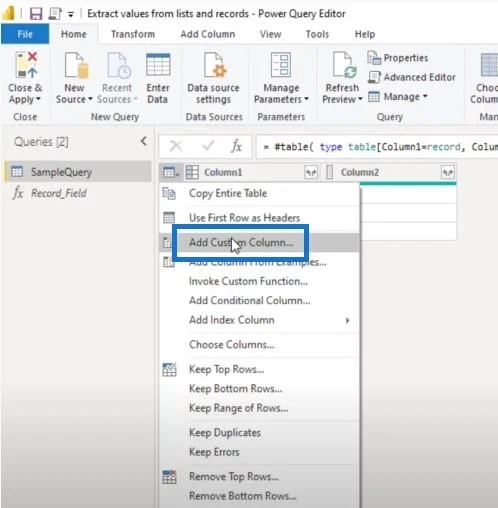
To retrieve a single value from the record, I will use a function called Record. Field. First, we’ll add a custom column.
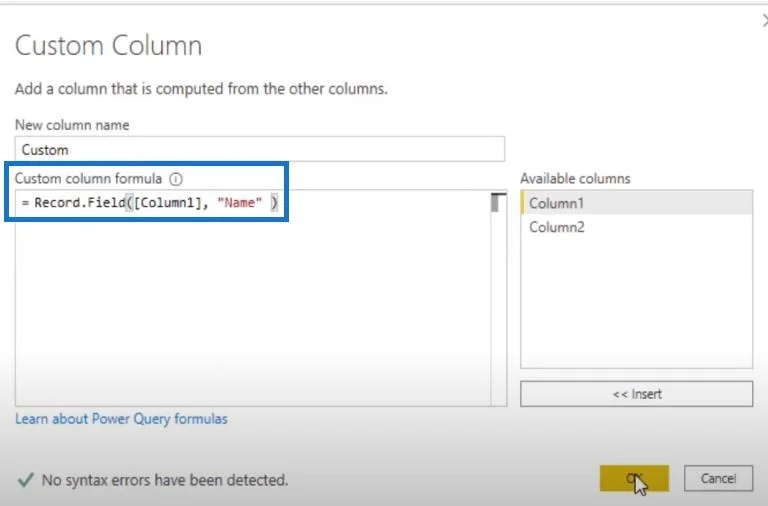
Second, enter the M function then point to Column1 which contains our records and identifies the field that we want to access.
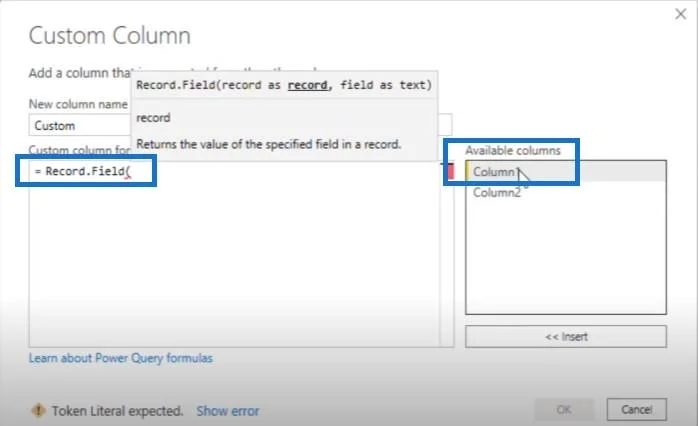
All we have to do is pass its name as a text value. That field was called Name so we’ll add closing parentheses and press OK.
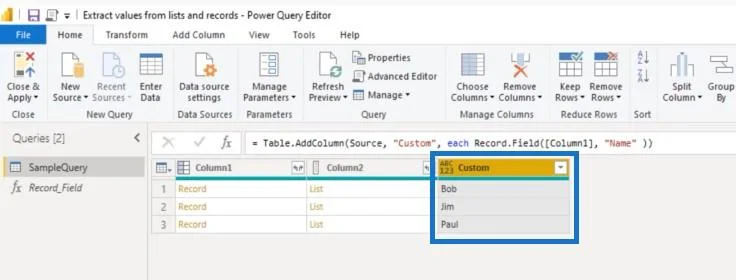
As you can see, we’ve now extracted all those field values.
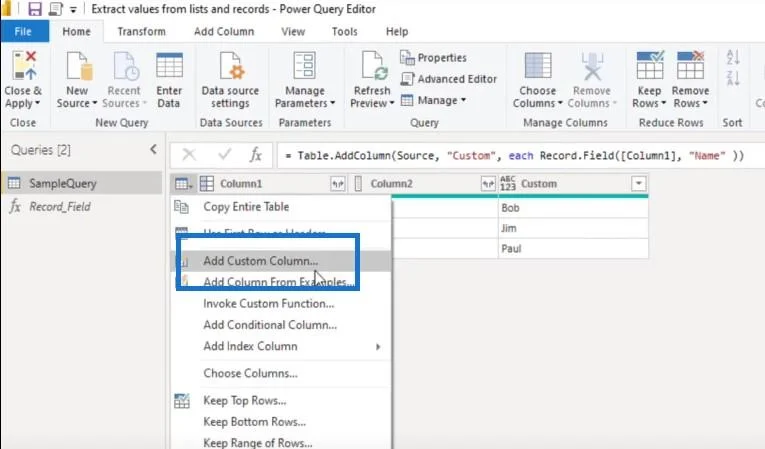
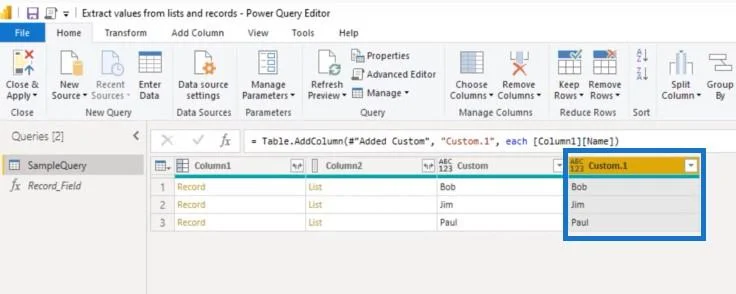
Instead of a function, I can also use a field access operator to select a value from a record. Again, let’s add a custom column.
First, we’ll reference the column containing the record. To access the field, all we need to do is enter the field name inside the square brackets. We’ll write the opening square bracket, the name of the field value that we want to retrieve, the closing square bracket, then press OK.
As you can see, this gets me exactly the same result.
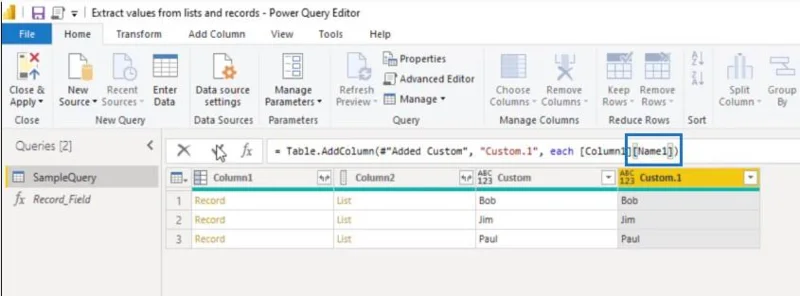
Now, what happens if my field name doesn’t exist? We’ll just change this into Name1 and press OK.
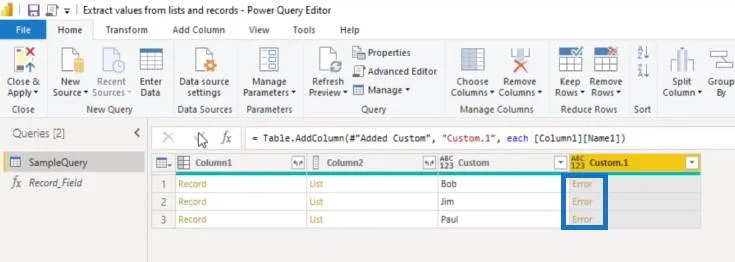
We’re now getting an error.
To avoid that, all we have to do is add a “?” at the end and then press OK.
Basically, we’re now asking if our field name exists and if it doesn’t, we don’t get the error, but get a null value instead.
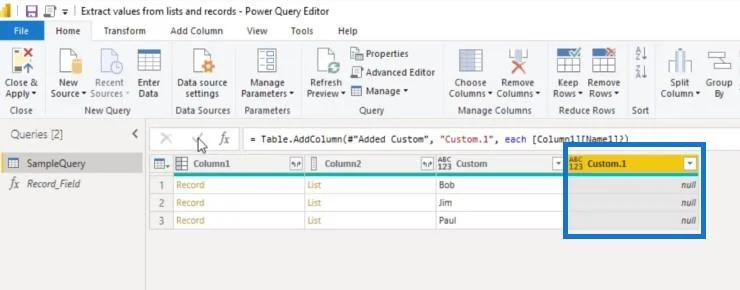
Table of Contents
Extracting A Record Field Value
How can we extract a single record field value if our records are nested inside the list, and again, we don’t want to extract the list and those records first? Well, in that case, we can also use the item access operator to select an item based on its zero-based position within the list. Let’s explore both methods that we used before.
Now, the goal for the first row in the table is to access the first item from the list. The goal for the second row is the second item, and so on.
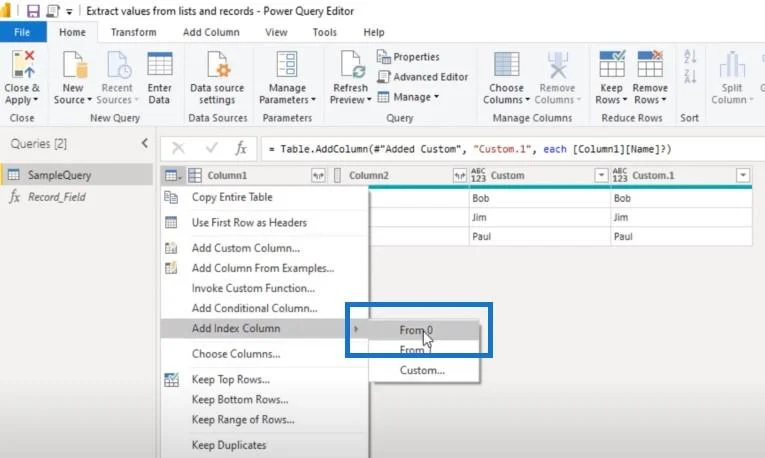
At this time, I don’t have a field in my table to identify the zero-based position of the item that I want to access. However, it’s quite easy to create that helper column. All we need is an index that starts from zero.
Add an index column from zero.
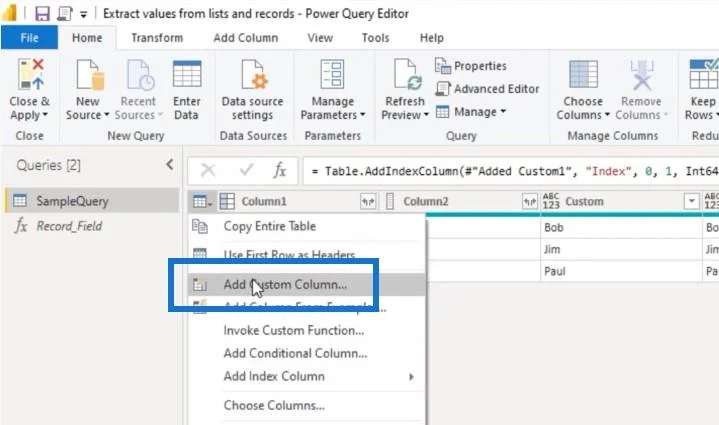
Let’s add a custom column.
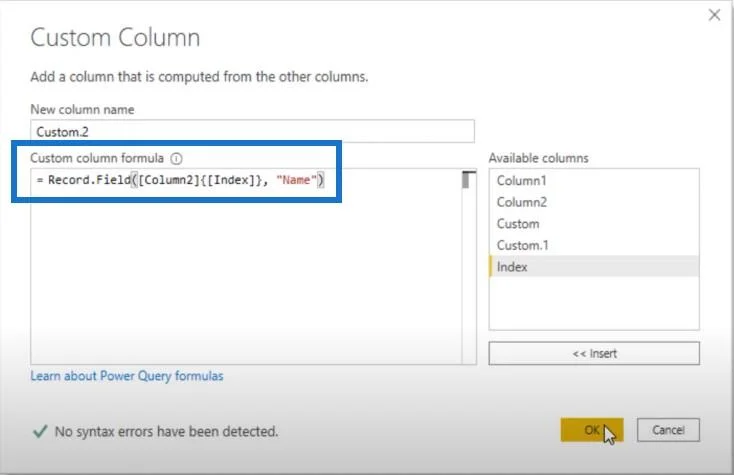
Enter the M function to the column that contains our lists which is Column2. Use curly brackets and pass our index column. Don’t forget the closing curly bracket, comma, and then again, pass the field name as a text value. Type Name, use closing bracket, and press OK.
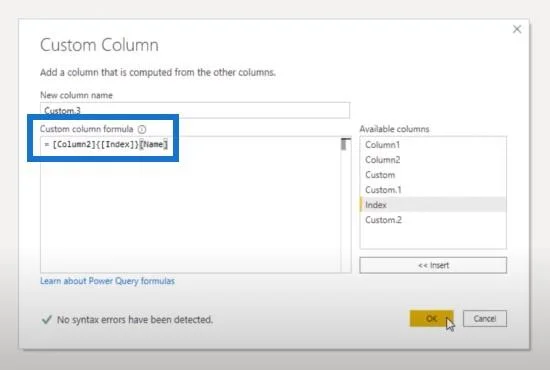
Instead of the function, we can also use that combination of item and field access operators to achieve the same result. So let’s add a custom column, and point to the column that contains the lists, which is Column2.
Inside those curly brackets, we can access the item. We want to access the field called Name.
Conclusion
For this tutorial, we’ve seen two methods on how you can extract values with power query. I hope you’ve enjoyed this one.
Don’t forget to subscribe to the LuckyTemplates TV channel. We have a lot of content coming out from myself and from the LuckyTemplates experts, all dedicated to improving the way that you use LuckyTemplates.
Lastly, check out LuckyTemplates’s website for plenty of resources and further learning that you can access very easily.
Melissa