Continuum 是 Microsoft 在 Windows 10 Mobile 上整合的出色功能之一。此功能可協助使用者像真正的 Windows 10 電腦一樣體驗 Windows 10 手機。
設定完 Continuum 功能後,您可以輕鬆存取「開始」畫面以開啟任何通用 Windows 應用程式。
儘管 Windows 10 行動版上的 Continuum 與 Windows 10 桌面版上的 Continuum 並不完全相同,但仍存在一些共同點。
特別是,Windows 10 Mobile 上的 Continuum 也支援像 Windows 10 版本電腦上的快捷方式,幫助使用者操作變得更輕鬆、更快捷。
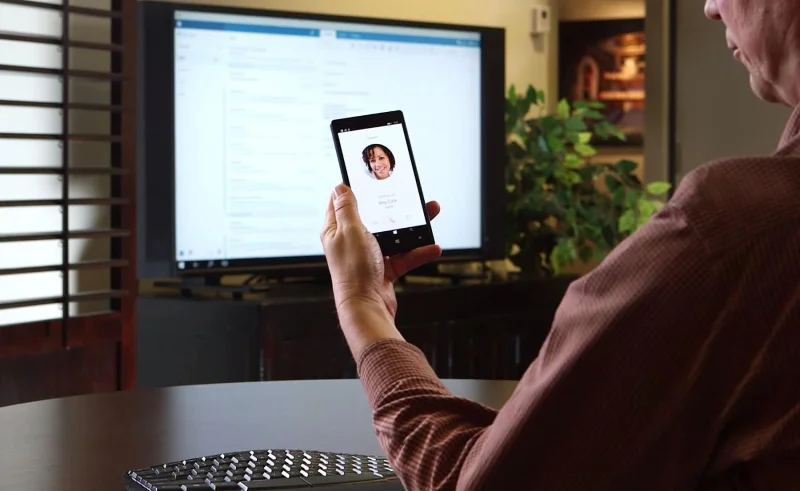
以下是在 Windows 10 Mobile 上使用 Continuum 功能時的 16 個重要快捷鍵:
Windows 鍵:開啟/關閉開始畫面。
Windows + A:開啟操作中心。
Windows + C:在聆聽模式下啟動虛擬助理 Cortana。
Windows + E:開啟檔案總管。
Windows + I:開啟設定。
Windows + K:啟動連線功能。
Windows + L:快速鎖定裝置。
Windows + O:鎖定導覽裝置。
Windows + P:開啟設定顯示。
Windows + S:在搜尋模式下啟動虛擬助理(搜尋模式下的 Cortana)。
Windows + U:開啟輕鬆存取中心。
Windows + Tab:開啟任務檢視。
Windows + 退格鍵:返回。
Windows + 空白鍵:切換輸入語言和鍵盤佈局。
Windows + 列印畫面:截取螢幕截圖。但是,只需使用 Print Screen 鍵即可截取螢幕截圖。
Alt + Tab:在開啟的應用程式之間切換。
您可以參考:
祝您新的一天快樂!