A workshop manager usually notices the maintenance-record problem when something goes wrong: a machine is overdue for service, two technicians use different names for the same asset, a repair is marked “done” but nobody can find the part number, or a breakdown happens and there is no reliable history to review.
The root cause is rarely that Excel is too simple. More often, the workbook was built like a static checklist instead of a maintenance record system. One machine gets one row, service events are squeezed into notes, status names drift, next-due dates are typed inconsistently, and the sheet cannot answer what happened over time.
There is no major 2026 Excel change that requires workshop managers to redesign this basic approach. Microsoft’s current guidance still supports Excel Tables, structured references, data-validation lists, the TODAY() function, and conditional formatting across current Microsoft 365 and supported perpetual Excel versions. Those features are enough to build a dependable small-workshop log when the underlying maintenance program is already defined. See Microsoft Support: Create and format tables, structured references, and drop-down lists.
The important limit is also unchanged: Excel can organize maintenance records and flag dates, but it should not invent service intervals or replace required safety procedures. Service frequency should come from manufacturer instructions, engineering decisions, usage or condition data, and any rules that apply to the equipment.
Why do maintenance spreadsheets become unreliable?
Problem
Why it happens
What fixes it
The same machine has several names
People type free-form descriptions such as “Lathe,” “Lathe 1,” and “Main lathe”
Use one permanent Equipment ID and a controlled equipment register
Service history disappears into notes
One row is used for the machine instead of one row per event
Create one new row for every inspection, service, repair, or calibration
Overdue work is easy to miss
Due dates are stored but not turned into an actionable status
Calculate a due-status field and highlight it with conditional formatting
Filters show duplicate status values
Technicians type “Complete,” “Completed,” “Done,” and other variants
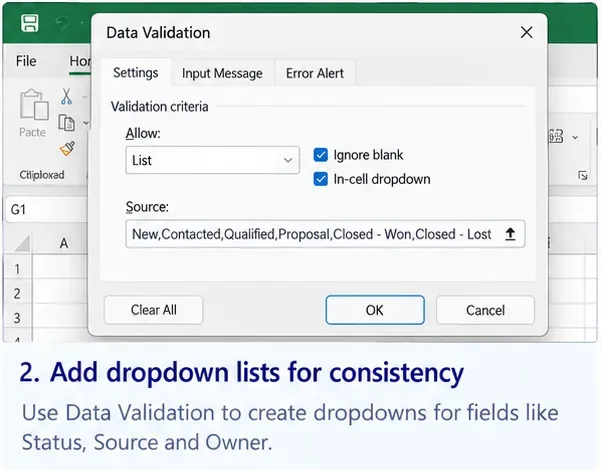
Use Data Validation lists
A completed row has little evidence
The workbook records a status but not findings, technician, parts, or reference documents
Add fields that let a manager trace the work
Step 1: Give every asset a stable identity and record each maintenance event separately
Start with an Equipment Register sheet. Give every machine, tool, vehicle, or other tracked asset a permanent code such as EQ-001. Store relatively stable information there: equipment name, manufacturer, model, serial number, location, responsible area, and the maintenance basis used for that asset.
The main Maintenance Log should work differently. Each row should represent one event. If the air compressor receives an inspection in January, an oil change in March, and a repair in July, that should be three rows—not one row with several dates inside a Notes cell.
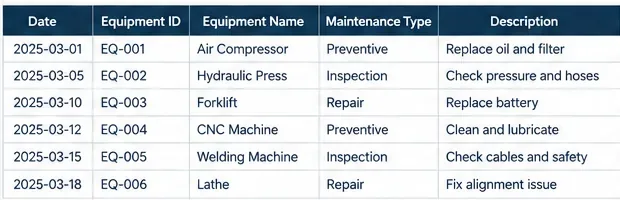
A useful maintenance history starts with a stable equipment ID and one row for each inspection, preventive service, or repair event.
For a simple log, begin with these fields:
Date
Equipment ID
Equipment Name
Maintenance Type
Description / Findings
Technician
Meter, hours, or cycles when relevant
Next Due Date or Next Due Meter
Status
Parts / Cost
Downtime
Notes or supporting-document reference
Convert the log to an Excel Table with Home > Format as Table. Microsoft documents that Excel Tables expand as data is added and support named structured references in formulas. That is preferable to formulas that depend on fixed ranges such as A2:A500.
Use a descriptive table name such as MaintenanceLog. The workbook becomes easier to audit when formulas refer to column names instead of hidden cell coordinates.
Step 2: Standardize due dates and status instead of relying on memory
The easiest improvement after the table structure is to control the fields people type repeatedly. Create a small Lists sheet with approved values for Maintenance Type and Status. Then use Data > Data Validation > List for those columns.
For example, maintenance types might be:
Inspection
Preventive
Repair
Lubrication
Calibration
Safety Check
Other
Status values might be Scheduled, In Progress, Completed, Waiting for Parts, Out of Service, and Canceled. Microsoft notes that list validation makes data entry faster and more consistent by restricting cells to approved choices. See Microsoft’s drop-down list guidance.
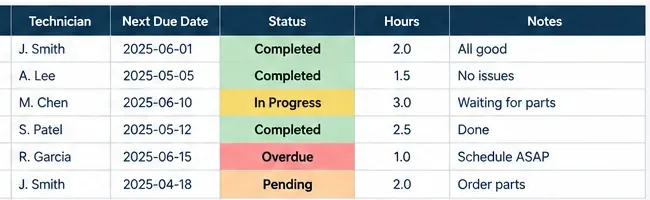
Next-due dates become actionable when they sit beside a controlled status field, responsible technician, service hours, and follow-up notes.
For calendar-based maintenance, add a formula-driven field such as Due Status. A simple Excel Table formula can flag dates against today:
=IF([@[Next Due Date]]="","",
IF([@[Next Due Date]]<TODAY(),"OVERDUE",
IF([@[Next Due Date]]<=TODAY()+7,"DUE SOON","SCHEDULED")))
Microsoft documents that TODAY() returns the current date and is useful for date-interval calculations. See Microsoft Support: TODAY function.
Then apply conditional formatting so overdue work is visually obvious. Microsoft’s current documentation confirms that conditional-formatting rules can be applied to an Excel Table. See Microsoft Support: Use conditional formatting.
Do not use the formula to decide the interval. If a machine is serviced every 500 operating hours, a calendar-only date may be wrong. Store a separate Next Due Meter field and compare it with the current meter reading. The spreadsheet should reflect the maintenance rule that already applies to the asset.
Step 3: Turn open maintenance into a weekly backlog review
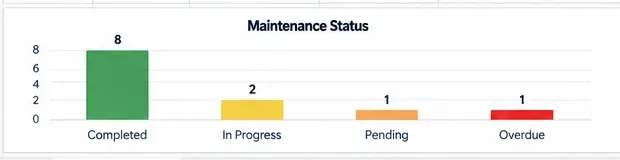
A maintenance log becomes useful to management when it shows what still needs attention. Create a summary that counts open records by status and review it on a fixed cadence—daily in a high-activity shop or weekly in a smaller workshop.
A status summary makes the maintenance backlog visible so overdue and unfinished work does not disappear inside individual rows.
The meeting does not need a complicated dashboard. Ask five questions:
Review question
Manager action
What is overdue?
Confirm whether the equipment can remain in service and assign a completion plan
What is waiting for parts?
Verify parts status, owner, expected arrival, and whether the asset must remain out of service
What is in progress too long?
Check for missing labor, access, contractor support, diagnosis, or authorization
What has no next due value?
Confirm whether the task is one-time, condition-based, or missing required scheduling data
What is marked completed without enough detail?
Fill in findings, technician, meter reading, parts, or supporting reference while the work is still recent
For recurring preventive maintenance, keep the completed historical row. Do not overwrite it with the next task. Create or calculate the next scheduled event separately so you preserve history.
Step 4: Use the history to find repeat work, not just count completed tasks
The harder part is turning the log into information that changes maintenance decisions. Count maintenance by type, asset, cost, downtime, and repeat failure description.
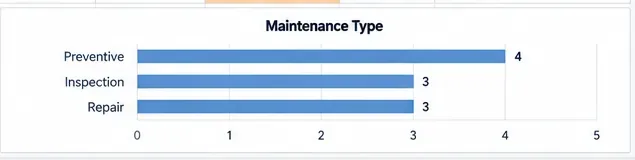
A simple maintenance-type summary helps a manager see whether the log is dominated by planned work, inspections, or corrective repairs.
A repair-heavy chart does not automatically mean the program is poor; some assets or periods genuinely require more corrective work. The value is in asking better questions. Which asset has repeated bearing failures? Which machine consumes the most downtime? Which preventive task repeatedly finds the same defect? Which repair is waiting on the same hard-to-source part?
Add fields only when they support decisions. Useful management fields include:
Downtime hours
Labor hours
Parts cost
External contractor cost
Failure code or problem category
Repeat failure flag
Work-order or invoice reference
If many technicians need simultaneous mobile updates, approvals, automated meter feeds, spare-parts integration, or strict audit trails, the problem may no longer be “how do I improve this Excel sheet?” A CMMS or asset-management system may be the better next step. Excel can still help define the data model before migration.
Where does safety fit into the maintenance log?
Keep a clear boundary between recording maintenance and controlling maintenance hazards.
OSHA’s hazardous-energy standard, 29 CFR 1910.147, covers servicing and maintenance where unexpected energization, startup, or release of stored energy could cause injury. For covered work, employers need an energy-control program, procedures, training, and periodic inspections. The standard also requires certification of the periodic inspection with specified information. See OSHA 29 CFR 1910.147.
So a spreadsheet row that says “Belt replaced — Completed” is not a substitute for a lockout/tagout procedure when that standard applies.
Requirements can also be equipment-specific. For example, OSHA’s forging-machinery rule requires covered forge-shop equipment to receive periodic and regular maintenance safety checks and requires certification records containing the inspection date, the person performing the inspection, and the machine serial number or other identifier. See OSHA 29 CFR 1910.218.
That example should not be copied onto unrelated machines as though one rule applies everywhere. It shows why your Excel template needs flexible fields for equipment ID, inspection date, responsible person, and supporting record references.
How to self-check the workbook before your team relies on it
Use this final audit after you build the template and again after the first few weeks of real use:
Every tracked asset has one unique Equipment ID.
Similar machines cannot be confused by name alone.
Every maintenance event creates a new historical row.
Maintenance Type and Status use controlled values.
Next Due Date is separated from usage-based thresholds when necessary.
Overdue and due-soon work is visible without manually scanning every row.
Completed records identify who performed the work and what was found or done.
Parts, costs, downtime, and supporting references can be recorded when they matter.
Repeat failures can be traced back to the same asset.
Safety procedures and required certification records are maintained separately where applicable.
The workbook is backed up and only appropriate users can edit it.
A manager can answer “What needs attention this week?” in less than a few minutes.
If the last item still requires searching through email, paper forms, or technician memory, the template needs another round of simplification. The goal is not to collect the maximum number of columns. It is to create a maintenance record that stays consistent enough to schedule work, trace history, and surface problems before they are lost in the workshop’s daily activity.