Home
» Tips
»
How to Create a Simple Lead Tracking System in Excel Before Buying a CRM
How to Create a Simple Lead Tracking System in Excel Before Buying a CRM
You do not need to buy a CRM just to learn whether your sales process works. A well-structured Excel workbook can handle the early job surprisingly well: keep one row per lead, standardize stages with dropdowns, record the next follow-up date, filter the list by owner or status, and summarize the pipeline with a PivotTable.
There has not been a recent Excel change that materially alters this approach. Microsoft’s current support documentation, reviewed September 13, 2026, continues to document Excel Tables, Data Validation dropdowns, conditional formatting, filtering, and PivotTables across current supported editions such as Excel for Microsoft 365 and Excel 2024, with many of the same features also available in older supported desktop releases. That makes this a durable system rather than a workaround tied to one Excel build.
The key is to keep the workbook intentionally small. Excel is useful while your main problem is organizing leads and enforcing a repeatable follow-up habit. It becomes the wrong tool when your team needs automated activity capture, record-level permissions, workflow automation, integrated messaging, complex deduplication, or reliable multi-user sales operations. Build the spreadsheet first so you understand what a future CRM actually needs to solve.
What the workbook should contain
Create three worksheets:
Leads: the working list where each lead occupies exactly one row.
Lists: controlled values for Status, Source, and Owner dropdowns.
Dashboard: a small PivotTable summary for pipeline reviews.
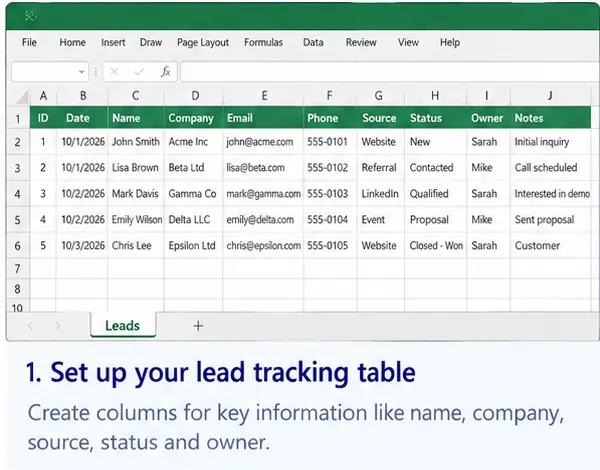
For the Leads sheet, start with these columns:
Column
Purpose
Example
Lead ID
Stable identifier that does not depend on the person’s name
L-0001
Date Added
When the lead entered your pipeline
10/01/2026
Contact Name
Main person you are speaking with
Jordan Lee
Company
Organization name when relevant
Northwind Labs
Email
Primary contact email
jordan@example.com
Phone
Optional contact number
555-0104
Source
Where the lead came from
Referral
Status
Current sales stage
Qualified
Owner
Person responsible for follow-up
Alex
Last Contact
Most recent real interaction
10/03/2026
Next Follow-up
Date the lead needs attention again
10/07/2026
Notes
Short context needed for the next action
Send pricing after demo
Add Estimated Value only if your sales process actually uses it. Do not fill the workbook with fields simply because a commercial CRM has them. Every extra column becomes another field people must maintain.
Start with one row per lead and a small set of fields that directly support qualification and follow-up.
Step 1: Turn the lead list into an Excel Table
Do not leave the tracker as an ordinary loose range. Click anywhere inside the lead data and choose Home > Format as Table, then confirm that the range has headers. Microsoft documents this workflow in its Create and format tables guide.
An Excel Table is useful here for practical reasons: it keeps the dataset rectangular, expands as rows are added, gives each column a stable header, and adds filter controls to the header row. If you later use formulas, tables also support structured references that adjust as the table grows.
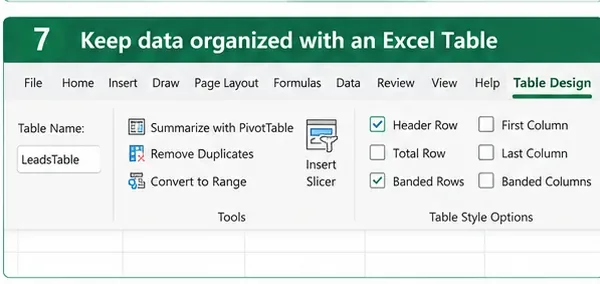
Keeping the lead list as an Excel Table makes filtering, expansion, formulas, and later PivotTable analysis easier to maintain.
Name the table something obvious such as LeadsTable. Avoid merged cells, blank separator rows, subtotals in the middle of the table, and decorative headings above individual columns. The data should behave like a small database table even though it lives in Excel.
Step 2: Create controlled dropdowns for Status, Source, and Owner
In the Lists sheet, create short lists for the fields that should use consistent values. A useful starting Status list is:
New
Contacted
Qualified
Proposal
Won
Lost
Keep the stages aligned to real decisions in your process. If “Demo Scheduled” is operationally important, add it. If your business never sends formal proposals, remove Proposal. The best stage list is the smallest one that tells your team what should happen next.
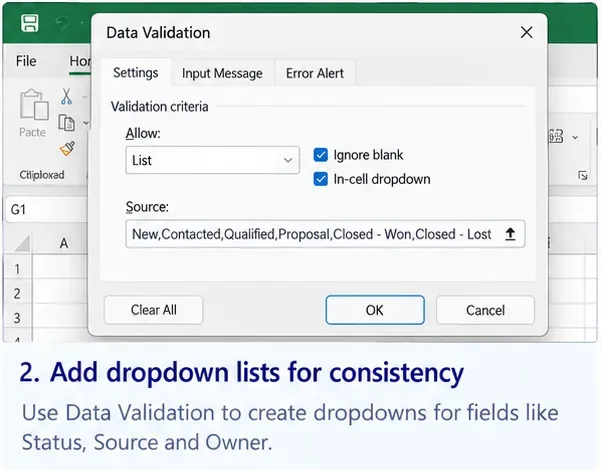
Then select the Status cells in your lead table and use Data > Data Validation. Set Allow to List and use the Status list as the source. Repeat for Source and Owner. Microsoft’s current drop-down list documentation recommends using a list source and notes that putting list items in an Excel Table makes the choices easier to maintain as entries are added or removed.
Use Data Validation dropdowns for fields such as Status, Source, and Owner so one lead is not labeled “Qualified,” another “qualified,” and another “Q.”
Step 3: Make the Next Follow-up date the most important working field
A lead tracker is useful only if it tells you what to do next. That is why Next Follow-up is more valuable than a long Notes field.
After every meaningful interaction, update three things:
Last Contact
Next Follow-up
One short note describing the next action
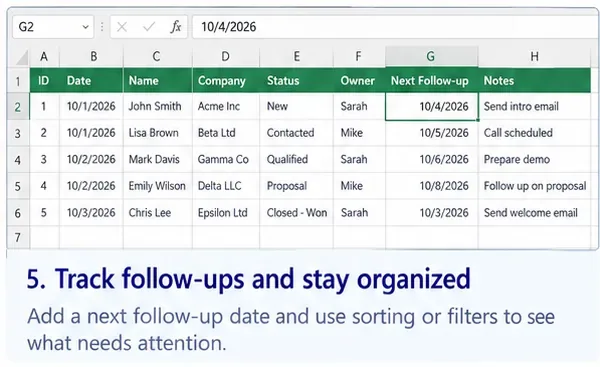
For example, instead of writing “Had a good call,” enter “Send revised pricing Friday” and set Friday as Next Follow-up. That turns the spreadsheet into a work queue rather than a passive contact list.
A dated next action turns the tracker into a daily follow-up queue instead of a static list of contacts.
Optional overdue helper column
If you want a simple warning without adding automation, add an Attention column to the table and use a formula like:
The formula flags open leads whose follow-up date has passed. If your stage names differ, adjust the final two conditions. This is intentionally simple: the goal is to surface neglected leads, not to build workflow software inside Excel.
Step 4: Use conditional formatting to make exceptions visible
Conditional formatting is most useful when it answers a specific question at a glance. Microsoft’s conditional formatting documentation supports rules based on text, dates, values, and formulas.
For a lead tracker, good uses include:
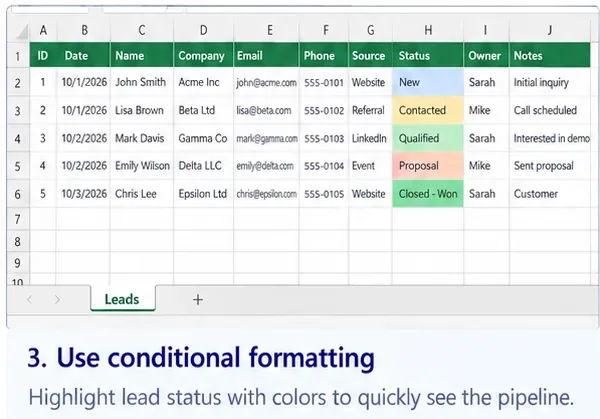
Highlight Status = Won in green and Lost in a muted red or gray.
Highlight OVERDUE in the Attention column.
Highlight a Next Follow-up date that occurs today.
Optionally highlight duplicate email addresses for review before deleting anything.
Avoid coloring every stage with a loud color. If everything is highlighted, nothing stands out. Use color primarily for action: overdue, won, lost, or another state that changes what the salesperson should do.
Conditional formatting can make pipeline status easier to scan, but exception-based rules such as overdue follow-ups are usually more actionable than decorative color alone.
Step 5: Use filters as your daily sales workspace
Because an Excel Table automatically adds filter controls to its headers, you can turn one master list into several temporary views without creating duplicate sheets. Microsoft’s filtering documentation explains that filters hide rows that do not match the selected criteria while leaving the underlying data in place.
Useful daily filters include:
Owner = me to see only your assigned leads.
Status = New or Contacted to focus on early-stage outreach.
Next Follow-up = today or earlier to work the due queue.
Source = Referral to review the quality of one acquisition channel.
Do not copy filtered results into separate “My Leads,” “Hot Leads,” or “This Week” tabs unless there is a strong reporting reason. Multiple copies create conflicting versions of the same lead. Keep one source table and change the view.
Keep headers visible
If the sheet grows beyond one screen, use View > Freeze Panes so the header row stays visible while scrolling. Microsoft documents Freeze Panes as a way to lock rows or columns while moving through another part of the sheet in its Freeze Panes guide.
Step 6: Review duplicates instead of deleting them blindly
Duplicate leads are common when inquiries arrive through more than one channel. Before deleting anything, highlight or filter likely duplicates using Email, Phone, or another stable identifier.
Microsoft’s duplicate-value guidance makes an important distinction: filtering or highlighting duplicates lets you review them, while Remove Duplicates permanently deletes duplicate rows based on the columns you select.
That matters in sales. Two rows with the same email address may represent a true duplicate, two separate opportunities, or two submissions at different times. Review before removing.
Step 7: Build a one-screen pipeline summary with a PivotTable
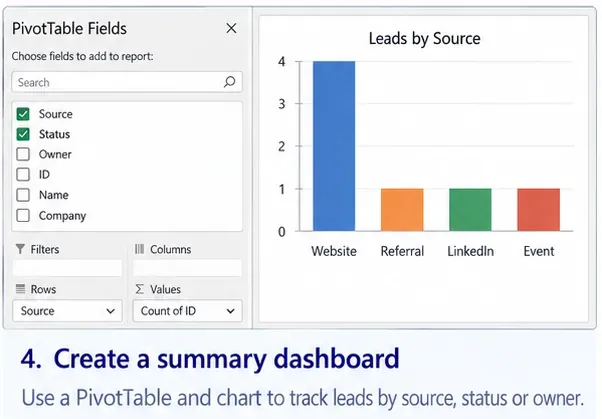
Once the source table is clean, add a PivotTable on the Dashboard sheet. Microsoft describes PivotTables as a tool for calculating, summarizing, and analyzing worksheet data in its PivotTable documentation.
Start with only three summaries:
Leads by Status — Rows: Status; Values: Count of Lead ID.
Leads by Source — Rows: Source; Values: Count of Lead ID.
Leads by Owner — Rows: Owner; Values: Count of Lead ID.
If Estimated Value is consistently maintained, you can also summarize value by Status or Owner. If half the rows are blank or values are guesses, do not put a dollar pipeline chart on the dashboard just because Excel can calculate it.
A small PivotTable dashboard is enough for an early pipeline review: counts by status, source, and owner often reveal more than a large collection of charts.
Step 8: Save, share, and define one operating rule
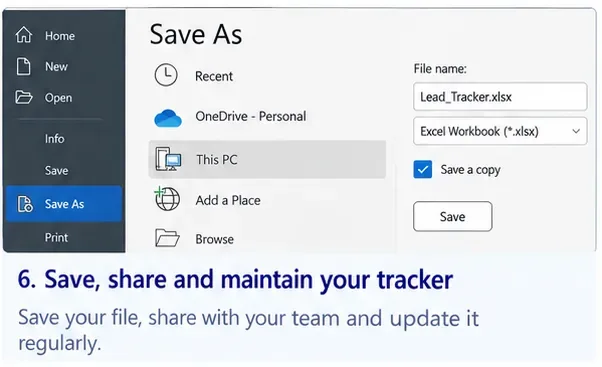
Save the workbook with a clear name such as Lead_Tracker.xlsx. If more than one person edits it, store the workbook in the collaboration location your organization already governs rather than passing separate attachments around. The important rule is that there should be one authoritative copy of the tracker.
Keep one authoritative workbook. Multiple emailed copies quickly create competing versions of the same pipeline.
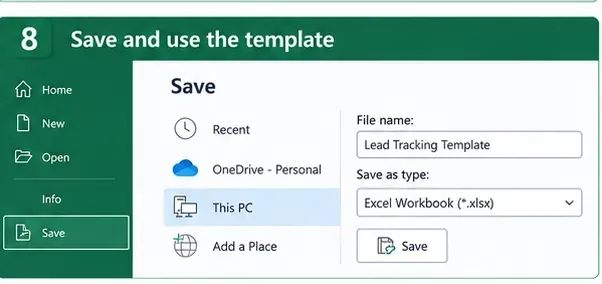
If you want a clean starting point for another team or quarter, save a blank copy after preserving the Lists sheet, table columns, validation rules, and basic dashboard layout.
A reusable template can preserve your field structure and controls, but active leads should continue to live in one working source of truth.
A simple weekly workflow
When
What to do
Every new inquiry
Add one row, assign an owner, set Status to New, and schedule the first follow-up.
After every real interaction
Update Last Contact, Status if needed, Next Follow-up, and the next-action note.
Every morning
Filter to your owner name and due/overdue follow-ups.
Once a week
Review stale leads, duplicates, unassigned owners, missing follow-up dates, and the PivotTable summary.
Once a month
Review lead sources and conversion patterns, then remove fields nobody actually maintains.
When Excel is still enough
Keep the spreadsheet if one authoritative file is easy to maintain, the team can follow a simple ownership rule, and the main task is tracking who the lead is, where they are in the process, and when to follow up. Excel is particularly useful while you are still discovering which stages, fields, and reports your sales process truly needs.
That learning has value. Buying a CRM before defining the process often moves the same ambiguity into a more expensive interface.
When it is time to buy a CRM
Move beyond Excel when the limitations are operational rather than cosmetic. Strong signals include:
Salespeople need automatic email, call, meeting, or message history.
Several people regularly edit the same leads and ownership conflicts are common.
You need automated lead assignment, reminders, sequences, approvals, or stage-triggered workflows.
Different users should have different access to accounts, contacts, or opportunities.
Duplicate detection needs to work across forms, email, imports, and integrations.
Managers need a reliable activity audit trail or standardized forecasting.
The sales team spends more time maintaining the spreadsheet than using it to sell.
At that point, the Excel tracker becomes useful migration documentation. Its columns tell you which CRM fields you actually need; its stage list defines your pipeline; its Source values define acquisition reporting; and its pain points become the requirements you can use to compare CRM products.
Keep the system deliberately boring
A good pre-CRM lead tracker is not an attempt to rebuild Salesforce, Dynamics, HubSpot, or another CRM inside a spreadsheet. It is a disciplined list with controlled inputs, clear ownership, a next action, and a small summary.
If you do only four things, make them these: keep one row per lead, use standardized Status values, assign every active lead to an owner, and require a Next Follow-up date. Those rules create the operating discipline that matters far more than elaborate formulas. When the team outgrows them, you will be able to buy a CRM based on demonstrated needs rather than a feature checklist.