Home
» Tips
»
Simple Inventory Count Sheet Template for Excel: A Retail-Ready Layout That Reconciles Fast
Simple Inventory Count Sheet Template for Excel: A Retail-Ready Layout That Reconciles Fast
The simplest retail inventory count sheet that still catches mistakes
For a small retail store using Excel for physical inventory or cycle counts, the most useful template is not the one with the most columns. It is the one that makes every discrepancy easy to trace. Use one row per SKU per physical location, keep the system quantity separate from the counted quantity, and calculate the variance instead of typing it manually.
A practical core layout is: SKU or barcode, item description, stock location, system quantity, counted quantity, variance, recount quantity, final quantity, counter initials, and notes. If the same SKU appears on a sales floor and in a backroom, give it two rows. That prevents a correct storewide total from hiding a location-level problem.
A retail stock count in progress with a spreadsheet that separates expected quantity, counted quantity, variance, and notes by item and location.
This layout is a good fit when staff can export an item list from a POS or inventory system, count stock manually or with a barcode scanner, and reconcile differences in Excel. It is less suitable when you must track serial numbers, lot numbers, expiration dates, complex warehouse movements, or a formal approval trail. In those cases, a dedicated inventory or warehouse management system is usually a better control layer than a spreadsheet alone.
Recommended Excel inventory count sheet columns
Start with the smallest set of columns that lets someone answer three questions: What should be here?What did we actually count?What needs investigation?
Column
Why it belongs on the sheet
Example
SKU
Stable item identifier used by your POS or catalog.
TSH-BLK-M
Barcode
Useful when the barcode differs from the internal SKU or when staff scan items.
012345678901
Item / Variant
Makes the row human-readable and distinguishes size, color, or pack size.
Classic Tee, Black, M
Location
Separates the same SKU across floor, backroom, display, or bin locations.
Backroom A1
System Qty
The quantity from the inventory system at the count snapshot time.
50
Counted Qty
The first physical count entered by staff.
48
Variance
Calculated difference between the physical count and the system quantity.
-2
Recount Qty
Optional second count when a discrepancy needs verification.
49
Final Qty
The quantity you accept after the first count or a recount.
49
Counter
Initials or employee ID for accountability and follow-up.
RM
Status
Simple workflow field such as OK, Recount, or Reviewed.
Reviewed
Notes
Explains damaged goods, misplaced stock, open cartons, or other exceptions.
1 unit found on display
If your main goal is a fast store count, stop there. Add Unit Cost and Variance Value only when managers need to prioritize discrepancies by financial impact. Add batch, lot, expiry, or serial fields only if those attributes are genuinely part of your stock-control process.
Formulas that make the sheet safer than manual arithmetic
The sheet should calculate the values that people are most likely to mistype. In a regular cell range, if System Qty is in E2 and Counted Qty is in F2, the basic variance formula is =F2-E2. A negative result means the physical count is lower than the system balance; a positive result means it is higher.
If you format the range as an Excel table, formulas can use structured references instead of fixed cell addresses. Microsoft documents that table and column names can be used in formulas and that structured references adjust as rows are added or removed. See Microsoft Support: Using structured references with Excel tables.
Shows the value impact of the accepted quantity difference.
For teams that edit the workbook directly, turning the range into an Excel table also makes filtering and expansion easier. Microsoft’s current support documentation, checked September 13, 2026, describes table formatting for Microsoft 365 and current supported perpetual Excel versions. See Microsoft Support: Create and format tables.
Should counters see the system quantity?
It depends on what you are trying to optimize. Showing System Qty makes counting faster because staff can immediately notice an unexpected result. Hiding it creates a blind count, which reduces the temptation to “count toward” the expected number.
For a routine cycle count in a small shop, visible system quantities may be perfectly reasonable. For a high-value, year-end, or discrepancy-focused count, consider hiding System Qty from the counter view and revealing it only during reconciliation. If you do this, keep the original snapshot in a separate protected or read-only worksheet rather than deleting it.
Make data entry hard to get wrong
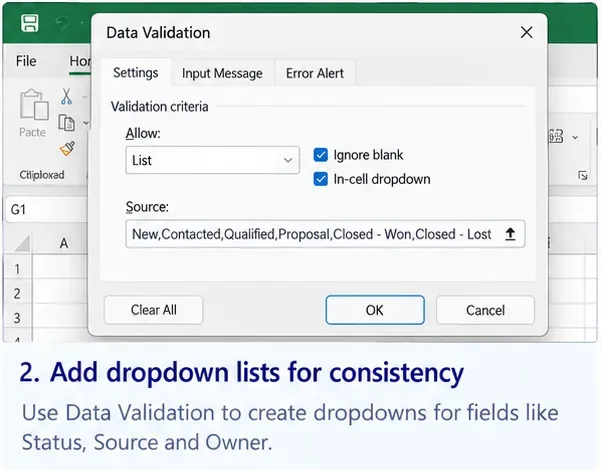
Use data validation for fields with a small permitted set of values, such as Status or Location. Microsoft states that Excel data validation can restrict the type or values users enter in cells. A Status drop-down with values such as OK, Recount, and Reviewed is easier to filter than free-text variants such as “done,” “checked,” and “verified.” See Microsoft Support: More on data validation.
Conditional formatting is also useful for exception scanning. Instead of coloring the whole workbook, apply a focused rule to Variance or Status so nonzero discrepancies stand out. Microsoft’s official guide confirms that conditional formatting can apply value-based rules to ranges and Excel tables. See Microsoft Support: Use conditional formatting to highlight information in Excel.
A retail-ready example
Suppose a clothing store has 50 medium black T-shirts in its POS system. The first count finds 48. The variance is -2, so the row is marked Recount. A second employee finds 49 because one shirt was hanging on a promotional display. The Final Qty becomes 49, the accepted variance becomes -1, and the note records where the additional unit was found.
That example shows why the sheet should preserve both the first count and the recount. If someone simply overwrites 48 with 49, you lose a useful trace of what happened and cannot tell whether the discrepancy was resolved through a second count or by changing the original entry.
Store-level information belongs above the table, not repeated on every row
Put count metadata in a compact header area: Store, Count Date, Count Batch, Snapshot Time, Zone, and Count Supervisor. This keeps the item table clean. The Snapshot Time matters because a count only makes sense relative to a specific system balance. If sales or receiving continue during the count, record the cutoff or timestamp so later reconciliation can distinguish stock movement from a counting error.
For a multi-store workbook, either use a Store column inside one master table or keep one clearly named sheet per store. One master table is usually easier to filter and summarize, while separate sheets can be simpler for local teams printing and counting independently. Avoid mixing both approaches in the same workbook unless you have a clear consolidation process.
Set up the sheet for scrolling and printing
Long retail lists are easier to use when the identifying columns and headers remain visible. Excel can freeze rows above and columns to the left of a selected cell, which is useful for keeping SKU and item information on screen during a long count. See Microsoft Support: Freeze panes to lock rows and columns.
If the sheet will be printed, repeat the column header row on every page so counters do not have to guess what each column means. Microsoft documents the Print Titles option for repeating specific rows or columns on printed pages. See Microsoft Support: Repeat specific rows or columns on every printed page.
Common mistakes to avoid
One row per SKU but not per location: this hides misplaced stock when the storewide total happens to be correct.
Typing variance manually: let Excel calculate it so the logic stays consistent.
Overwriting the first count: keep a separate Recount Qty field for exceptions.
No count snapshot: without a cutoff or timestamp, sales and receipts can look like count errors.
Free-text statuses: use a short controlled list so filtering remains reliable.
Too many columns: every extra field slows counting. Include only fields that drive identification, reconciliation, or accountability.
Sorting only part of the sheet: keep the count area as one table so item identifiers and quantities stay on the same rows.
When this Excel template is enough—and when it is not
Situation
Excel count sheet fit
Why
Single retail store with periodic counts
Good fit
Simple item, location, count, and variance workflow is easy to review.
Cycle counting selected categories or zones
Good fit
Filters and status fields make exception lists manageable.
Several staff counting independent store zones
Good fit with coordination
Assign zones clearly and avoid simultaneous edits to the same rows unless your workbook workflow is controlled.
Multiple warehouses with constant transfers
Limited fit
Movement timing and concurrent updates become harder to reconcile safely in a standalone sheet.
Serial-, lot-, or expiry-controlled inventory
Usually not enough by itself
Those controls often need transaction history and item-level traceability beyond a simple count sheet.
Formal approval and audit-log requirements
Use a system with stronger workflow controls
A spreadsheet can document a count, but it may not provide the governance your process requires.
Quick template checklist
One row per SKU per location.
System Qty and Counted Qty are separate.
Variance is calculated, not typed.
Recount Qty is separate from the first count.
Final Qty uses the recount only when one exists.
Status uses a controlled list.
Count date, store, zone, and system snapshot time are recorded.
Headers stay visible on screen and repeat on printed pages when needed.
Nonzero variances are easy to filter or highlight.
Original source quantities are preserved for reconciliation.
Bottom line
A simple inventory count sheet for Excel works best when it behaves like a controlled reconciliation form, not just a blank list of products. Keep identification fields on the left, count inputs in the middle, and exception fields on the right. Preserve the original system quantity, make variance automatic, and use a separate recount field so every adjustment has context.
For a typical retail store, that structure is simple enough for staff to use during a stocktake yet detailed enough for a manager to review discrepancies afterward. If your process depends on serial tracking, continuous multi-location movement, or formal approvals, treat the spreadsheet as a temporary count aid rather than the system of record.