Home
» Tips
»
Free Employee Shift Schedule Template for Excel with Automatic Hours Calculator
Free Employee Shift Schedule Template for Excel with Automatic Hours Calculator
The most useful version of an employee shift schedule is not just a weekly grid with names. It should also calculate paid hours reliably, handle overnight shifts, show weekly totals by employee, and make it obvious when the spreadsheet is being used for planning rather than payroll. The template structure below is designed for exactly that.
It works best for small and midsize teams that schedule employees by the shift: retail stores, restaurants, clinics, warehouses, service businesses, support teams, and similar operations. It is less suitable when you need live clock-in data, complex union rules, multiple pay premiums, split-shift compliance, automated staffing forecasts, or payroll integration. In those cases, a dedicated workforce-management system is usually a better fit.
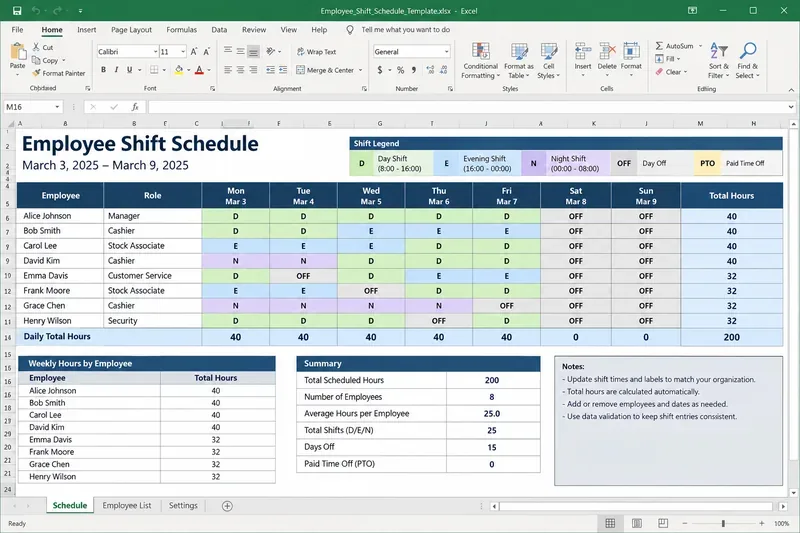
A weekly employee shift schedule can combine visible staffing assignments with calculated hours, employee totals, and simple schedule summaries in one Excel workbook.
The template at a glance
Use one row per shift rather than one cell per employee-day if you want the hours calculator to stay accurate. A row-based layout handles employees who work two shifts in one day, overnight shifts, different break lengths, and multiple roles more cleanly than a purely visual calendar grid.
Column
Purpose
Example
Date
Shift date
3/3/2025
Employee
Employee name or ID
Jordan Lee
Role
Scheduled job or station
Cashier
Start
Shift start time
9:00 AM
End
Shift end time
5:30 PM
Unpaid Break (min)
Minutes to deduct
30
Paid Hours
Calculated result
8.00
Shift Type
Optional label
Day
Notes
Coverage or assignment notes
Front register
That structure is deliberately simple. You can paste these headers into Excel, convert the range to a table, and let formulas fill down automatically as rows are added. Microsoft documents that Excel tables can use structured references and automatically extend calculated columns as table data changes. See Microsoft's guide to structured references in Excel tables.
The hours formula to use
If your Start time is in D2, End is in E2, and Unpaid Break (min) is in F2, this formula calculates paid decimal hours and also handles a shift that crosses midnight:
Why it works: Excel stores times as fractions of a day. Microsoft recommends subtracting one time from another to calculate elapsed time. Multiplying the result by 24 converts that fraction to decimal hours. The MOD portion keeps an overnight shift such as 10:00 PM to 6:00 AM from becoming a negative duration. Microsoft documents time subtraction in Calculate the difference between two times in Excel.
Example: ordinary day shift
Suppose Jordan works from 9:00 AM to 5:30 PM with a 30-minute unpaid break.
Start
End
Break
Paid Hours
9:00 AM
5:30 PM
30 min
8.00
The elapsed time is 8.5 hours. Subtracting 0.5 hour for the break gives 8.0 paid hours.
Example: overnight shift
Now suppose Casey works from 10:00 PM to 6:00 AM with a 30-minute unpaid break. A simple =(E2-D2)*24 formula can produce a negative result because the end time appears earlier on the clock than the start time. The MOD-based formula correctly treats it as an 8-hour overnight span before subtracting the break, leaving 7.5 paid hours.
Start
End
Break
Paid Hours
10:00 PM
6:00 AM
30 min
7.50
When not to use the MOD formula
If a shift can last 24 hours or longer, or if you schedule work across multiple calendar days, store full date-and-time values instead of time-only values. Then use:
=IF(OR(D2="",E2=""),"",MAX(0,(E2-D2)*24-F2/60))
In that version, D2 might contain 3/3/2025 10:00 PM and E2 might contain 3/4/2025 6:00 AM. Microsoft also recommends using full dates and times when calculating elapsed time across dates. That approach removes ambiguity and is the safer choice for long shifts or multi-day work.
How to total hours by employee for the week
Assume your schedule data uses column A for Date, B for Employee, and G for Paid Hours. Put the week-start date in K1 and an employee name in K2. Then use:
This totals only the Paid Hours rows that match the employee and fall within the seven-day period beginning in K1. Microsoft describes SUMIFS as the function for summing values that meet multiple criteria, which makes it a good match for weekly employee totals. See Microsoft's SUMIFS guidance.
If your schedule is always exactly one week and each employee occupies one row in a separate weekly summary, you can use simpler SUM formulas. Microsoft notes that SUM is preferable to manually adding many cell references because it is easier to maintain and less prone to typing mistakes. See Microsoft's SUM function documentation.
A useful weekly summary
A good workbook should answer three questions without forcing a manager to inspect every row:
How many hours is each employee scheduled this week?
How many total labor hours are scheduled?
Which employees are near or above the threshold you use for review?
A simple summary sheet can contain Employee, Scheduled Hours, Regular-Hour Planning Bucket, and Overtime-Review Hours. For a U.S. team, a planning formula might be:
These formulas are useful as a scheduling flag, but they should not be treated as a payroll decision engine. Under the U.S. Fair Labor Standards Act, covered nonexempt employees generally receive overtime after more than 40 hours worked in a workweek, but exemptions and other rules can apply, and state or local law may impose additional requirements. The U.S. Department of Labor explains the federal baseline in Fact Sheet #23 on overtime pay.
Just as important, scheduled hours are not necessarily the same as hours actually worked. The Department of Labor's Fact Sheet #22 on hours worked explains that compensation depends on actual compensable work time. Use the spreadsheet to plan staffing; use your approved timekeeping and payroll process to determine payable hours.
What a good result should look like
The template is working well when the schedule passes a few practical checks.
Check
Good result
If it fails
Day shift
9:00 AM–5:30 PM minus 30 minutes returns 8.00
Confirm Start and End are real Excel times, not text
Overnight shift
10:00 PM–6:00 AM minus 30 minutes returns 7.50
Use the MOD formula for time-only entries
Blank row
Paid Hours stays blank
Add the IF blank check to the formula
Break deduction
30 minutes reduces hours by 0.50
Check whether break is stored in minutes or decimal hours
Weekly total
Employee total equals the sum of that week's shift rows
Check date criteria and employee spelling
Added row
Formula fills automatically in an Excel table
Convert the schedule range to a table or copy the formula down
Run these checks before you trust the sheet with a real schedule. A spreadsheet that looks polished but miscalculates overnight shifts is worse than a plain sheet that has been tested.
Recommended workbook structure
Sheet 1: Schedule
Keep the row-based shift table here. Add filters so a manager can view one employee, role, department, or date range. Convert the range to an Excel table so new rows inherit formulas and formatting.
Sheet 2: Weekly Summary
List employees once, calculate their scheduled hours with SUMIFS, and optionally add review flags. Keep this sheet focused on decisions, not data entry.
Sheet 3: Lists
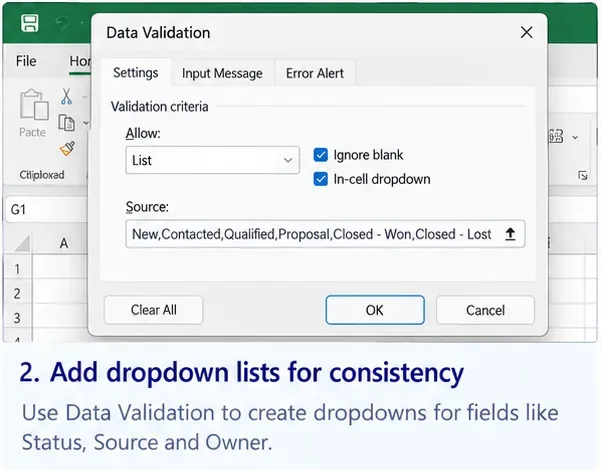
Store approved employee names, roles, departments, and shift labels in one place. Those lists can support data validation, which helps reduce spelling variations such as “Front Desk,” “Front desk,” and “FrontDesk” that would otherwise break summary formulas.
When this Excel template is a good fit
Use this approach when you have a manageable number of employees, schedule in weekly blocks, and mainly need visibility plus reliable hour totals. It is especially useful when managers already use Excel and want something they can inspect without learning a new scheduling platform.
It is also a good fit when the schedule changes occasionally but not constantly. A manager can edit one row, and the hours summary updates immediately.
When to move beyond Excel
Switch to specialized scheduling or workforce software when the spreadsheet becomes the source of recurring errors or manual work. Warning signs include:
multiple locations with managers editing different copies;
frequent last-minute swaps that are hard to reconcile;
automated labor-law rules or break enforcement are required;
employees need self-service availability and shift bidding;
you need time-clock data, payroll export, or audit trails;
staffing must be optimized against demand forecasts;
you spend more time maintaining formulas than scheduling people.
The spreadsheet should make scheduling simpler. Once it becomes a coordination system, payroll system, compliance engine, and communication tool all at once, its simplicity has usually been lost.
Small improvements that make the template safer
Use real Excel time values. Enter 9:00 AM, not text such as 9am shift.
Store breaks in one unit. Minutes are easy for managers to enter; the formula can divide by 60.
Lock formula columns. If the workbook is shared widely, protect Paid Hours and summary formulas from accidental edits.
Use one employee spelling. Data validation or an employee ID reduces broken totals.
Keep scheduled and actual hours separate. Do not overwrite the schedule with payroll data unless that is an intentional workflow.
Test overnight work explicitly. It is one of the easiest places for a time spreadsheet to fail.
Keep a clean master copy. Duplicate it for each scheduling period rather than repeatedly editing an old week full of hidden assumptions.
A final example
Imagine a five-person support team. Alex works 8:00 AM–4:30 PM with a 30-minute break Monday through Friday. The calculator returns 8 hours per day and 40 hours for the week. Morgan works two 12:00 PM–8:00 PM shifts, two 2:00 PM–10:00 PM shifts, and one 10:00 PM–6:00 AM shift, each with a 30-minute unpaid break. The same row-based template can calculate every shift consistently, including the overnight shift, while the weekly summary rolls the results into one employee total.
That is the main advantage of this design: the schedule remains easy to read, but the hours are calculated from the underlying start, end, and break values instead of from manually typed totals. You can see both the staffing plan and the math behind it.