A printable event planning checklist and budget template is useful only if it produces a result you can trust. By the time planning is complete, you should be able to answer five questions without searching through email threads: What still needs to be done? Who owns it? When is it due? What has the event actually cost? What could still prevent the event from running as planned?
This article gives you a copy-ready structure for Microsoft Word. It is designed for small to medium events where a printable planning document is more useful than a complex project system. The goal is not to promise that one checklist fits every wedding, conference, fundraiser, launch, or community event. Instead, the template shows what a good outcome looks like, how to review it, and when Word is no longer the right tool.
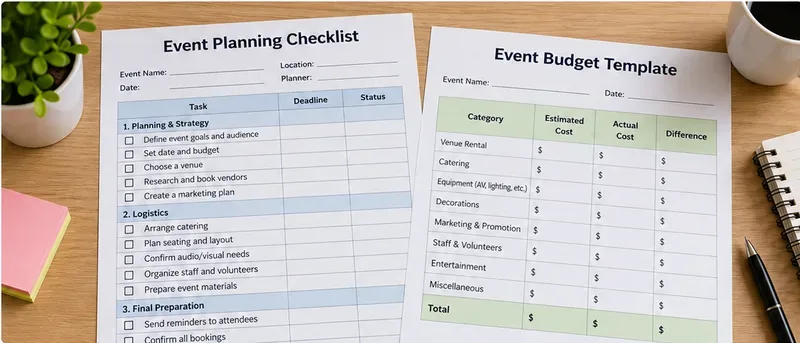
Example printable layout pairing a task checklist with a simple event budget table; the values and task names are illustrative placeholders that should be replaced for the actual event.
What should a good event planning template achieve?
A strong planning document should reduce ambiguity, not merely collect tasks. Before you use any template, define the quality signals you expect at the end of the process.
| Planning area | Good result | Warning sign |
|---|
| Tasks | Every important task has an owner, due date, and status | Tasks say “handle catering” or “confirm AV” with no accountable person |
| Budget | Estimated and actual costs are visible, with unresolved quotes or commitments clearly marked | The total looks precise but several vendors are still unconfirmed |
| Vendors | Contract status, deposit status, final due date, and contact person are recorded | Vendor information is scattered across inboxes and text messages |
| Event-day readiness | Critical dependencies have a final confirmation and backup action | “Done” is checked even though delivery time, access, or responsible person is unknown |
| Printability | Tables remain legible and headers repeat across pages | Rows break awkwardly or nobody can tell which column is which on page 2 |
Use these as acceptance criteria. If your document cannot answer the planning question clearly, add or change a field instead of simply adding more prose.
Copy-ready event planning checklist for Word
The checklist below works well as a Word table because it keeps operational responsibility visible. For a short event, one page may be enough. For a larger event, divide the checklist by phase so each section remains readable when printed.
| Phase | Task | Owner | Due Date | Status | Dependency / Notes |
|---|
| Strategy | Define event objective and success criteria | | | Not Started | |
| Strategy | Confirm target audience and expected attendance | | | Not Started | |
| Strategy | Approve working budget and contingency amount | | | Not Started | |
| Venue | Shortlist and inspect venue options | | | Not Started | |
| Venue | Confirm contract, access times, capacity, and restrictions | | | Not Started | |
| Guests | Build guest or attendee list | | | Not Started | |
| Guests | Send invitations or registration link | | | Not Started | |
| Guests | Track RSVPs, dietary needs, and accessibility requests | | | Not Started | |
| Vendors | Confirm catering scope, headcount date, and final payment | | | Not Started | |
| Vendors | Confirm audio/visual, staging, furniture, decor, or rentals | | | Not Started | |
| Program | Finalize agenda, speakers, performers, or activities | | | Not Started | |
| Program | Collect presentations, media, scripts, and cue notes | | | Not Started | |
| Logistics | Build floor plan, seating plan, signage, and wayfinding | | | Not Started | |
| Logistics | Confirm loading, parking, transportation, and delivery windows | | | Not Started | |
| Staffing | Assign registration, guest support, stage, vendor, and emergency roles | | | Not Started | |
| Final Review | Run final vendor confirmations | | | Not Started | |
| Final Review | Complete venue walkthrough and issue list | | | Not Started | |
| Event Day | Confirm setup complete before guest arrival | | | Not Started | |
| Event Day | Record incidents, changes, and unresolved follow-up | | | Not Started | |
| Closeout | Reconcile invoices, deposits, refunds, and remaining balances | | | Not Started | |
| Closeout | Document lessons learned and reusable vendor notes | | | Not Started | |
Quality check: a task is not ready to be marked complete if the next person still needs to ask who owns it, when it happens, or what confirmation proves it is done. For example, “Book venue” is weaker than “Signed venue contract stored; deposit paid; load-in window confirmed.”
Copy-ready event budget template for Word
A budget should distinguish an estimate from a real obligation. A quote, signed contract, paid invoice, and projected amount are not the same thing. For a straightforward event, use a Word table like this:
| Category | Estimated | Committed / Quoted | Actual / Paid | Variance | Status / Notes |
|---|
| Venue | | | | | |
| Catering | | | | | |
| Beverages | | | | | |
| Audio / Visual | | | | | |
| Furniture / Rentals | | | | | |
| Decor / Floral | | | | | |
| Entertainment / Speakers | | | | | |
| Printing / Signage | | | | | |
| Marketing / Promotion | | | | | |
| Staff / Security | | | | | |
| Transportation / Parking | | | | | |
| Permits / Insurance | | | | | |
| Contingency / Other | | | | | |
| Total | | | | | |
Quality check: the total should never hide uncertainty. If three major vendors are still estimated, label them as estimates. A $25,000 “total” with $10,000 of unconfirmed costs is not equivalent to $25,000 of contracted obligations.
Can Word calculate the budget automatically?
Yes, within limits. Microsoft currently supports formulas inside Word tables. The Formula command is under Table Layout > Data, and Word supports functions such as SUM, AVERAGE, COUNT, MIN, MAX, and PRODUCT. A total cell can use a formula such as =SUM(ABOVE). Microsoft also notes that Word formulas are field codes: they calculate when inserted and when the document opens, and you can manually refresh a table by selecting it and pressing F9. See Microsoft Support: Use a formula in a Word table.
This creates an important tradeoff. Word is good for a printable planning packet, but it is not a spreadsheet calculation engine. If your budget changes frequently, contains many line items, needs tax formulas, multiple scenarios, purchase-order tracking, or complex variance analysis, an Excel budget linked to or summarized in the Word planning document is usually easier to maintain.
When to change approach: if you are repeatedly pressing F9, manually repairing formulas, or copying dozens of transaction rows into Word, move the detailed budget to Excel and keep only the approved summary in Word.
Use status values that reveal risk, not vague progress percentages
“80% complete” can sound precise without telling anyone what is still blocked. A small set of operational statuses is usually more useful:
- Not Started: no meaningful work completed.
- In Progress: someone is actively working on it.
- Waiting: blocked by a vendor, approver, guest response, payment, permit, or another dependency.
- Ready for Review: work is complete but needs approval or verification.
- Complete: the agreed completion evidence exists.
For high-risk tasks, add a Fallback note. If the keynote speaker cancels, the venue load-in is delayed, or the weather changes an outdoor setup, the checklist should point to the next action rather than simply show a red status.
Make the printed checklist readable on page 2, page 3, and beyond
Long event plans often span several pages. Microsoft Word can automatically repeat a table's header row on subsequent pages through Table Layout > Repeat Header Rows. Microsoft notes that repeated headers appear in Print Layout and when printing, and that they work with automatic page breaks rather than manual page breaks inserted inside the table. See Microsoft Support: Repeat table header on subsequent pages.
For a wide checklist with Owner, Due Date, Status, and Notes columns, landscape orientation can be easier to read. Microsoft documents Layout > Orientation > Landscape for desktop Word. See Print with landscape orientation in Word.
Quality check: print preview the document before distributing it. If the font has to be extremely small to keep everything on one page, use two pages rather than sacrificing readability.
Save the structure as a reusable Word template
If you plan events repeatedly, do not keep copying the last event and deleting old content. Microsoft supports saving a reusable Word document as a Word Template. On Windows, use File > Save As and select the template file type; on Mac, Microsoft documents the .dotx format for a standard Word template. See Microsoft Support: Create a template.
Keep fixed content in the template: phase headings, task fields, status definitions, budget categories, footer information, and review sections. Keep event-specific names, dates, vendor amounts, and attendee data in the working copy.
Quality check: open the template as a new document and confirm that no private information, old prices, or previous vendor names remain.
Export a PDF for distribution, but keep Word as the editable source
Microsoft Office can save Word documents as PDF without an extra add-in. Microsoft recommends PDF when you want a file that preserves its layout for viewing or printing across systems. It also notes that PDF is not an absolute editing lock—Word and other programs can open and edit PDF files. See Microsoft Support: Save or convert to PDF.
A practical workflow is:
- Maintain the master template in Word.
- Create an event-specific Word copy.
- Update checklist and budget during planning.
- Run a final review and update Word table formulas with F9 if used.
- Use File > Print to preview pagination and readability.
- Export a PDF snapshot for vendors, staff, or event-day printing.
Microsoft's current Word printing guidance recommends previewing the document before printing. See Print a document in Word.
When is Word enough, and when should you use another tool?
| Situation | Word remains a good fit | Consider another tool |
|---|
| Task volume | Dozens of clearly owned tasks | Hundreds of interdependent tasks across teams |
| Budget | Simple category totals and a few revisions | Many transactions, forecasts, scenarios, taxes, or purchase orders |
| Collaboration | Small team with one clear document owner | Many people updating tasks simultaneously |
| Dependencies | Dependencies can be written in a Notes column | Critical path, automated reminders, or dependency logic is required |
| Reporting | A printable status packet is the main output | Live dashboards and portfolio reporting are needed |
There is no universal task count at which Word becomes “wrong.” The signal is operational friction. If people are creating side spreadsheets, separate chat reminders, duplicated vendor lists, and competing copies of the document, the planning process has outgrown a single Word file.
Final event planning quality checklist
- The objective and success criteria are written at the top of the plan.
- Every important task has one accountable owner.
- Every time-sensitive task has a due date.
- Waiting or blocked tasks identify the dependency.
- Major vendor commitments show contract and payment status.
- Budget rows distinguish estimates, commitments, and actual payments.
- Unknown costs remain visibly unknown rather than being hidden inside a confident total.
- Critical event-day tasks have a fallback or escalation path.
- Table headers repeat on printed continuation pages.
- Word formulas, if used, have been refreshed and checked.
- The PDF or printed packet has been previewed for readable pagination.
- The reusable template contains no leftover information from the prior event.
Bottom line
A printable event planning checklist and budget template in Word is strongest when it works as a decision and accountability document, not just a list of reminders. The checklist should make ownership, deadlines, dependencies, and completion evidence visible. The budget should separate estimates from committed and actual costs. The final packet should remain readable when printed and easy to reuse without carrying old event data forward.
Word is a practical choice when the event is manageable in a document and the primary output is a printable plan. When calculations, live collaboration, dependencies, or transaction volume become the dominant problem, move that part of the workflow to a spreadsheet or project-management system and keep Word as the concise event brief. That boundary preserves the main advantage of this template: one calm, readable place to see whether the event is genuinely ready.