Home
» Tips
»
Simple Bi-Weekly Payroll Tracker Excel Template for Small Teams: A Beginner-Friendly Setup
Simple Bi-Weekly Payroll Tracker Excel Template for Small Teams: A Beginner-Friendly Setup
A simple bi-weekly payroll tracker should help you answer three questions quickly: who is being paid, what approved hours or pay amounts belong to the current period, and whether the totals match the payroll result you intend to approve. For a small team, Excel can handle that job well when the workbook is kept narrow in scope and reviewed consistently.
Bi-weekly means every two weeks. It is not the same as semi-monthly, which means twice a month. The U.S. Department of Labor describes a bi-weekly pay period as occurring every two weeks, normally producing 26 pay periods in a year. Calendar alignment can occasionally produce 27 pay dates on some schedules, so avoid building a workbook that assumes every calendar year always contains exactly 26 payments. See the Department of Labor bi-weekly definition and the Office of Personnel Management explanation of 26 or 27 pay dates.
The workbook described below is a tracker and reconciliation tool, not a complete payroll engine. It can organize hours, pay-period dates, gross-pay components, deductions already calculated elsewhere, and review totals. It should not be treated as the authority for tax withholding, overtime eligibility, garnishments, benefits, or filing requirements unless those calculations have been separately validated for your business.
What a good payroll tracker should accomplish
Before building anything, define the result you want. A useful workbook should let a reviewer confirm each pay period without hunting through several disconnected files. At minimum, you should be able to verify:
the pay-period start date, end date, and pay date;
which employees belong in the period;
approved regular and overtime hours where applicable;
the source of each pay amount;
period totals for hours, gross pay, deductions, taxes withheld, and net pay if those values are tracked;
whether every row has been reviewed before the period is closed.
If those checks take only a few minutes and the totals agree with your approved payroll report, the tracker is doing its job. If you are spending substantial time repairing formulas, resolving conflicting copies, or manually interpreting complex pay rules, the workbook has probably outgrown its intended role.
Before you open Excel: gather the right inputs
Start with source data rather than formulas. For each employee, gather an internal employee ID, name, employment status, pay type, and any authorized rate or approved base-pay amount that the tracker is allowed to store. For each pay period, gather the approved time record, pay-period dates, payroll adjustments, and the final payroll report you will use for reconciliation.
Do not put sensitive identifiers into a casual shared tracker simply because payroll records may require them elsewhere. For U.S. employers covered by the Fair Labor Standards Act, the Department of Labor lists required records that can include identifying information, hours worked, wage basis, additions or deductions, and wages paid. Keep legally required identity and tax records in an appropriately secured system, and use an internal employee ID in the working tracker when possible. Review the Department of Labor payroll recordkeeping fact sheet.
For U.S. employment-tax records, the IRS currently says employers should keep employment tax records for at least four years. The exact retention period for other payroll documents can depend on the record and jurisdiction, so your workbook retention policy should follow your legal and accounting requirements rather than a generic template rule. See the IRS employment tax recordkeeping guidance.
Step 1: Create four simple worksheets
A beginner-friendly workbook works best when master data, period settings, transactions, and review totals are separated. Create these four sheets:
Sheet
Purpose
Typical fields
Settings
One place for the current pay period
Period start, period end, pay date, prepared by, review status
Employees
Small master list
Employee ID, name, pay type, authorized rate or reference amount, status
Headcount, total hours, gross pay, deduction totals, net pay, exceptions
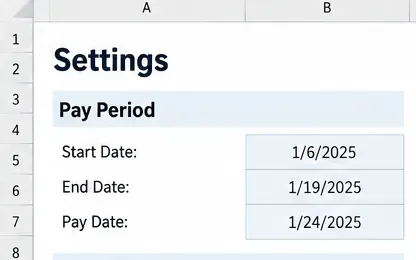
Store the pay-period start, end, and pay date in one place so every payroll row can be tied to the same period.
Using dates rather than a hard-coded “Period 1 through Period 26” structure makes the workbook safer across year boundaries and unusual payroll calendars. If your company has a fixed schedule, you can reuse the prior period and advance the start and end dates by 14 days, but confirm actual pay dates because banking holidays or company policy can shift them.
Step 2: Build a clean Employees sheet
The Employees sheet should hold values that change less often than payroll transactions. Use an internal ID as the main key. Names can change, and two employees can have the same name, so formulas and lookups are more reliable when they depend on Employee ID.
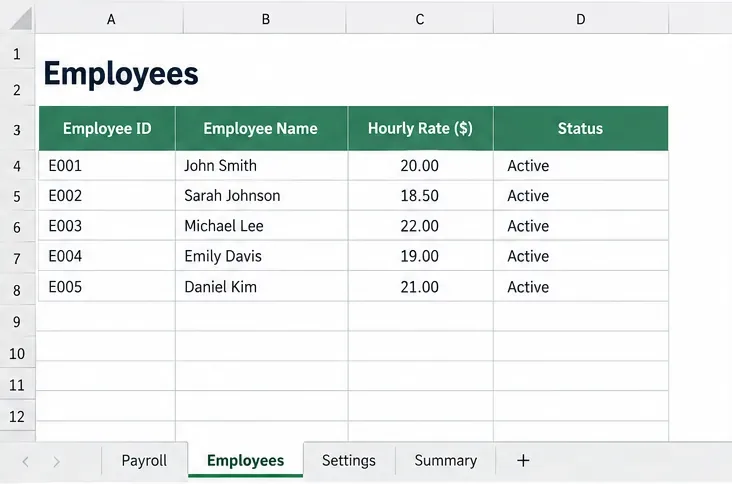
A separate Employees sheet keeps master data away from the pay-period transaction list. The names and rates shown here are sample values only.
For an all-hourly team, a minimal setup can include Employee ID, Employee Name, Hourly Rate, and Status. If you also have salaried employees, add a Pay Type column and store the authorized amount that your payroll process actually uses. Avoid blindly dividing annual salary by 26 because some schedules can produce a 27th pay date and because salary treatment can depend on the employer's payroll rules.
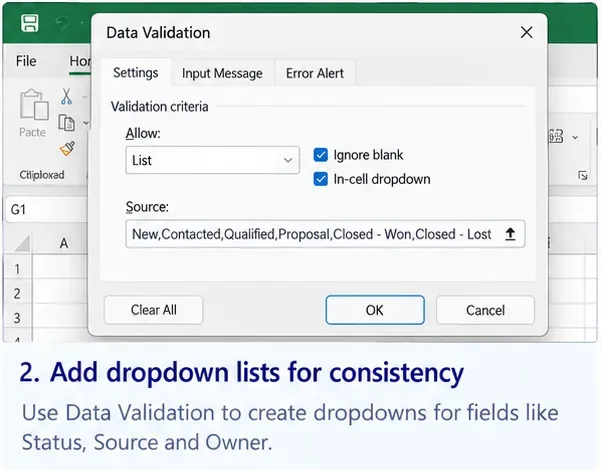
If several people edit the workbook, use Excel data validation for fields such as Status or Pay Type so entries stay consistent. Microsoft documents data validation as a way to restrict the type or value users can enter. See Microsoft's Excel data validation guidance.
Step 3: Turn the Payroll range into an Excel table
On the Payroll sheet, enter your headers and convert the range to an Excel table. In current desktop versions of Excel, select a cell in the range and use Home > Format as Table, choose a style, confirm the range, and indicate that the table has headers. Microsoft documents the same workflow for Microsoft 365 and recent perpetual versions. See Create and format tables in Excel.
A practical column set is:
Pay Period Start
Pay Period End
Pay Date
Employee ID
Employee Name
Regular Hours
Overtime Hours
Hourly Rate
Overtime Rate
Regular Pay
Overtime Pay
Other Earnings
Gross Pay
Pre-Tax Deductions
Taxes Withheld
Other Deductions
Net Pay
Review Status
Notes
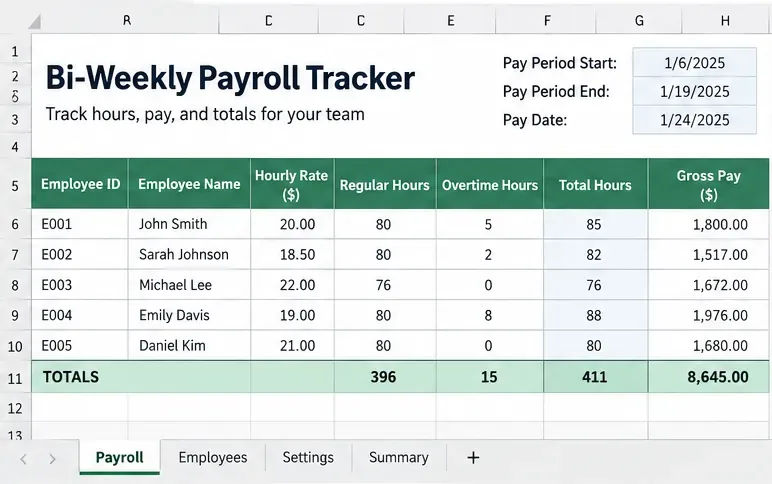
Sample payroll log layout. Treat the visible pay amounts as example entries for reconciliation; use your authorized payroll results or validated pay formulas.
Tables are useful because formulas can use structured references, meaning formulas refer to column names instead of fragile cell coordinates. Microsoft notes that structured references adjust as table rows are added or removed. See Microsoft's structured reference guide.
Step 4: Add only the formulas you can validate
For straightforward hourly payroll tracking, a few formulas can reduce manual arithmetic. Suppose your Excel table is named Payroll. A Total Hours column can use:
=SUM([@[Regular Hours]],[@[Overtime Hours]])
If the hourly and overtime rates in the workbook are authorized inputs, Regular Pay and Overtime Pay can be calculated as:
Microsoft's SUM function documentation confirms that SUM can add individual values, references, or ranges. In a table, the same function works with structured references.
Do not use this template to invent overtime rules. The tracker should receive the correct overtime rate from your approved payroll policy or payroll system. Likewise, a simple net-pay reconciliation formula such as =[@[Gross Pay]]-SUM([@[Pre-Tax Deductions]],[@[Taxes Withheld]],[@[Other Deductions]]) is only arithmetic. It does not calculate taxes or determine whether a deduction is legally permitted.
If your payroll provider already calculates gross and net pay, the safer workflow is often to import or type those approved results and use Excel only to compare them with hours, adjustments, and expected totals.
Step 5: Add period-level checks before you mark payroll complete
The Summary sheet should be short enough to review in one screen. Useful totals include active employee count, total regular hours, total overtime hours, total gross pay, total deductions, and total net pay. For example:
=SUM(Payroll[Regular Hours])
=SUM(Payroll[Overtime Hours])
=SUM(Payroll[Gross Pay])
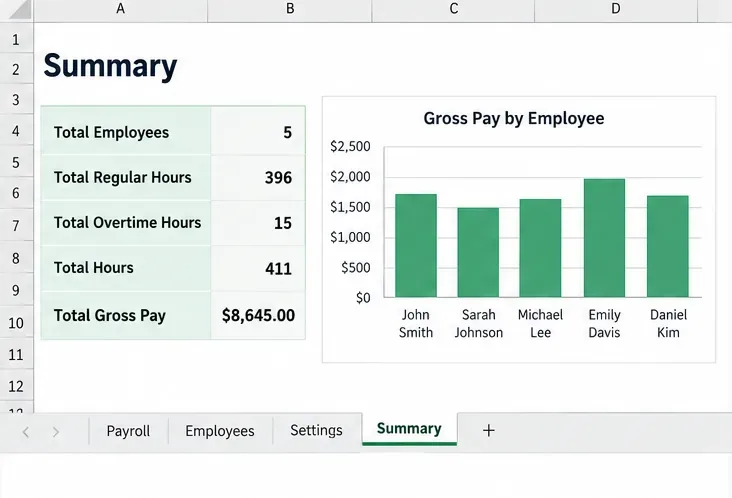
A compact summary makes it easier to compare headcount, hours, and gross pay with the approved payroll report before closing the period.
Add at least one exception check for duplicates. If each employee should appear only once per pay period, a helper column can use:
=COUNTIFS(Payroll[Pay Period End],[@[Pay Period End]],Payroll[Employee ID],[@[Employee ID]])>1
A TRUE result means the same employee ID appears more than once for that period end date and needs review. You can also use conditional formatting to highlight blank employee IDs, negative hours, or review statuses that are not Complete. Microsoft explains that conditional formatting applies rules based on cell values to make exceptions easier to see in its conditional formatting guide.
Common mistakes to avoid
Using the workbook as the only payroll record
A tracker can support reconciliation, but it may not contain all records required for payroll, labor, tax, or audit purposes. Keep the official time, tax, and payroll documentation in the systems and retention locations required for your business.
Embedding legal rules directly into formulas without ownership
Overtime eligibility, overtime rates, tax withholding, pre-tax treatment, paid leave, commissions, bonuses, and garnishments can involve rules that a generic template cannot determine safely. Keep those calculations in an authorized payroll process and let Excel reconcile the resulting amounts.
Typing employee names instead of using IDs
Names are convenient to read but poor unique keys. Use Employee ID for lookups and duplicate checks, then display the name for readability.
Keeping one giant sheet forever
A single sheet that mixes employee master data, current-period inputs, prior periods, assumptions, and totals becomes difficult to audit. Separate the workbook by purpose and archive closed periods consistently.
Hard-coding 26 periods into salary math
Bi-weekly schedules are normally associated with 26 periods, but some calendars produce 27 pay dates. Base period tracking on actual dates and your approved payroll calendar instead of assuming the same count every year.
When Excel is still a good fit — and when to switch
This approach works best when the team is small enough that one person can review the payroll table row by row, the pay rules are simple, and an authoritative payroll process exists outside the spreadsheet for taxes and compliance. Excel is especially useful as a lightweight checklist, pre-payroll staging sheet, or post-payroll reconciliation file.
Consider moving to a dedicated payroll or timekeeping system when you have several pay jurisdictions, multiple rates per employee, frequent retroactive adjustments, complex commissions, tips, garnishments, benefits, leave accruals, many simultaneous editors, or a growing need for role-based access and audit history. There is no universal employee-count cutoff; complexity and control requirements matter more than headcount.
A final pre-payroll checklist
Confirm the pay-period start, end, and pay date.
Confirm every expected employee is present and inactive employees are excluded.
Match regular and overtime hours to approved time records.
Verify rates and special earnings against authorized sources.
Compare gross pay and net pay with the payroll provider or approved payroll report.
Resolve duplicate rows, blanks, negative values, and unexplained adjustments.
Mark the period reviewed and save the approved version according to your retention policy.
For a small team, the best payroll tracker is not the workbook with the most formulas. It is the workbook that makes the pay period easy to understand, easy to reconcile, and difficult to misread.