Home
» Tips
»
Printable Construction Job Estimate Template in Excel for Small Contractors
Printable Construction Job Estimate Template in Excel for Small Contractors
A construction estimate has two jobs: help you price the work accurately and make the proposed price easy for a customer to understand. For a small contractor, Excel is often enough to do both—provided the workbook separates scope, direct costs, overhead, markup, taxes, and customer-facing terms instead of mixing everything into one number.
This practical reference shows how to structure a printable construction job estimate template in Excel, which fields are worth keeping, which formulas reduce manual errors, and what to check before you print or send the estimate. It is designed for small remodelers, handymen, specialty trades, residential contractors, and owner-operators who need a straightforward estimating sheet rather than a full estimating platform.
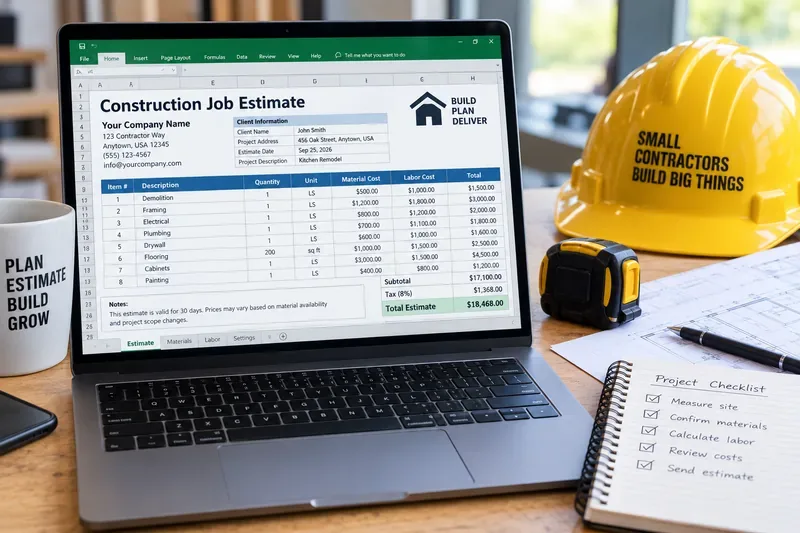
An example contractor estimate layout separates project details, line-item costs, and the final total so the sheet is useful both on screen and in print.
What a printable construction estimate should contain
A good estimate should be detailed enough to explain the price without becoming a project-management document. The simplest layout is one worksheet with a clear header, an itemized cost table, a pricing summary, and a short terms section.
Section
Recommended fields
Why it matters
Contractor information
Business name, address, phone, email, license number where applicable
Identifies who prepared the estimate and gives the customer a reliable contact record.
Reduces ambiguity before the customer decides whether to proceed.
Recommended Excel workbook structure
For very small jobs, one worksheet may be enough. For repeat estimating, a four-sheet workbook is easier to maintain:
Estimate: the clean customer-facing page that you print or save as PDF.
Cost Detail: your working sheet for labor hours, crew rates, material quantities, subcontractor quotes, equipment, permits, disposal, and other direct costs.
Price Lists: reusable labor rates, common units, supplier prices, and standard task names.
Settings: overhead percentage, default markup, tax rate if appropriate, business information, and standard estimate notes.
Use line-item formulas instead of typing totals manually
Manual totals are one of the easiest ways to create inconsistencies when an estimate changes. A basic line can calculate extended material and labor costs from quantity and unit rates.
For example, if a row contains quantity, material unit cost, labor hours, and labor rate, the logic can be:
Calculation
Example formula logic
Material total
Quantity × material unit cost
Labor total
Labor hours × labor rate
Direct line cost
Material total + labor total + subcontractor + equipment + other direct cost
Direct-cost subtotal
Sum of all direct line costs
If the item table is named EstimateItems, a structured formula can be easier to audit than fixed cell addresses. For example, a calculated column might use the current row’s quantity and unit price rather than a formula tied to a specific row number. Structured references are especially useful when you add or delete rows because the table references adjust with the table.
Separate overhead from markup and profit
Small contractors sometimes treat markup, overhead, and profit as interchangeable. They are not automatically the same thing. Overhead is the cost of operating the business that may not belong to one job line—for example office expenses, software, insurance, administrative wages, and some vehicle or shop costs. Profit is what remains after costs are covered. Markup is a pricing method used to increase cost to a selling price.
The U.S. Small Business Administration distinguishes fixed, variable, and semi-variable costs in its planning guidance and notes that understanding costs is necessary for break-even and profit analysis. The exact categories will vary by contractor. See the SBA business-planning guidance.
Action: decide what your labor rates and line-item prices already include before applying an additional overhead or markup percentage. Otherwise you can unintentionally double-count a cost—or omit it entirely.
Markup is not the same as margin
If a job costs $8,000 and you apply a 25% markup, the selling price is $10,000. The gross profit in that simplified example is $2,000, which is 20% of the $10,000 selling price. A 25% markup therefore does not create a 25% margin.
Action: label the workbook field correctly. If the sheet uses a markup-on-cost formula, call it “Markup %,” not “Margin %.”
Keep allowances and alternates visible
Allowances are useful when the customer has not made a final product selection. Examples include tile, fixtures, appliances, or specialty finishes. Do not hide an allowance inside a broad material number. Give it its own line with a short description and amount.
Alternates should also be separate. For example, “Alternate A: replace three additional windows” should not be included in the base total unless the customer selects it.
Action: add an “Included in Base?” field or keep alternates in a separate section below the base estimate. This prevents the printed total from becoming ambiguous.
Use drop-down lists for repeatable entries
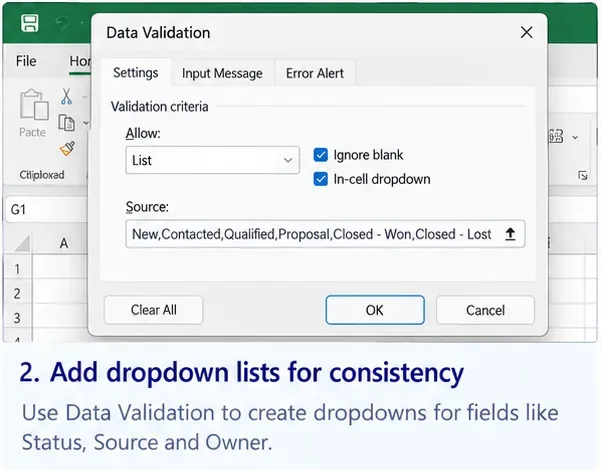
Data validation lists can reduce inconsistent typing for fields such as unit, cost code, trade, taxable status, or line-item category. Microsoft’s current Excel guidance explains how a drop-down can be tied to a list and can update when the source list is stored in an Excel table. See Microsoft Support: Create a drop-down list.
A simple category list might include:
Demolition
Site work
Concrete
Framing
Electrical
Plumbing
HVAC
Drywall
Flooring
Cabinets and millwork
Painting
Cleanup and disposal
Action: keep the list short enough that an estimator can choose a category quickly. If your company uses formal cost codes, use those instead of a generic list.
Do not hard-code tax without checking the job
Sales tax treatment of construction labor, materials, improvements, and repair work varies by state and locality. The correct taxable base can also differ by project type. A template should therefore make the tax rate and taxable amount explicit rather than assuming that every line is taxed the same way.
Action: create separate fields for “Taxable Amount” and “Tax Rate,” and confirm the correct treatment with the relevant state or local tax authority or your tax professional. Do not reuse a tax setting from another jurisdiction without checking it.
Make the estimate printable on purpose
A spreadsheet that works on a wide monitor can print badly. The customer-facing estimate should be tested in Print Preview before it becomes your standard template.
Set the print area so internal rate tables are not included.
Use portrait orientation for compact estimates and landscape only when the item table truly needs the width.
Repeat the column headings if the line-item table spans multiple pages.
Check page breaks so a subtotal or terms section is not separated awkwardly from its heading.
Use readable number formats for currency, percentages, quantities, and dates.
Preview in black and white if customers may print on a monochrome printer.
Include the estimate number and page number in the header or footer for multi-page estimates.
Export or print to PDF only after reviewing the final total and scope notes.
What to put in the terms section
The terms area should be concise. It is not a substitute for a contract, but it should state the assumptions that directly affect the estimate. Common entries include the estimate validity period, major exclusions, who supplies owner-selected materials, permit assumptions, working-hour assumptions, disposal, access limitations, and how scope changes will be priced.
A practical change-order statement might explain that work outside the listed scope requires written approval and may change both price and schedule. The exact legal wording should match your jurisdiction and contract process.
Action: avoid using an estimate template as a legal contract unless it has actually been designed and reviewed for that purpose.
Keep the estimate connected to your records
An estimate is a pricing document, but the numbers behind it should be traceable to supplier quotes, payroll assumptions, subcontractor bids, receipts, invoices, and job records. The IRS states that business records should be complete and accurate and that electronic records are subject to the same recordkeeping requirements as hard-copy records. It also identifies invoices, receipts, paid bills, and other supporting documents as records businesses should keep. See IRS: How should I record my business transactions? and IRS: What kind of records should I keep?.
Action: put the estimate number on related purchase notes, subcontractor quotes, and job folders so you can later compare estimated cost with actual cost.
A compact formula model for the summary box
For a small-contractor workbook, the summary can stay simple:
Direct Cost Subtotal = materials + labor + subcontractors + equipment + other direct costs.
Overhead Allocation = direct-cost subtotal × overhead rate, if you use a percentage allocation method.
Price Before Tax = direct cost subtotal + overhead allocation + markup/profit adjustment + selected alternates − discounts.
Tax = taxable amount × applicable tax rate.
Total Estimate = price before tax + tax.
This is a template structure, not a universal pricing formula. Contractors use different costing systems, and some embed overhead and profit into labor or unit prices rather than adding separate percentages at the end.
Final review before sending a construction estimate
Check
Question to ask
Scope
Does every priced item correspond to work actually described in the estimate?
Quantity
Were measurements, units, waste factors, and counts reviewed?
Rates
Are labor, supplier, subcontractor, equipment, and disposal rates current for this job?
Overhead and profit
Are they included once, using the pricing method your business intends?
Tax
Was the correct taxable amount and jurisdiction-specific rate used?
Allowances
Are unselected products and uncertain quantities clearly identified?
Exclusions
Are likely customer assumptions that are not included stated clearly?
Printing
Does the PDF or printed page show the full table, totals, terms, and contact information without clipped columns?
Bottom line
The best printable construction job estimate template in Excel is not the one with the most fields. It is the one that lets a small contractor update quantities and rates quickly, see the real cost behind the price, explain the scope clearly, and produce a clean customer-facing page without retyping totals.
Start with a structured item table, keep overhead and markup logic explicit, isolate assumptions and allowances, and build the print settings into the workbook instead of fixing them every time. Then preserve each issued estimate as a dated record. That turns a simple spreadsheet into a repeatable estimating process rather than a one-off calculation.