A monthly bill calendar is most useful when it answers three questions quickly: what is due, when is it due, and has it already been paid? Excel can handle those three jobs in one workbook without requiring macros. Microsoft currently provides free Excel calendar and budget-oriented templates, and its calendar templates can be adapted with notes, task tracking, and budget tracking. The official Microsoft Excel calendar templates page is a useful starting point if you prefer to modify an existing layout rather than build one from scratch.
The Consumer Financial Protection Bureau takes a similarly practical approach in its current Your Money, Your Goals toolkit, which includes a dedicated bill calendar under its Paying Bills tools. The basic idea is durable: put bill names, amounts, and due dates in one place so the timing of expenses is visible across the month.
Illustrative example: imagine Taylor, a freelance designer who has rent, utilities, insurance, a credit-card payment, and several subscriptions due on different days. Taylor is a fictional example used only to show how the template can work. The amounts and results below are not a real person's finances or a tested outcome.
What the workbook should contain
For Taylor, the workbook is easier to maintain when the calendar is only the visual layer and the actual bill data lives in a separate list. That separation prevents the calendar from becoming a collection of manually typed boxes that must be rebuilt every month.
| Sheet or area | Purpose | Useful fields |
|---|
| Bill List | Single source of truth for each bill | Bill name, due date, amount, category, frequency, status, notes |
| Calendar | Monthly visual view | Due dates, bill names, optional amounts or status colors |
| Settings | Reusable lists and controls | Selected month, categories, status values, optional default frequencies |
| Summary | Optional totals | Total scheduled, paid, unpaid, or category totals |
Microsoft notes that Excel calendar templates often contain formulas in date cells so the calendar can update automatically, and warns that overwriting those date formulas can break that behavior. If you adapt an existing Microsoft calendar, edit the intended input areas rather than typing over date formulas. The current instructions are documented in Create a calendar by using a template.
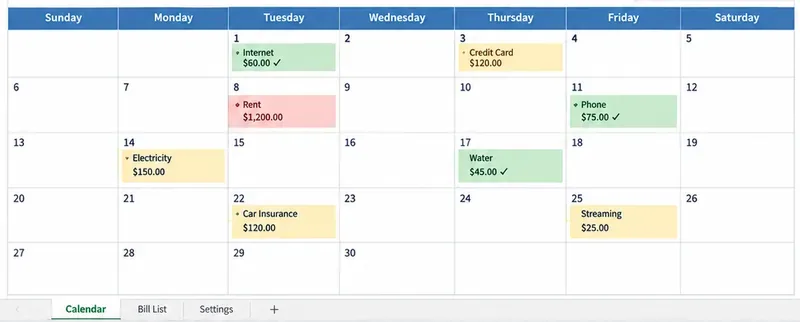
AI-generated illustration of a monthly bill calendar in Excel. Bill names, dates, colors, and dollar amounts are fictional sample data; the image is not a screenshot of a tested workbook.
How the illustrative example works in practice
Taylor begins with the Bill List, not the calendar. Suppose the fictional month contains rent, internet, electricity, a phone bill, water, a credit-card payment, car insurance, and a streaming subscription. Each bill gets one row. The due date is stored as a true Excel date, the amount as a number or currency value, and the status as a controlled choice such as Upcoming, Paid, or Overdue.
This matters because dates that only look like dates but are actually text are harder to sort, compare, and summarize. Excel stores valid dates as serial values that functions can use in calculations. Microsoft documents this behavior in its TODAY function documentation.
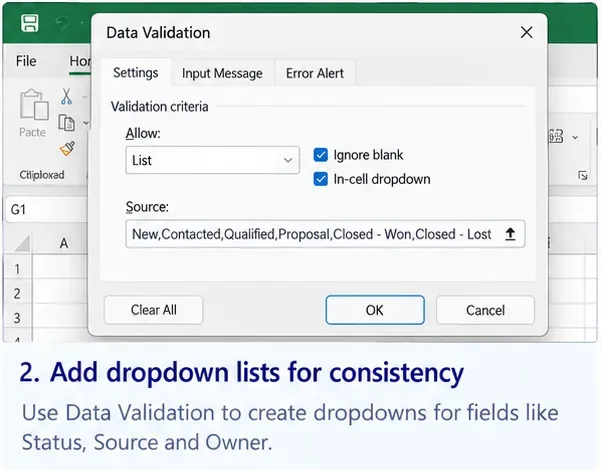
For Taylor, a status drop-down also prevents small typing differences such as “paid,” “Paid ” with an extra space, and “Done” from breaking summary formulas. Microsoft supports list-based data validation for exactly this kind of controlled entry. See Apply data validation to cells.
A practical column layout for the Bill List
| Column | Example | Why keep it |
|---|
| Bill Name | Electricity | Identifies the obligation |
| Due Date | 9/14/2026 | Places the bill in the correct month and day |
| Amount | $150.00 | Supports totals and cash-flow planning |
| Category | Utilities | Makes category summaries possible |
| Frequency | Monthly | Helps distinguish recurring and one-time bills |
| Status | Upcoming | Separates scheduled, paid, and late items |
| Notes | Autopay | Records useful context without crowding the calendar |
Turning this range into an Excel Table is helpful because formulas, formatting, and drop-down sources are easier to extend as new bills are added. The template does not require a Table, but a structured list is more reliable than scattering bill information across many calendar cells.
Useful formulas without turning the workbook into an accounting system
The calendar organizer should calculate only what helps the monthly workflow. It does not need to become a full budgeting or bookkeeping model.
Total unpaid bills
If the bill data is stored in an Excel Table named Bills, a simple summary can be:
=SUMIFS(Bills[Amount],Bills[Status],"<>Paid")
Microsoft's SUMIFS documentation confirms that the function adds values that meet multiple criteria. The same function can total only paid bills, a single category, or bills inside a selected date range.
Total bills inside the selected month
If cell B1 contains any valid date in the month Taylor wants to view, one formula pattern is:
=SUMIFS(Bills[Amount],
Bills[Due Date],">="&EOMONTH($B$1,-1)+1,
Bills[Due Date],"<="&EOMONTH($B$1,0))
EOMONTH returns the last day of a month relative to a starting date, so the formula builds the month's first and last date boundaries. Microsoft documents the function in EOMONTH function. If your template uses a different month-selection method, the exact references will differ.
Use color to show status, not to replace status data
In Taylor's fictional calendar, color is useful because a quick scan can distinguish bills already handled from bills that still need attention. But the color should be driven by a status value or date rule, not manually painted every month.
Excel conditional formatting can apply formatting based on numbers, text, dates, or formulas. Microsoft explains these options in Use conditional formatting to highlight information in Excel.
For example, if the due date is in column C and the status is in column F, an overdue rule could use a formula such as:
=AND($F2<>"Paid",$C2<TODAY())
This rule says: highlight the row only when the bill is not marked Paid and its due date is earlier than today. The exact cell references depend on the worksheet layout. A second rule can highlight upcoming bills, while Paid can use a separate status-based format.
Why the calendar and the bill list should stay separate
The calendar is best for planning; the bill list is best for maintaining data. Taylor might move from September to October and still have the same recurring rent, internet, and insurance obligations. If those bills exist only as text typed into September's calendar boxes, the next month requires manual duplication.
With a separate list, the recurring bill information can be copied forward or generated according to the workbook design while the calendar only displays the selected month's records. This also makes it easier to filter bills by category or status without changing the visual calendar.
What “free monthly bill calendar” should and should not promise
An Excel organizer can help Taylor see payment timing and keep a consistent monthly routine. It cannot confirm that a bank payment actually cleared, pull every bill automatically unless additional integrations are built, or guarantee that a late fee will be avoided. A color-coded “Paid” status is only as accurate as the data entered.
It also should not be treated as a substitute for an emergency budget, bank reconciliation, accounting ledger, or debt-management advice. The CFPB's bill-calendar tool is intentionally focused on timing—knowing what is owed and when it is due. That is also the right scope for a lightweight Excel version.
A monthly routine using Taylor's illustrative example
At the start of the month, Taylor reviews the recurring bills and adds any one-time obligations. The calendar then provides a visual map of the month's due dates. Once or twice a week, Taylor checks the workbook, confirms upcoming bills against current statements, and changes status to Paid only after making or verifying the payment.
If a utility amount varies, Taylor updates the amount rather than leaving last month's estimate. If a due date changes, the actual due date in the Bill List is changed so the calendar and formulas use the corrected value. At month-end, Taylor can duplicate or roll forward recurring entries, archive the finished month if desired, and begin the next cycle.
Quick checklist before relying on the workbook
- Every bill has a valid due date, not a text label that only resembles a date.
- Amounts are numeric and formatted as currency rather than typed with extra text.
- Status choices use a consistent drop-down list.
- The selected month displays only bills that fall in that month.
- Summary totals match a manual spot-check of several rows.
- Changing one due date moves or reclassifies the bill as expected.
- Changing a status from Upcoming to Paid changes the relevant total and color rule.
- No important calendar date formula from the original template has been overwritten.
How to tell whether the template is working well
For Taylor, success is not that the workbook looks polished. It is that the monthly view can be trusted. A quick test is to create three temporary sample bills with known dates and amounts: one already paid, one due later this month, and one past due. The calendar should place them on the correct dates, the status formatting should distinguish them, and summary formulas should produce the expected totals.
If the calendar looks right but the totals are wrong, inspect the Bill List and formulas before redesigning the calendar. If totals are right but due dates appear in the wrong month, inspect the date values and month-selection logic. If recurring bills require too much copying every month, simplify the recurrence process or consider a dedicated personal-finance tool instead of adding increasingly complex formulas.
A good Excel bill calendar remains understandable. The strongest version is not the one with the most automation; it is the one where you can quickly trace a calendar entry back to its bill row, verify the due date and amount, and see exactly why Excel labeled it paid, upcoming, or overdue.