A useful small-business invoice template should do more than look professional. It should make repeat billing faster, reduce arithmetic mistakes, show customers how the total was calculated, and make the sales-tax assumption easy to review before the invoice goes out. Excel is well suited to that job because the tax rate can live in one visible cell while formulas reference it automatically.
The important limitation is that an Excel formula cannot decide which sales-tax rate is legally correct for every transaction. The U.S. Small Business Administration notes that sales tax varies by state and locality, that not every jurisdiction has a general sales tax, and that exemptions can apply to particular products such as food or clothing. It also notes that businesses with physical or economic presence in another state may have collection obligations there. See the SBA guidance on doing business in new states and localities. The template below therefore automates the math after you enter the rate and taxability that apply to the sale; it does not replace a state tax authority, accountant, or sales-tax service.
Quick reference: what the Excel invoice should contain
| Section | What to include | Why it matters |
|---|
| Seller details | Business name, address, phone/email, optional tax or registration identifier where appropriate | Identifies who issued the invoice |
| Customer details | Bill-to name and address; ship-to address if relevant | Helps establish the transaction and may matter for tax sourcing |
| Invoice controls | Invoice number, invoice date, due date, payment terms | Supports tracking and accounts receivable |
| Line items | Description, quantity, unit price, line amount, and optional taxable flag | Shows what the customer is paying for |
| Tax controls | Tax rate in a clearly labeled input cell; optional taxable subtotal | Makes the tax assumption visible instead of hiding it inside a formula |
| Totals | Subtotal, discount or shipping if used, sales tax, total due | Creates a clear reconciliation from charges to final balance |
| Payment information | Accepted payment method, remittance instructions, reference number | Helps the customer pay correctly |
The basic formula design
The simplest version works well when every line on the invoice is taxable at the same rate. Keep the tax rate in a dedicated cell—perhaps Settings!B2—instead of typing a percentage directly into the tax formula. Microsoft specifically recommends keeping percentage values in cells when you expect them to change, because the formula is easier to inspect and maintain. Its SUM guidance illustrates the same principle with a percentage stored separately from the SUM formula.
A practical layout might use these formulas:
| Purpose | Example formula | Notes |
|---|
| Line amount | =ROUND(B12*C12,2) | Quantity × unit price, rounded to two decimal places |
| Subtotal | =SUM(D12:D21) | Adds all line amounts |
| Sales tax | =ROUND(D22*Settings!B2,2) | Subtotal × tax rate |
| Total due | =D22+D23 | Subtotal + sales tax |
Microsoft documents that SUM can add a range of cells and that ROUND(number, num_digits) rounds to a specified number of decimal places. See the official SUM function documentation and ROUND function documentation. The ROUND page may open in a localized Microsoft Support language depending on your browser, but the Excel function behavior is the same.
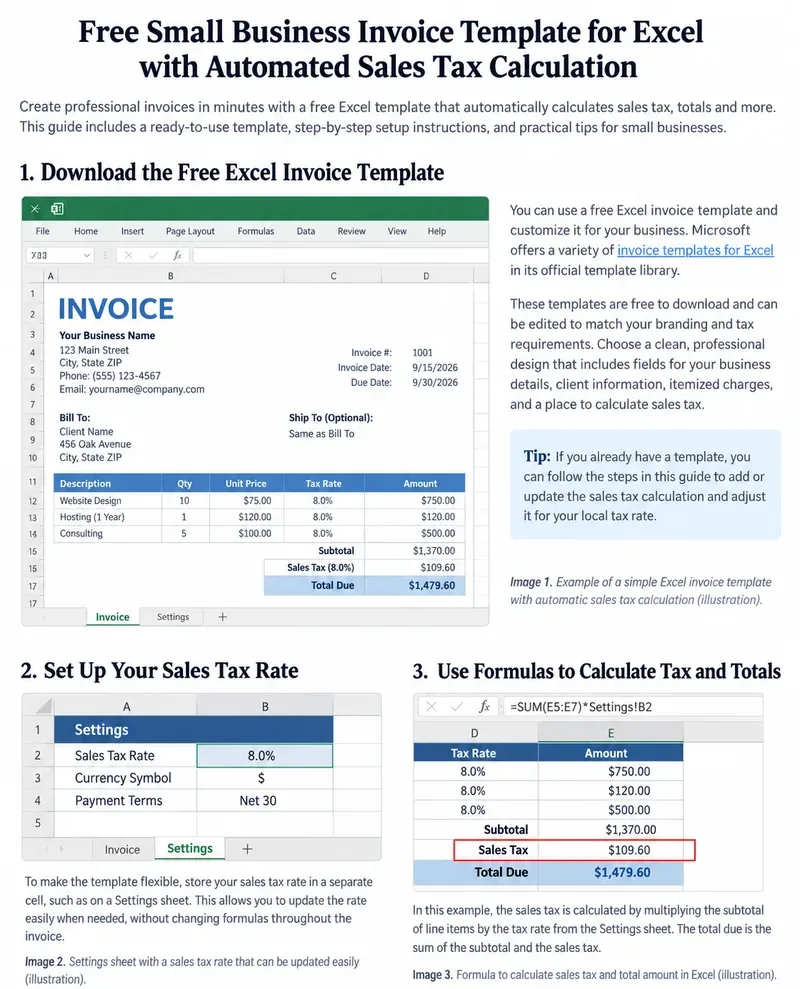
AI-generated illustration of an Excel invoice workflow. The 8.0% sales-tax rate, business details, dates, prices, and formulas shown are sample data only and are not a recommended rate for any jurisdiction.
When one tax rate is not enough
A one-rate formula is convenient, but it is only appropriate when the taxable items on that invoice share the same applicable rate and the business has already determined that those items should be taxed. Real invoices can be more complicated. A service might be taxable in one state and exempt in another. A customer may present a valid exemption certificate. Some line items may be taxable while others are not. Destination, sourcing rules, and local jurisdictions can also affect the result.
The Streamlined Sales Tax Governing Board describes sales-tax administration as involving tax-base definitions, exemptions, rates, and sourcing—meaning where a sale is considered taxable. Its official FAQ explains that member states use uniform sourcing concepts, while its registration guidance states that sellers must register where they have met the relevant physical or economic nexus requirements.
For mixed taxable and non-taxable lines, add a Taxable? column with values such as Yes/No. Then calculate only the taxable subtotal. For example, if column E contains the taxable flag and column D contains line amounts:
=SUMIF(E12:E21,"Yes",D12:D21)
The tax formula can then reference that taxable subtotal instead of the entire invoice subtotal. This makes the worksheet easier to audit because a user can see which lines were included in the tax base.
Recommended workbook structure
Invoice sheet
This is the customer-facing page. Keep it uncluttered. Ideally, a printed or PDF invoice should show the seller, customer, invoice number, dates, itemization, subtotal, tax, total due, and payment instructions without exposing helper formulas or configuration tables.
Settings sheet
Store variables that may change between invoices: default sales-tax rate, payment terms, seller address, remittance instructions, and perhaps a default currency. Protect formula cells if several people use the workbook, but leave the intended inputs editable.
Optional customer or product sheet
For repeated invoicing, a small lookup table can reduce typing. Keep this simple unless you need true accounting or inventory functionality; Excel is a spreadsheet, not a replacement for a billing system with customer records, tax engines, payment reconciliation, and audit logs.
Practical sales-tax checklist before sending an invoice
- Confirm tax obligation: Are you required to collect tax in the customer's jurisdiction?
- Confirm taxability: Are the specific products or services on this invoice taxable there?
- Confirm the rate: Use the applicable state/local rate from an authoritative source or your tax system.
- Confirm customer status: If a customer claims an exemption, verify the documentation your jurisdiction requires.
- Confirm sourcing: If you sell across jurisdictions, make sure the location used to determine tax is appropriate for the transaction.
- Review rounding: Check whether your jurisdiction or accounting process expects line-level or invoice-level rounding.
- Recalculate: Change one quantity temporarily and confirm subtotal, tax, and total due update as expected.
- Save a final copy: Preserve the issued invoice as a PDF or locked record rather than relying only on a reusable workbook that will later change.
Example: a simple taxable invoice
Suppose a business invoices three taxable items with line amounts of $750, $120, and $500. The subtotal is $1,370. If the business has independently determined that an 8.0% rate applies, the tax calculation is:
$1,370.00 × 8.0% = $109.60
$1,370.00 + $109.60 = $1,479.60 total due
This example demonstrates the spreadsheet mechanics only. It does not imply that 8.0% is the correct rate for those products, that all three items are taxable, or that the invoice-level rounding method is legally required.
Common spreadsheet mistakes to avoid
Hard-coding the tax percentage inside every formula
A formula such as =Subtotal*0.08 works mathematically, but it hides the rate and makes later updates harder to audit. A visible rate cell is easier to check.
Applying tax to the wrong base
If shipping, discounts, exempt items, or partially taxable charges are present, “subtotal × rate” may not reflect the applicable tax base. Separate the taxable subtotal when needed.
Assuming formatting is the same as rounding
Displaying two decimal places does not necessarily change the stored value. If your workflow requires the calculated tax itself to be rounded to cents, use a formula such as ROUND(...,2) rather than relying only on currency formatting.
Replacing formulas while typing
Keep user-input cells visually distinct from calculated cells. If a line-total or tax formula is accidentally overwritten with a number, later edits will no longer recalculate correctly.
Using one workbook as the only historical record
A reusable template changes over time. Save each issued invoice under a unique filename or export it to PDF so the record matches what the customer actually received.
When to move beyond an Excel invoice template
Excel is a good fit for a small business with straightforward invoices, a manageable number of transactions, and a tax situation simple enough to verify manually. Consider dedicated invoicing or accounting software when you need recurring billing, automatic payment reconciliation, customer portals, inventory, multi-jurisdiction tax determination, exemption-certificate management, or detailed audit trails.
The threshold is not a particular number of invoices. The better signal is operational risk: if staff are repeatedly looking up tax rates, manually deciding taxability, repairing formulas, or reconciling multiple payment channels, the spreadsheet is doing too much.
Final reference check
Before you treat the workbook as ready, open a fresh copy and run a small test invoice. Enter two or three line items, confirm the line amounts, compare the subtotal with a manual calculation, verify the tax-rate cell against the authoritative rate you intend to use, and check that the final total equals subtotal plus the calculated tax. Then change one quantity and confirm all dependent totals update automatically.
A well-designed small-business invoice template makes the arithmetic transparent and repeatable. Its job is to calculate the rate you supply accurately—not to decide your sales-tax obligations for you.