Home
» Tips
»
How to Convert PDF to an Editable Word Document Without Losing Formatting
How to Convert PDF to an Editable Word Document Without Losing Formatting
The best PDF-to-Word conversion is not the one that merely produces a .docx file. It is the one that gives you editable text while preserving enough of the original structure that you can work normally without spending more time repairing the document than editing it.
For a mostly text-based PDF, the first method to try is opening the PDF directly in the desktop version of Microsoft Word. Microsoft says Word creates a copy of the PDF, converts it to an editable Word document, and attempts to match the original layout. Microsoft also warns that page and line breaks may move and that graphics-heavy PDFs can convert poorly. That limitation matters: the realistic goal is high structural fidelity, not a guaranteed pixel-for-pixel replica.
If the PDF is scanned, mostly image-based, or has complex columns, forms, tables, or overlapping design elements, you may get a better result by using OCR before or during conversion. Adobe Acrobat supports OCR for scanned documents and can export to DOCX, but OCR quality still needs human review.
What should a good PDF-to-Word conversion look like?
Before converting, define what “without losing formatting” means for your file. A useful result should preserve the document’s reading order and make the content genuinely editable. For most business documents, check these five things:
Text is editable: you can click into a paragraph and change words without editing an image.
Structure is intact: headings, lists, tables, captions, and section order still make sense.
Layout is reasonably stable: images, columns, margins, and page breaks are close enough that only minor cleanup is needed.
Content is complete: no paragraphs, table rows, footnotes, or pages are missing.
The file remains usable after edits: adding or deleting text does not immediately break the entire layout.
If those conditions are met, small differences in line wrapping or page count are usually acceptable. If you need exact visual reproduction for a legal form, brochure, catalog, or print-ready layout, Word may not be the right final format.
Step 1: Try opening the PDF directly in Microsoft Word
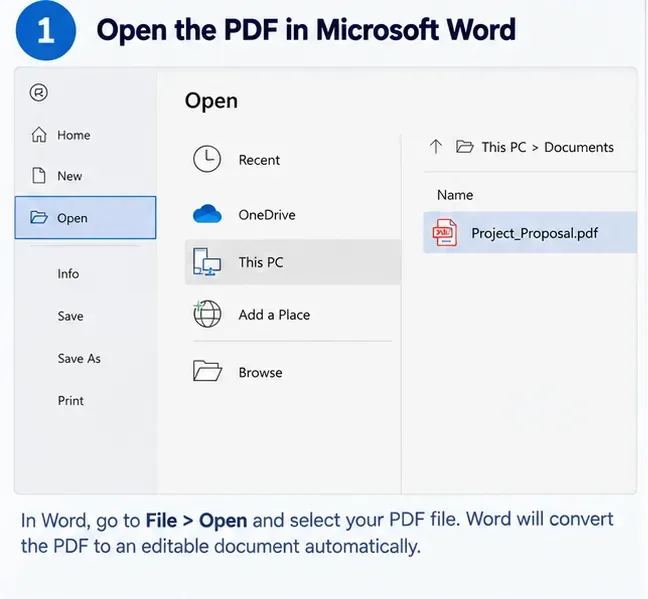
This is the simplest route when the PDF was originally generated from Word, another Office app, or a text-heavy document system. In desktop Word, choose File > Open, select the PDF, and accept the conversion prompt. Word keeps the original PDF unchanged and works from a converted copy.
AI-generated illustration: opening a PDF in desktop Word before conversion.
According to Microsoft Support guidance on opening PDFs in Word, this works best for files that are mostly text. If a PDF contains mostly charts or graphics, Word may treat an entire page as an image, which means the text on that page will not be editable.
When this method is a good fit
Reports, contracts, letters, research papers, manuals, and other text-first documents.
PDFs where you can already select individual words in a PDF viewer.
Documents with simple tables, single-column text, and ordinary images.
If the document is a scan and you cannot select text at all, continue to the OCR section below instead of repeatedly reopening it in Word.
Step 2: Review the converted file before editing
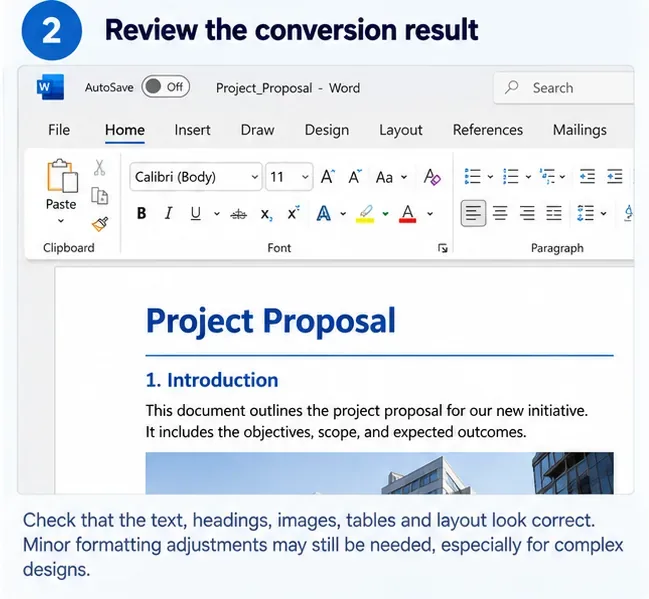
Do not start rewriting immediately. First compare the converted Word file with the original PDF. This gives you a clean baseline and shows whether the conversion method is good enough for the whole document.
AI-generated illustration: review the converted layout before making content edits.
Microsoft explicitly notes that converted documents may not have perfect page-to-page correspondence. Lines and pages can break in different places, and some elements may not be detected correctly. That means a different page count alone does not prove the conversion failed. What matters is whether the document remains understandable, editable, and reasonably faithful.
Use a quick quality check
Compare at least one simple page and one difficult page. On each, inspect headings, body text, lists, tables, images, headers and footers, footnotes, and page breaks. Then perform three editing tests: change a word, add one sentence, and delete one short paragraph. If nearby content remains stable, the file is likely practical to edit.
Check
Acceptable result
Warning sign
Text
Selectable and editable
Whole page acts like one image
Tables
Rows and columns stay aligned
Cells split into text boxes or paragraphs
Images
Position is close to original
Images disappear, overlap, or move far away
Page flow
Minor reflow only
Every edit causes large cascading shifts
Characters
Words and punctuation are correct
Repeated OCR mistakes or missing symbols
Step 3: Save as DOCX only after the conversion passes your quality check
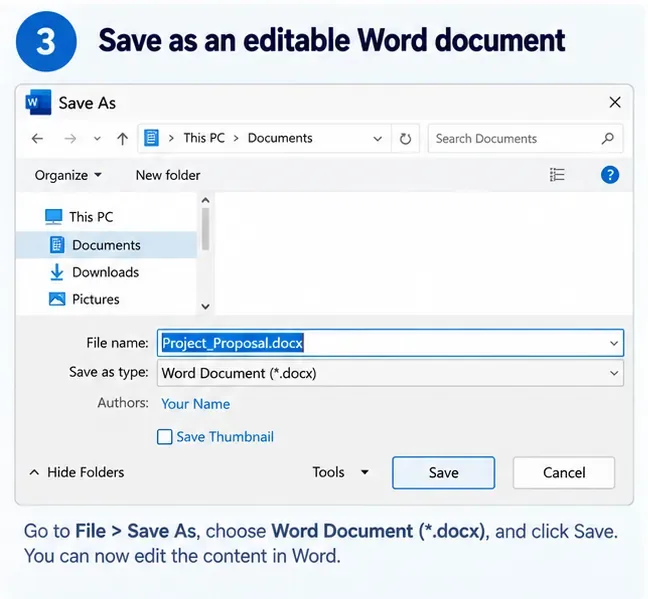
If the first pages look good, save the converted file as a Word document using File > Save As and choose Word Document (.docx). Keep the original PDF separately. That gives you a reference copy if later edits reveal a conversion problem you did not notice initially.
AI-generated illustration: save the converted copy as DOCX while keeping the original PDF for reference.
For documents that came from Microsoft Office originally, the best-quality solution may be to locate the original Office file instead. Microsoft recommends editing the source Office document and exporting a new PDF when the source is available. That avoids reverse-engineering a fixed-layout PDF into Word.
When should you switch from Word to OCR or Acrobat?
Switch methods when the repair work becomes systematic rather than occasional. A few moved images or line breaks are normal. Repeated problems on every page usually mean the source PDF is not a good candidate for direct Word conversion.
Use an OCR-capable workflow when the PDF is a scan or contains image-only pages. Adobe explains that scanned PDFs initially contain image data rather than searchable text; its OCR tools create a searchable text layer. Adobe also recommends reviewing the OCR result afterward because recognition errors can occur.
Tables repeatedly collapse or convert into unrelated text blocks.
Important symbols, accented characters, or numbers are misread.
You are spending more time fixing layout than you would spend rebuilding the affected pages.
How to improve formatting after conversion
Once the conversion is good enough, make the smallest structural corrections first. Fix page size and margins before adjusting paragraph spacing; fix tables before fine-tuning font styles; and fix section breaks before manually moving individual lines. This prevents you from polishing elements that may move again later.
For headings, apply Word heading styles instead of only changing font size. For tables, use actual table rows and columns rather than spaces or tabs. If an image floats unpredictably, review its text-wrapping option. These changes make the document easier to edit later and reduce layout drift.
Final verification: how do you know the conversion is finished?
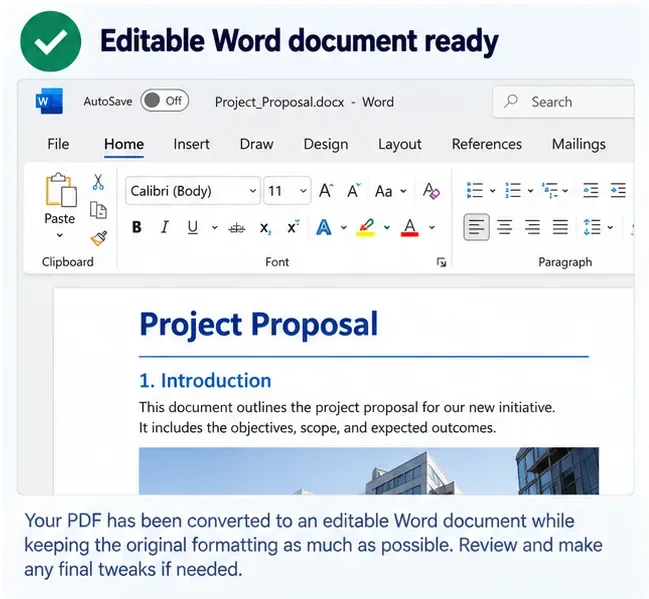
AI-generated illustration: the conversion is ready only after a final comparison with the original PDF.
Before treating the Word file as finished, compare it with the PDF one more time. Check the first page, a middle page, the last page, and any page with a table, image, footnote, or complex layout. Search for a distinctive phrase to confirm text is searchable. Change a value or sentence and confirm the edit behaves normally.
A strong result does not need to be visually identical down to every line break. It should preserve the meaning, reading order, major visual structure, and editability of the original while requiring only limited cleanup. If the document still depends on image-only text, broken reading order, or extensive manual repositioning, the conversion is not yet high quality—switch to OCR, a different conversion tool, or the original source file if available.
Bottom line
Start with Word for a mostly text-based PDF because it is fast and often sufficient. Judge the result before editing heavily. Use OCR or Acrobat when the PDF is scanned or structurally complex. Keep the original PDF, and measure success by editability and structural fidelity rather than by a promise of perfect formatting. That approach produces a Word document you can actually maintain instead of a file that only looks correct at first glance.