Home
» Tips
»
How to Fix a Word Document Opening as Read-Only on Mac
How to Fix a Word Document Opening as Read-Only on Mac
If Word on your Mac opens a document as read-only, the best fix depends on whether the problem affects one file or every file. That distinction matters more than the wording of the warning itself. A single read-only document usually points to the file's mode, sharing rights, Finder permissions, or a lock created by another user. If even a new blank document cannot be edited or saved, the problem is more likely to involve Word, Office activation, or the macOS/Office version.
There is also a current issue worth checking first. Microsoft says that beginning July 13, 2026, some Office and Microsoft 365 installations on macOS can enter reduced functionality mode: documents can open and print, but users cannot edit, save, or create files. Microsoft recommends updating macOS first and then updating Office. See Microsoft's current Office for macOS update guidance. If every document is affected, jump to the section on Word and Office updates before changing file permissions.
What should the result look like?
A successful fix is more than getting rid of a “Read-Only” label. You should be able to place the cursor in the document, type a small test change, save with Command-S without being forced to create another file, close Word, reopen the same document, and see that the change remained. If only some of those checks pass, the underlying cause is probably not fully resolved.
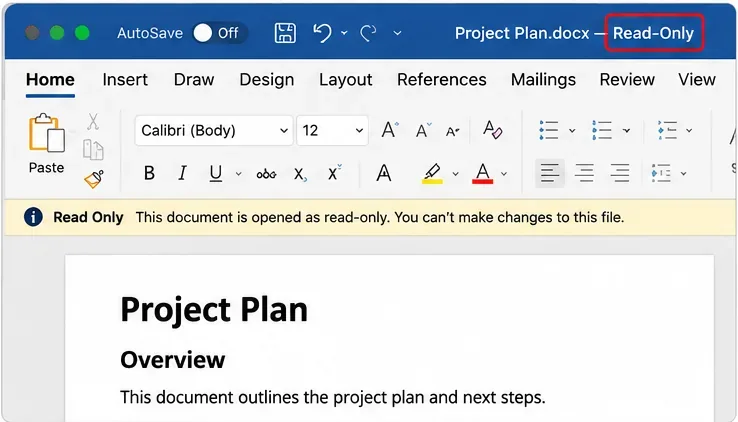
AI-generated illustration: a Word for Mac document showing a read-only state. Exact labels and layout can vary by Word version.
Step 1: Find out whether the problem is the file or Word itself
Open a new blank document in Word and type a short sentence. Save it to your Documents folder. Then reopen the problem document.
If the blank document edits and saves normally: Word itself is probably working. Continue with the file-specific checks below.
If the blank document is also uneditable: skip ahead to “What if every Word document is read-only?” because Finder permissions on one file are unlikely to be the cause.
If the document is stored in OneDrive, SharePoint, Teams, a network share, or removable storage: remember that the storage location can impose permissions independently of Word.
Also look at the mode control near the upper-right area of the Word window. Microsoft currently documents three modes in Word for Mac: Viewing, Reviewing, and Editing. Viewing is read-only. If Editing is available, switch to it. If Editing is missing, you may not have edit permission. Microsoft's Word document modes documentation explains the distinction.
How to judge this step
If switching to Editing lets you type and save, stop here. If Word remains read-only, or Editing is unavailable, continue. Do not assume the mode switch can override permissions established by the owner or an organization; Microsoft explicitly notes that some editing restrictions cannot be changed locally.
Step 2: Check the Mac file lock and your Finder permissions
For a document stored locally on your Mac, Finder can make the file effectively read-only even when Word is functioning correctly.
Quit the document in Word.
In Finder, select the .doc or .docx file.
Choose File > Get Info.
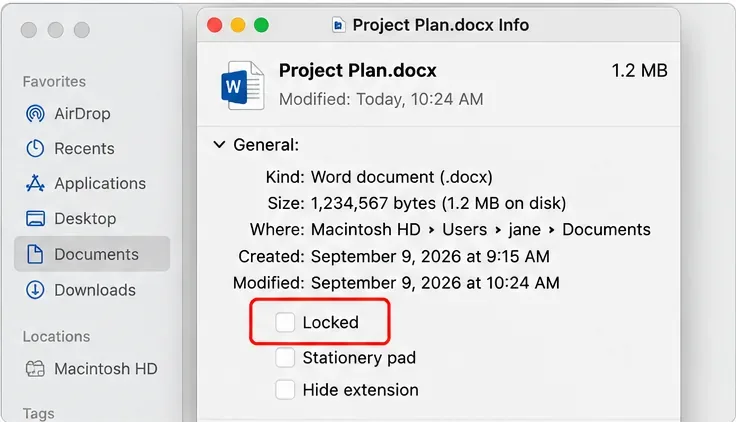
Under General, make sure Locked is not selected.
Expand Sharing & Permissions.
Confirm that your macOS account has Read & Write access.
Apple's Mac file-permission guide confirms that “Read & Write” allows a user to open and change an item, while “Read only” allows opening but not changing it. Apple also documents the Finder Locked checkbox in its file locking guidance.
AI-generated illustration: Finder Get Info with the Locked setting highlighted. Check both Locked status and Sharing & Permissions on the real file.
If the permission controls are locked, macOS may require administrator credentials before you can change them. Only change permissions on files you own or are authorized to modify. On a managed Mac, permissions can be set by your organization.
How to judge this step
Reopen the document in Word, type a small change, press Command-S, close the file, and reopen it. If the edit survives, the fix worked. If your account already showed Read & Write and the file was not Locked, changing Finder permissions is unlikely to help further; move to Step 3.
Step 3: Check sharing rights, document restrictions, and file-in-use locks
A file can be writable on your Mac but still be read-only because Word or the storage service is enforcing a different kind of permission.
If the file came from OneDrive, SharePoint, or Teams
Confirm that you have edit access, not only view access. Microsoft notes that documents stored in OneDrive, SharePoint, and Teams can be shared with view-only permissions. If the Editing mode is unavailable, ask the owner to grant edit permission rather than trying to change Finder permissions. The current OneDrive and SharePoint permissions guide explains how owners manage access.
If Word says the document is locked for editing
Do not immediately delete temporary files. Microsoft says this message can appear when another user has the document open, another Word instance still owns it, or Word previously quit unexpectedly and left its owner file behind. First make sure no one else is actively editing the document, then close other Word windows and restart Word. Microsoft's locked-for-editing support article recommends confirming that the document is not genuinely in use before treating the lock as stale.
If the document is protected by its owner or organization
Word can restrict editing intentionally. Microsoft also supports Information Rights Management on Office for Mac, with permissions such as Read, Change, and Full Control. A local file copy does not necessarily grant rights that the owner or administrator withheld. In that case, the correct result is not to bypass the restriction; it is to request the appropriate permission.
How to judge this step
If Editing becomes available after permission is granted, or after the genuine file lock is released, make a test edit and save it. If the document still cannot be edited but you can edit other documents, Step 4 is a useful diagnostic because it separates the original file or location from Word itself.
Step 4: Save a new local copy and test it
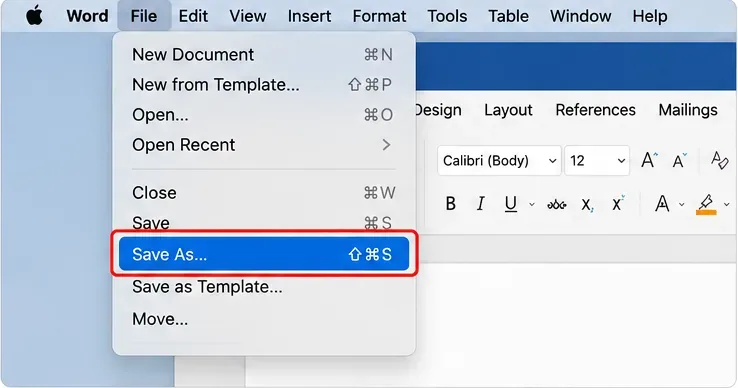
Use File > Save As and save the document under a new name in a local folder that you know is writable, such as Documents. This is especially useful when the original came from email, a shared folder, removable storage, or a synced location.
AI-generated illustration: using File > Save As in Word for Mac to create a test copy in a writable local location.
This step is diagnostic as well as practical:
If the new copy edits and saves: Word can edit the document content. The original file, its location, or its sharing state is the likely problem.
If the new copy is still read-only: look for an intentional document restriction, Office activation issue, or an app-wide problem.
If Save As itself is disabled: that strongly suggests a broader Word/Office state or an enforced restriction, not just a Finder file lock.
Microsoft notes that ordinary read-only documents can often be copied and saved under another name, but that does not mean all protected documents can be bypassed. Rights-managed or organization-controlled files can remain restricted.
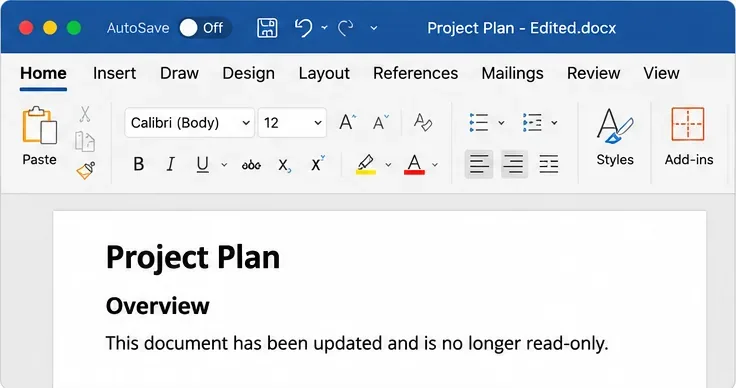
AI-generated illustration: the test copy opens without a read-only label and accepts edits. Verify the result by saving, closing, and reopening the real file.
What if every Word document is read-only?
If a new blank document also cannot be edited or saved, stop changing individual file permissions. The evidence points toward Word or Office rather than one document.
Update macOS and Word first
Microsoft's current support notice says that from July 13, 2026, affected Office installations on macOS can enter reduced functionality mode, where files open and print but cannot be edited, saved, or created. Microsoft's remediation sequence is to update the operating system first, then update Office. On Mac, you can check macOS under Apple menu > System Settings > General > Software Update. In Word, use Help > Check for Updates.
For the July 2026 required Office update, Microsoft's support article states that a Mac needs at least macOS 12 Monterey to install the required update. Separately, current Office feature-update support follows newer macOS versions, so an older Mac may not be able to receive the latest Office build even if it can still run an older one. If your Mac cannot update far enough, Microsoft suggests using Microsoft 365 on the web or another supported device while you decide on a longer-term solution.
Check Office activation
If Word shows an activation message or allows viewing but not creating or editing, verify that you are signed in with the account that owns the Microsoft 365 subscription or Office license. Microsoft states that Office for Mac without a valid licensed account cannot create or edit files and can be limited to reading them. See Microsoft's Office for Mac activation troubleshooting.
One specific licensing trap is the Mac App Store build: Microsoft says Word, Excel, and PowerPoint downloaded from the Mac App Store require a Microsoft 365 subscription for creating and editing. Some one-time purchase Office licenses are not compatible with the Mac App Store versions. If you have a perpetual license and see reduced functionality, confirm that your installed Word build matches your license type.
Quick diagnosis table
What you observe
Most useful next check
Good sign that it is fixed
Only one document is read-only
Word mode, Finder Locked, Sharing & Permissions
The same file accepts and preserves a saved edit
Editing option is missing
OneDrive/SharePoint permission or document restriction
Editing appears after the owner grants access
“Locked for editing by another user”
Check whether another user or Word instance has the file open
The lock disappears after the real editor closes it
A new local copy edits normally
Original file location, sharing, or permissions
The copy saves and reopens with your change
Every document, including blank files, is uneditable
macOS/Office updates and activation
A new blank document can be created, edited, saved, and reopened
When should you stop troubleshooting the file yourself?
Change approach when the evidence no longer points to a local file problem. If Editing is unavailable because the owner shared the file as view-only, ask for edit permission. If the file is protected by organizational policy or Information Rights Management, contact the owner or IT administrator. If all Office apps are in reduced functionality mode, focus on updating or licensing Office rather than repeatedly changing document permissions.
For a work or school Mac, policy controls may be intentional, and local changes can be overwritten or blocked. For important documents, keep an untouched copy before changing permissions or creating replacement files. The goal is not merely to remove the read-only indicator; it is to restore a reliable workflow in which edits can be saved to the intended document without bypassing legitimate access controls.