When an Excel formula stops updating automatically, the fastest fix is usually not to rewrite the formula. First determine whether Excel is in Manual calculation mode, then force a recalculation to confirm the workbook can still calculate, and finally check whether the problem is limited to cells being treated as text or formulas being displayed instead of evaluated.
Microsoft's current Excel documentation, checked in September 2026, still describes Automatic as the default calculation behavior. There is one important tradeoff to know before changing settings: in the Excel desktop app, changing calculation options affects all open workbooks. In Excel for the web, the calculation option applies only to the current workbook. That difference matters if you intentionally keep a large workbook in Manual mode for performance.
Before you change anything: identify which problem you actually have
Use this quick test. In a blank area of the workbook, put 10 in B2 and enter =B2*2 in C2. Change B2 to 12.
- If C2 stays at 20 until you manually calculate, the workbook is probably using Manual calculation.
- If C2 displays
=B2*2 instead of 24, the problem is more likely Show Formulas or a text-formatted cell.
- If C2 updates to 24 but one complex formula does not, the issue is probably local to that formula, its references, an external link, a data table, or another workbook-specific condition.
This distinction saves time because the three fixes below solve different failure modes.
Step 1: set the calculation mode that fits your workbook
In desktop Excel, open Formulas > Calculation Options. If you expect formulas to update whenever their inputs change, choose Automatic. Microsoft also documents the same setting under File > Options > Formulas > Workbook Calculation.
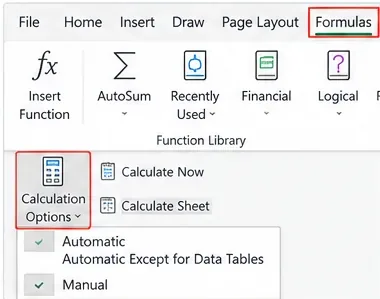
Calculation Options is the first place to check when formulas remain stale after referenced values change.
Microsoft's current calculation settings documentation explains the three practical choices:
| Calculation mode | What it does | Best fit | Tradeoff |
|---|
| Automatic | Recalculates dependent formulas when a referenced value, formula, or name changes | Most everyday workbooks | Large or calculation-heavy models can spend more time recalculating |
| Automatic Except for Data Tables | Automatically recalculates most formulas but excludes What-If Analysis data tables from automatic recalculation | Models where data tables are the main performance cost | Data-table results can remain stale until explicitly recalculated |
| Manual | Does not automatically recalculate formulas; you initiate calculation | Very large models where the user deliberately controls recalculation timing | Stale values are easy to mistake for current results |
Recommendation by need: choose Automatic for normal workbooks. Keep Manual only when you understand why the workbook needs it and have a deliberate recalculation workflow. If data tables are the main performance problem, Automatic Except for Data Tables can be a more targeted compromise than switching the entire workbook to Manual.
There is another desktop-specific consideration: Microsoft says calculation-setting changes affect all workbooks that are currently open. If you opened a large model that was intentionally saved in Manual mode and then opened a smaller workbook, you can end up troubleshooting the smaller workbook even though the calculation choice originated elsewhere. Close unnecessary workbooks, set the desired mode, and verify again.
Step 2: force a recalculation and verify the result
After switching to Automatic, change a referenced value and confirm that the formula updates. In the simple test above, changing B2 from 10 to 12 should change =B2*2 from 20 to 24.
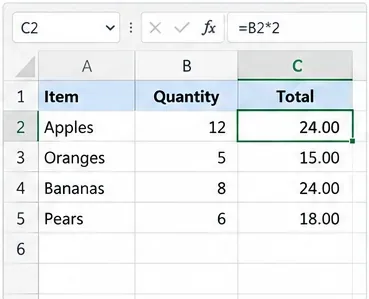
After Automatic calculation is restored, changing an input should update the dependent result without another manual action.
If you need an immediate refresh before changing the long-term mode, use the calculation controls Microsoft provides:
- Calculate Now recalculates all open worksheets, including data tables, and updates open chart sheets.
- Calculate Sheet recalculates the active worksheet and linked charts.
- In desktop Excel, F9 is the standard shortcut for recalculating open workbooks.
These are useful diagnostic tools, but they are not substitutes for the correct calculation mode. If pressing F9 fixes the number every time but the value becomes stale after the next edit, Manual calculation is still active somewhere in your workflow.
For Excel for the web, Microsoft documents calculation controls under the Formulas tab as well. The important difference is scope: changing calculation mode in the browser affects the current workbook rather than all other open desktop workbooks.
Why not leave Excel in Manual mode and just press F9?
That can be a valid choice for a large financial or engineering model, but it has an operational cost: displayed values may no longer reflect the latest inputs. If multiple people edit the workbook or if the file is used as an operational report, Automatic is usually easier to audit because users do not need to remember a recalculation step.
If performance is the reason you switched to Manual, measure what is slow before accepting stale values as the permanent workaround. External links, volatile formulas, large ranges, iterative calculations, and What-If data tables can contribute to calculation time. The right optimization depends on the workbook.
Step 3: if the formula itself appears in the cell, fix the cell instead of the calculation mode
If Excel displays =B2*2 in the worksheet instead of a result, Automatic calculation is not necessarily the problem. Microsoft documents two common causes: Show Formulas is turned on, or the cell is formatted as Text.
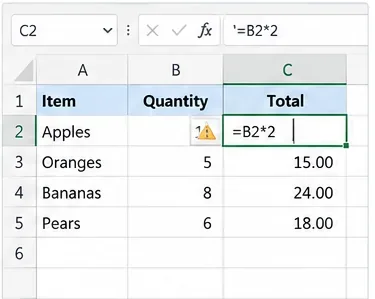
If the formula text is visible in the cell, troubleshoot formula display and cell formatting before changing workbook calculation settings again.
Check Show Formulas first
Go to Formulas > Show Formulas. If it is active, turn it off. Microsoft also documents Ctrl+` as the keyboard shortcut for toggling between formula display and formula results. See Microsoft Support: Show and print formulas.
Then change Text-formatted cells to General and re-enter the formula
If Show Formulas is already off, select the affected cell, open Format Cells, and choose General. Merely changing the format may not cause an existing text entry to be evaluated immediately. Microsoft's broken-formula guidance says to use F2 and then Enter after changing the cell to General so Excel reprocesses the entry as a formula.
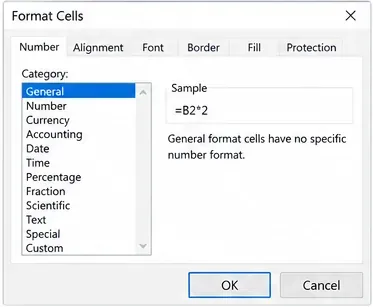
Change a formula cell from Text to General, then re-enter the formula so Excel evaluates it rather than preserving it as text.
Microsoft's current broken-formula troubleshooting page specifically recommends this sequence when formula syntax is displayed instead of a value.
Also check for a leading apostrophe. An entry such as '=B2*2 is text by design. Remove the apostrophe and re-enter the formula.
Which fix should you use?
| Symptom | Best first action | Why |
|---|
| Many formulas update only after F9 | Switch Calculation Options to Automatic | This points to Manual calculation rather than a bad formula |
| One large workbook is slow in Automatic mode | Evaluate Manual or Automatic Except for Data Tables intentionally | Performance may justify controlled recalculation, but stale results become an explicit tradeoff |
| Formula text appears directly in cells across the sheet | Turn off Show Formulas | The formulas may be calculating correctly but the worksheet is displaying syntax |
| Only a few cells show formula text | Change Text format to General, then press F2 and Enter | The cell content may have been stored as text |
| Simple formulas update but one formula remains wrong | Inspect that formula's references and dependencies | A global calculation-mode change is unlikely to be the root cause |
If the three steps do not fix it
Do not keep toggling calculation settings. Use the symptom to narrow the next check.
- External workbook links: a linked source may not be recalculated or available. Microsoft notes that Excel can warn when a source worksheet has not been completely recalculated.
- Iterative or circular formulas: a formula that refers to itself directly or indirectly needs deliberate iterative-calculation settings. Do not enable iteration just to silence a circular-reference problem you do not understand.
- What-If Analysis data tables: Automatic Except for Data Tables intentionally leaves these out of normal automatic recalculation.
- Workbook corruption: if calculation behavior is abnormal only in one damaged file, Microsoft's Repair a corrupted workbook guidance provides recovery options.
- Volatile date functions: Microsoft notes that functions such as TODAY depend on recalculation settings. If TODAY is not updating as expected, confirm Automatic calculation is enabled.
Three-step checklist
- Set the right calculation mode: Formulas > Calculation Options > Automatic for normal workbooks.
- Recalculate and test: use Calculate Now or F9, change a known input, and verify the dependent result updates.
- Fix cell-level display problems: turn off Show Formulas; for Text-formatted formula cells, switch to General and press F2, then Enter.
Bottom line
If Excel formulas are not calculating automatically, choose the fix based on the failure mode. Automatic calculation is the right default for most everyday workbooks. Manual mode is useful when a large model needs controlled recalculation, but the tradeoff is that visible values can become stale. Automatic Except for Data Tables is a narrower performance compromise when What-If data tables are the expensive part. And if a formula is displayed as text, changing the calculation mode is the wrong fix—repair the cell's display or number format instead.
The three-step approach works because each step tests a different layer: workbook calculation mode, the recalculation engine, and the individual formula cell. That makes it faster to find the real cause without changing more of Excel than necessary.