Home
» Tips
»
How to Fix PowerPoint Screen Recording Audio Not Working on Windows
How to Fix PowerPoint Screen Recording Audio Not Working on Windows
As of September 11, 2026, Microsoft’s current PowerPoint support documentation still says that Insert > Screen Recording can capture the screen with related audio and that the Audio option is selected by default on the recording Control Dock. Microsoft does not currently flag a new, version-specific PowerPoint screen-recording audio outage in that support article. That means a silent recording is more useful to treat as a troubleshooting problem than as a confirmed new bug.
The fastest fix depends on what “audio not working” means in your case. If your own voice is missing, check the recording toggle, Windows microphone permission, and the selected input device. If audio from a browser, video, Teams call, or another application is missing, that is a different requirement: you need reliable system audio capture, and PowerPoint’s documented Screen Recording interface does not expose a separate system-audio source selector.
This guide focuses on PowerPoint desktop for Windows because Microsoft’s current Screen Recording instructions use the Windows recording workflow and Windows-key shortcuts.
Quick diagnosis: match the symptom before changing settings
What you hear
Most useful first check
No sound at all in a new screen recording
Confirm the PowerPoint Audio control is enabled, then test the Windows recording input
Your voice is missing
Check microphone permission and the active Windows input device
Your voice records, but sound from another app does not
Treat this as a system-audio capture requirement, not simply a microphone failure
The microphone works in other apps but not after reopening PowerPoint
Restart PowerPoint, update Office, then repair Office if needed
The recording contains audio, but you cannot hear it inside the slide
Play the saved media separately to distinguish a capture problem from a playback-volume problem
1. Confirm that Audio is enabled before you record
Open the slide where you want the recording, choose Insert > Screen Recording, select the recording area, and look at the Control Dock before pressing Record. Microsoft says PowerPoint automatically selects both Audio and Record Pointer by default. If Audio has been deselected, click it so it is active before beginning a new test.
The PowerPoint Screen Recording Control Dock with the Audio control visible beside Select Area and Record Pointer.
Do not use an old silent clip to judge the new setting. Record a fresh 10-second sample after changing Audio. Say a few words at normal speaking volume, stop the recording, and play the newly inserted video.
If you see the Audio control and it is enabled but the new recording is still silent, move to Windows rather than repeatedly re-recording the same slide.
2. If narration is missing, check Windows microphone permissions
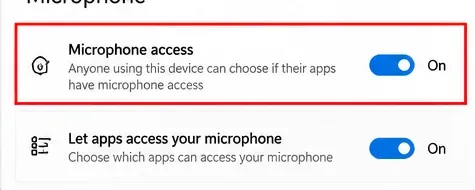
On Windows 11, go to Start > Settings > Privacy & security > Microphone. Microsoft’s current microphone-permission guidance says to turn on Microphone access and Let apps access your microphone. For traditional desktop programs, also scroll down and make sure Let desktop apps access your microphone is on.
The first Windows microphone permission switches should be on; desktop PowerPoint users should also verify the desktop-app microphone setting farther down the page.
A useful detail: Microsoft notes that desktop apps do not necessarily appear as individually switchable entries in the same way Microsoft Store apps do. Do not assume PowerPoint is blocked just because you cannot find a separate PowerPoint toggle. The relevant control for a classic desktop installation is the desktop-app microphone permission.
3. Verify the input device before blaming PowerPoint
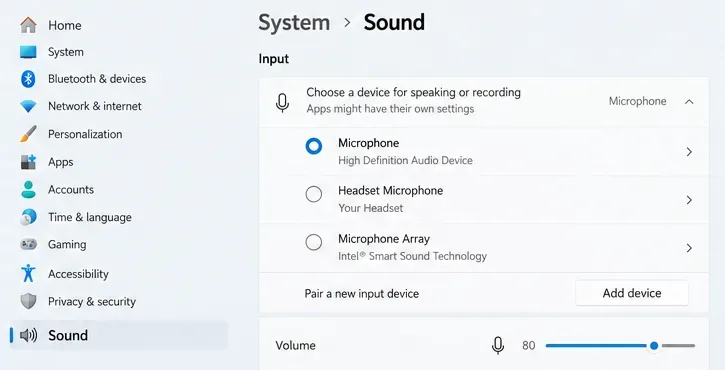
Go to Settings > System > Sound. Under Input, select the microphone you actually intend to use. This matters when a computer has several possible inputs: a laptop microphone array, USB headset, webcam microphone, Bluetooth headset, dock, or audio interface.
Windows System > Sound can show several recording inputs; select the microphone you actually want PowerPoint to receive.
Open the selected microphone’s properties and use the Windows microphone test. Microsoft’s current troubleshooting instructions say to start the test, speak normally, stop it, and play the recorded sample. If Windows cannot record a clean sample, PowerPoint is not the right place to troubleshoot yet.
If the Windows test is silent:
Check a hardware mute switch on the headset or microphone.
Reconnect USB or wired audio devices.
For Bluetooth equipment, confirm that it is paired and connected.
Increase the input volume if the recorded sample is extremely quiet.
Restart Windows after reconnecting or changing the device if it is not detected correctly.
4. Make a short recording and verify the actual media
After the PowerPoint Audio control, Windows permissions, and microphone input are correct, make a short test recording in a blank presentation. Keep it simple: one slide, a 10- to 20-second screen capture, and a few spoken words.
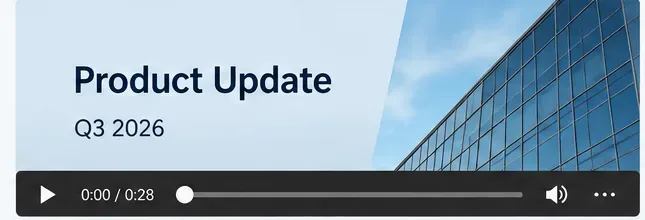
An inserted screen recording with playback controls makes it easy to test whether the newly captured clip actually contains audible sound.
Play the clip inside PowerPoint. Then right-click the video frame and choose Save Media as, a workflow Microsoft documents on the same Screen Recording support page. Play the saved media file outside PowerPoint.
This separates two different failures:
If the saved file is also silent, the problem happened during capture.
If the saved file has audio but the slide seems silent, investigate playback volume, output device, or presentation playback rather than the recording input.
If browser, meeting, or video sound is missing: check whether you actually need system audio
Microphone audio and system audio are not the same thing. A microphone captures a physical input such as your voice. System audio means sound generated by the computer itself—for example, a browser video, app notification, media player, or another participant in an online call.
Microsoft’s current PowerPoint Screen Recording article documents one Audio control but does not document a separate picker for microphone versus system audio. Therefore, if your voice is present but the sound coming from another application is missing, repeatedly changing microphone permissions may not solve the real requirement.
For a Microsoft-supported recorder that explicitly documents system-audio sharing, Microsoft Clipchamp is clearer. Its current recording guidance lets you choose a screen and, where available, enable Share system audio. See Microsoft’s Clipchamp screen-recording instructions.
For presentation narration rather than general desktop capture, PowerPoint also has a separate Record presentation workflow that captures voice and slide timing. Microsoft documents it for PowerPoint for Microsoft 365 and supported perpetual versions, including Mac variants. See Record your presentation.
If PowerPoint alone is still silent, update Office
If the microphone passes the Windows test and PowerPoint still produces silent recordings, close other Office apps, reopen PowerPoint, and test again. Then install current Office updates.
For Microsoft 365 or Office on Windows, Microsoft’s current path is File > Account > Update Options > Update Now. If Update Now is not visible, your organization may manage Office updates centrally. Follow the official Office update instructions.
After updating, restart the computer and repeat the same blank-presentation test. Keeping the test identical helps you determine whether the update actually changed the result.
Repair Office only after the basic audio tests pass
Repairing Microsoft 365 is a reasonable escalation when Windows records the microphone correctly, PowerPoint is up to date, and a new blank presentation is still silent. Microsoft supports both Quick Repair and Online Repair for Click-to-Run installations; Online Repair is the more comprehensive option.
On Windows 11, the general path is Settings > Apps > Installed apps, locate Microsoft 365 or Office, choose the menu for the product, and select Modify. Follow Microsoft’s Repair an Office application instructions for the exact options shown by your installation type.
Do not start with Online Repair if the microphone itself is failing in Windows. Repairing Office cannot fix a hardware mute switch, disconnected headset, or an input device that Windows cannot record.
What not to do first
Do not reinstall audio drivers immediately. First use Windows’ built-in microphone test to prove there is an input problem.
Do not assume “Audio” means every kind of computer sound. Voice input and system audio are different capture requirements.
Do not troubleshoot only inside an old presentation. A new blank file gives you a cleaner test.
Do not reinstall all of Microsoft 365 before checking permissions and the selected input. Those checks take minutes and are reversible.
Do not install random virtual-audio drivers just to capture system sound. If system audio is the goal, start with a recorder that officially exposes that option.
Final checklist: confirm the fix
PowerPoint Screen Recording shows Audio enabled before recording.
Windows Microphone access is on.
Let apps access your microphone is on.
Let desktop apps access your microphone is on for desktop PowerPoint.
The intended microphone is selected under Settings > System > Sound.
A Windows microphone test records and plays back your voice clearly.
A new 10- to 20-second PowerPoint screen recording contains audio.
The saved media file also contains audio when played outside PowerPoint.
If the missing sound is computer/system audio, you are using a capture workflow that explicitly supports system-audio sharing.
PowerPoint is updated; Office repair is reserved for cases where the operating-system audio test already works.
If all microphone tests pass but PowerPoint remains silent after updating and repairing Office, the useful next step is to document your PowerPoint version, Windows version, recording device, and whether the saved media file is silent, then contact Microsoft Support or your organization’s Microsoft 365 administrator. Those details narrow the issue much faster than reporting only that “audio does not work.”