A nonprofit annual report presentation should do more than summarize a year. It should help donors, board members, volunteers, partners, and community members quickly understand what the organization set out to do, what changed, how resources were used, and what comes next. If you are searching for a nonprofit annual report PowerPoint template free download, the safest starting point is an official template source that you can customize with verified organizational data rather than a deck filled with example numbers that may be mistaken for real results.
Microsoft currently provides a gallery of free PowerPoint presentation templates, including annual-review and impact-oriented designs. You can use one of those layouts as a visual base, then adapt the slide plan below for a nonprofit annual report. This article does not claim that a specific third-party nonprofit deck has been downloaded, tested, or verified.
What a useful nonprofit annual report template should accomplish
A strong template is a reusable structure, not a substitute for the report itself. The National Council of Nonprofits recommends focusing an annual report on the audience, the organization’s mission, progress, outcomes, transparency, and a look ahead. Its guidance on nonprofit annual reports is a helpful reference when deciding what deserves slide space.
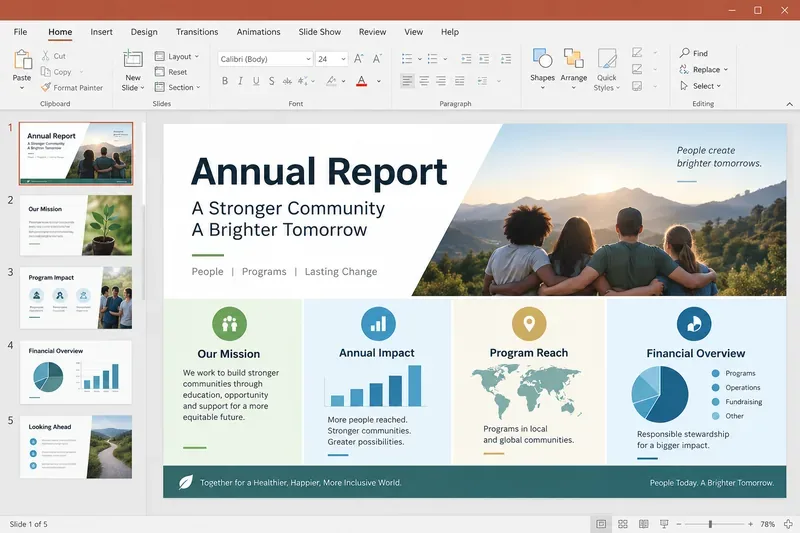
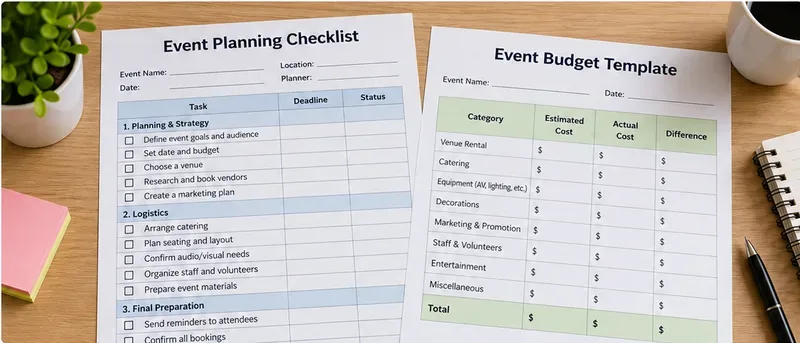
AI-generated illustration of a nonprofit annual report deck in a PowerPoint-style editor; it is not an actual software screenshot or a downloadable template.
For most organizations, a concise deck of roughly 8 to 12 core slides is easier to scan than a presentation that tries to reproduce every page of an audited financial statement or Form 990. The presentation can summarize the most important facts and link readers to the underlying documents.
Recommended slide map
Slide purpose
What to include
What to avoid
Cover
Organization name, reporting year, mission-oriented image or brand visual
Unverified impact claims or decorative statistics
Mission and year in review
One-sentence mission, 3–5 major developments, service area
Long history paragraphs
Impact snapshot
A few clearly defined outcome or reach metrics with reporting period
Numbers without definitions, dates, or source notes
Programs
Major programs, who they served, what changed, concise evidence
Listing every activity equally
Community story
A consented story or anonymized example tied to a program
Identifiable sensitive information or exaggerated testimonials
Financial overview
Revenue, expenses, program spending context, year-over-year comparison where useful
Charts that hide categories or omit units
Governance and accountability
Board leadership, policies or oversight highlights, links to public filings
Implying the annual report replaces required filings
Supporters and partners
Recognition based on your organization’s policy and permissions
Publishing donor information that should remain private
Looking ahead
Priorities, realistic next-year goals, known constraints
Absolute promises about future results
Contact and resources
Website, contact channel, Form 990 or financial statement links when appropriate
Dead links or outdated staff details
Financial slides: summarize without oversimplifying
In the United States, most organizations exempt from federal income tax must file an annual information return or notice unless an exception applies. The IRS explains that Form 990 is used to report information about activities, finances, governance, compliance, and compensation, and that completed Form 990 or 990-EZ returns are generally available for public inspection. See the IRS 2025 Instructions for Form 990 and its public disclosure overview.
That does not mean every nonprofit annual report slide deck must mirror Form 990 line by line. A presentation is usually a communication layer. Use the financial slide to present a truthful, understandable summary, then point readers to the official filing or audited statements when those documents are available.
Quick financial checklist
Label the fiscal year clearly and keep it consistent across all slides.
Use the same units throughout a chart, such as dollars, thousands of dollars, or percentages.
State whether figures are audited, unaudited, preliminary, or taken from a filed return.
Reconcile totals used in the deck with the approved financial statements or final internal reports.
Explain unusually large year-over-year changes instead of letting the chart imply a conclusion.
Keep revenue and expense categories understandable; avoid combining unrelated categories only to make a chart look cleaner.
Include a source note when a number comes from Form 990, an audited statement, a program database, or another internal system.
Impact metrics: define the number before designing the chart
Annual reports often lose credibility when a visually prominent metric is not defined. “10,000 people reached” can mean direct participants, website visitors, households, event attendees, or an estimated media audience. Before putting a number in a large-font callout, document what it measures, the time period, whether people can be counted more than once, and where the source data came from.
A practical template should leave room for both the headline metric and a short definition. For example, a program slide might show the number of enrolled participants, the completion rate, and one outcome measure. If the outcome is based on a survey, note the respondent count and period instead of presenting the percentage as if it represented every person served.
How to customize the free PowerPoint starting point
PowerPoint templates are most useful when the formatting is reusable. Microsoft’s current support documentation says a presentation can be saved as a PowerPoint template using the .potx format, and that template creation is built around Slide Master and slide layouts. See Microsoft’s instructions for creating and saving a PowerPoint template.
Choose a restrained visual base. Start with a free Microsoft presentation template or a blank file. Prioritize readable typography and flexible layouts over highly decorative backgrounds.
Set brand elements once. In Slide Master, place the logo, approved colors, footer pattern, and common text styles so every slide does not have to be formatted manually.
Create purpose-based layouts. Useful reusable layouts include title, impact metric, two-column program summary, financial chart, story/photo, and closing/contact slides.
Replace all sample data. Treat every number, name, chart, quote, and map in a starter deck as temporary until it is replaced with verified organizational information.
Save a clean master copy. Keep the reusable version free of year-specific data, then create a separate working presentation for each reporting year.
If you already have slides that need a new template, Microsoft recommends starting a fresh presentation with the desired template and importing the existing slides so they adopt the destination theme. The current procedure is documented in Apply a template to an existing presentation.
Accessibility belongs in the template, not at the end
A reusable annual report template should make accessible authoring easier every year. Microsoft recommends unique slide titles, logical reading order, alt text for meaningful visuals, sufficient text/background contrast, meaningful hyperlink text, and use of the Accessibility Checker. Its current guidance is available in Make your PowerPoint presentations accessible to people with disabilities.
Charts deserve special attention. Do not make color the only way to distinguish categories. Add direct labels when possible, provide a concise chart title, and include alt text that explains the chart’s purpose rather than merely saying “bar chart.” If a financial chart shows program, administrative, and fundraising expenses, the slide should also state the values in readable text or data labels.
Pre-release review checklist
Every slide has a clear purpose and a unique title.
Mission, program names, staff titles, board names, dates, and contact details are current.
Impact numbers are defined and traceable to a source.
Financial totals match the organization’s approved source documents.
Percentages use the correct denominator and add up appropriately where categories are exhaustive.
Photos, stories, names, and quotations have the permissions required by your organization.
No sample text, placeholder logos, invented testimonials, or demo data remain.
Links to Form 990, audited financials, donation pages, or program resources work.
PowerPoint’s Accessibility Checker has been reviewed, including reading order and alt text.
The deck has been tested in presentation mode and exported to PDF if a fixed-layout version will be distributed.
When a PowerPoint annual report is the right format
A PowerPoint annual report works especially well when the report will be presented at a board meeting, donor briefing, annual meeting, volunteer gathering, or partner presentation. It is also useful when the organization wants a visual summary that can later be exported to PDF. A slide deck is less suitable when the primary need is a detailed financial disclosure, searchable archive, or long-form narrative. In those cases, use the presentation as a summary and provide the full report or official filing separately.
Bottom line
The best nonprofit annual report PowerPoint template is one that makes accurate reporting easier. Start with an official free PowerPoint template if you need a design base, build reusable layouts around mission, impact, programs, finances, governance, and next steps, and verify every year-specific fact before publication. A polished deck can improve clarity, but transparency comes from the quality and traceability of the information inside it.