If Outlook can receive messages but cannot send them, the most useful first step is not to change random ports or reinstall Office. First determine whether the failure follows the account or only the Outlook app. Open your provider's webmail in a browser and send a short plain-text message to yourself with no attachment. If webmail sends successfully but Outlook does not, the problem is probably local to Outlook, its cached account state, or—when you use POP/IMAP—the outgoing SMTP configuration. If webmail also fails, changing desktop Outlook settings is unlikely to solve the underlying account, quota, policy, or service problem.
This distinction matters because receiving and sending do not always use the same path. A POP or IMAP account can receive through an incoming server while sending through a separate SMTP server. Microsoft also documents different troubleshooting paths for Outlook.com, new Outlook for Windows, and classic Outlook. The steps below separate what Microsoft currently verifies from what depends on your account type, and they explain what to do when the exact cause is still unknown.
Start with one diagnostic test: can the account send from webmail?
Verified: Microsoft recommends checking connectivity and account state before moving into deeper Outlook troubleshooting. For Outlook.com, Microsoft also documents account restrictions, storage, message size, and sending limits as possible reasons mail will not leave the account. See Microsoft's Outlook send/receive troubleshooting guide and Outlook.com send/receive troubleshooting.
What depends on context: If you use Gmail, Yahoo, iCloud, a business domain, or another provider inside Outlook, test on that provider's own webmail rather than Outlook.com. If you use Microsoft 365 for work or school, your administrator may also have organization-level policies or service-health information that a personal user cannot see.
Action: Send a simple message from webmail. If it succeeds there, continue with the Outlook-specific checks below. If it fails there too, capture the exact error or non-delivery report before changing Outlook settings.
Misunderstanding: “If I can receive mail, Outlook cannot be offline”
Verified: In classic Outlook, Microsoft states that when Outlook is actually in Working Offline or Disconnected state, it cannot send or receive new email until it reconnects. Therefore, if genuinely new messages are continuing to arrive while the sending failure is happening, full Work Offline mode is less likely to be the explanation. However, seeing old mail in the Inbox does not prove the app is currently online.
Action: In classic Outlook, look at the status bar and the Send/Receive tab. If you see Working Offline, choose Work Offline once to reconnect. Microsoft documents the visual status indicators in How to work offline in Outlook for Windows.
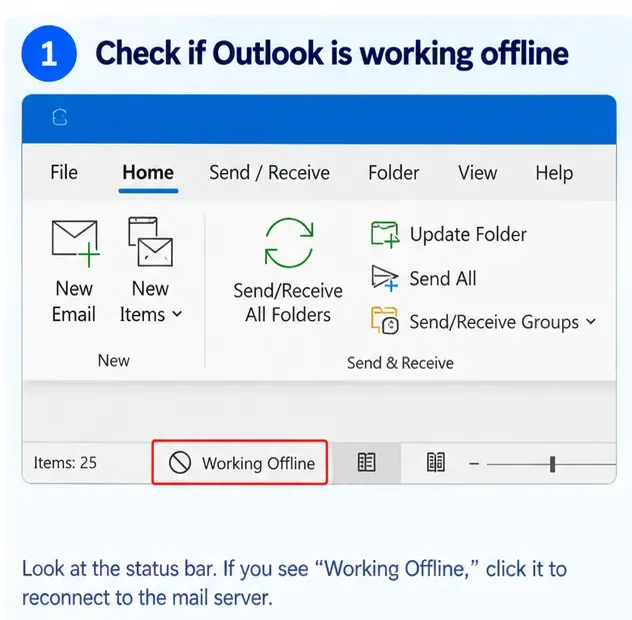
AI-generated illustration of the classic Outlook Working Offline status. It is not a real diagnostic screenshot and the exact ribbon layout can vary by Outlook version.
Check the Outbox before changing account settings
Verified: Microsoft identifies stuck Outbox messages as a common sending problem. A large attachment is one possible cause. For Outlook.com, Microsoft currently states that an attached file over 25 MB cannot be sent directly; Microsoft suggests removing it, using a smaller file, or sharing a OneDrive link. A message can also remain queued when Outlook is not connected.
What this does not prove: One message stuck in Outbox does not automatically mean the entire account is broken. If a new small plain-text message sends normally, the original message itself is the better suspect.
Action: Open Outbox. If one message is stuck, move or delete it, remove large attachments, then send a new short test message. For Microsoft guidance, see Email stuck in Outlook.com and Microsoft's broader Outlook email stuck article.
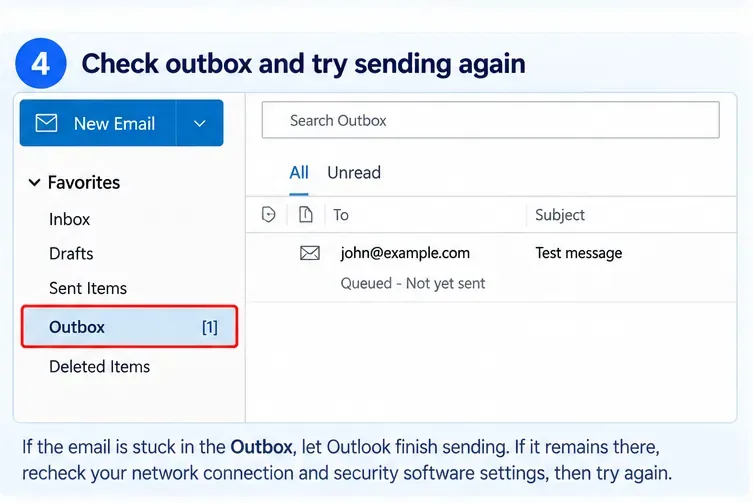
AI-generated illustration of a queued Outlook message. The image is intended to show where to look, not to reproduce a specific current Outlook build.
Misunderstanding: “Receiving proves my server settings and password are correct”
That is not reliably true for manually configured POP/IMAP accounts.
Verified: Microsoft documents the outgoing server separately as SMTP. In classic Outlook, you can compare the incoming server, outgoing server, ports, encryption, username, password, and authentication requirements with the information supplied by your email provider. Microsoft's current account-settings guide for Outlook for Windows specifically recommends comparing both incoming and outgoing settings and using Test Account Settings.
Important condition: Do this only when the account is actually configured as POP or IMAP, or when your provider has explicitly given you manual SMTP settings. Do not copy an arbitrary SMTP port or encryption setting from another provider.
For an Outlook.com account configured through POP/IMAP, Microsoft currently publishes smtp-mail.outlook.com, port 587, STARTTLS, and OAuth2/Modern Auth. Those settings are for Outlook.com; they are not universal. Microsoft also notes that Outlook.com POP and IMAP access is disabled by default and must be enabled when you intentionally use those protocols. See POP, IMAP, and SMTP settings for Outlook.com.
Action: If you have a third-party POP/IMAP account, obtain the exact SMTP server, port, encryption, and authentication method from that provider and compare them with Outlook. If you have a Microsoft 365 or Exchange account configured normally, skip manual SMTP guessing and move to account repair or reauthentication instead.
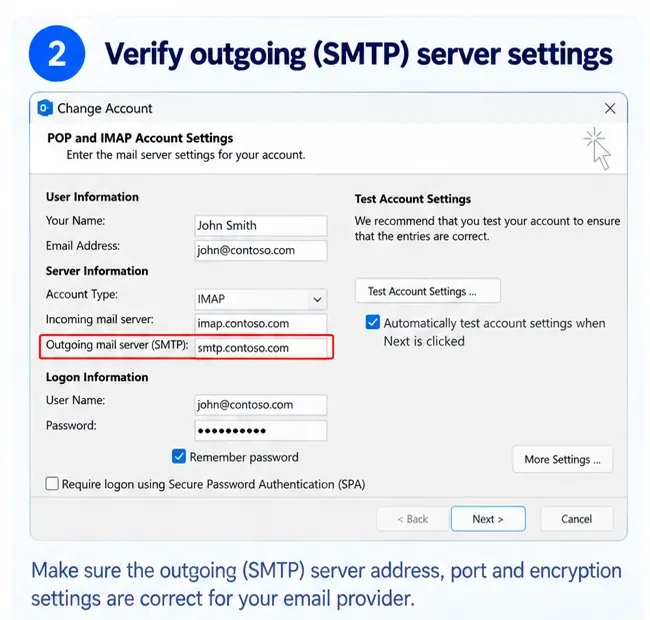
AI-generated illustration of classic Outlook account settings. The example server names are fictional; use the settings supplied by your own email provider.
Use the account test when classic Outlook exposes it
Verified: In classic Outlook's manual account settings, Microsoft describes a Test Account Settings step that checks whether the configuration can log on and send a test message. A red failure marker means some part of the configuration is not working; Microsoft advises checking the settings again and contacting the email provider if the test still fails.
What remains unknown until you read the error: A failed send test does not by itself tell you whether the cause is a bad password, incorrect SMTP host, wrong port, wrong encryption mode, blocked authentication, or a provider-side refusal. The exact error text matters.
Action: Run the test, write down the full outgoing-server error, and correct only the setting that conflicts with the provider's documentation. Avoid changing multiple parameters at once, because that makes it harder to identify the real cause.
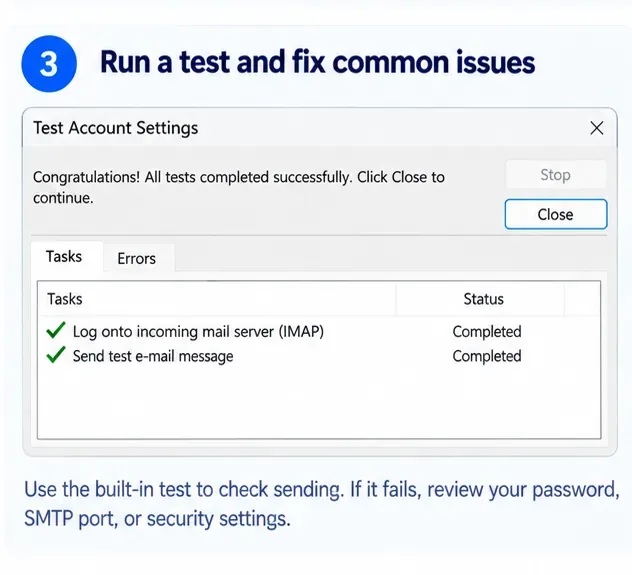
AI-generated illustration of the classic Outlook account test. A successful-looking example is shown for orientation; it is not evidence that a user's account has passed the test.
If Outlook.com itself cannot send, check limits, storage, and account restrictions
Verified: Outlook.com imposes sending limits to reduce abuse. Microsoft's current published limits for Microsoft 365 subscribers include 5,000 recipients per day, 500 recipients per message, and 1,000 daily recipients with whom the sender has no established relationship. Microsoft says limits can vary with usage history and are lower for non-subscribers; new accounts can also start with lower temporary quotas. See Sending limits in Outlook.com.
Microsoft also states that if Microsoft cloud storage is full, you cannot send or receive email. This is useful diagnostically: if brand-new messages are still arriving normally, a completely full Microsoft mailbox or cloud-storage condition is less consistent with the symptom, but it is still worth checking if Outlook.com shows a quota warning.
Verified: Microsoft may temporarily block an Outlook.com account after unusual sign-in activity. Its official recovery path is the Microsoft account sign-in helper, described in Unblock my Outlook.com account.
Action: If webmail cannot send, check for a storage warning, sending-limit message, security challenge, or account-block notice. Do not rebuild the Outlook desktop profile until those account-side conditions are cleared.
If you recently changed the password, reauthenticate before rebuilding Outlook
Verified: Microsoft's setup troubleshooting documentation says a changed email password can require Outlook's stored credentials to be updated. For third-party accounts, two-factor authentication can also change what credential or authorization method the provider expects.
Context-dependent: Modern Microsoft accounts increasingly use OAuth2 rather than simply sending a reusable SMTP password. Outlook.com specifically requires Modern Auth/OAuth2 for its published POP/IMAP/SMTP configuration. A generic “turn on SMTP authentication and type your password” fix is therefore not universally appropriate.
Action: If the password changed recently, sign in to the provider's website first to confirm the new credentials. Then reauthenticate or update the account in Outlook using the provider-supported method.
Repair classic Outlook's profile, or re-add the account in new Outlook
Verified for classic Outlook: Microsoft provides a profile-repair path at File → Account Settings → Account Settings → Email → Repair for supported desktop configurations. Microsoft notes that the Repair option is not available in every combination, including Outlook 2016 connected to Exchange. The official steps are in Fix your Outlook email connection by repairing your profile.
Verified for new Outlook: Microsoft documents account removal under Settings/View settings → Accounts → Your accounts → Manage → Remove, after which you can add the account again. Removing it from the app does not delete the underlying email account. See Add an email account to Outlook for Windows.
Action: Use repair or remove/re-add only after simpler account, Outbox, authentication, and provider checks fail. If you have multiple accounts, first confirm that the failing message is being sent from the intended From account.
If a message leaves Outbox but the recipient never gets it, treat that as a different problem
A message disappearing from Outbox does not guarantee final delivery.
Verified: Microsoft lists invalid addresses, full recipient mailboxes, recipient-server problems, and spam filtering among common reasons for non-delivery reports. The non-delivery report normally contains the reason.
Action: If Outlook moves the message to Sent Items but you receive a bounce, read the status code and explanation in that bounce. Do not keep changing local SMTP settings unless the error actually points to authentication or relay from your sending server.
How to verify the fix instead of assuming it worked
Use a controlled test sequence:
- Send a plain-text message with no attachment to your own address.
- Confirm it leaves Outbox and appears in Sent Items.
- Confirm it arrives back in the Inbox.
- Send a second message to an address at a different provider.
- If only certain recipients fail, inspect the non-delivery report rather than reopening Outlook settings.
If both test messages send and arrive, Outlook's basic outgoing path is working. If webmail works but the desktop app still fails, the remaining issue is local to Outlook or its account configuration. If webmail also fails, the unresolved cause is more likely account-side, provider-side, or service-side.
What cannot be determined without the exact error
“Can receive but cannot send” is a symptom, not a single Outlook error. Without the account type, Outlook version, error dialog, SMTP response, or non-delivery report, it is not possible to identify one definitive cause. A current Microsoft service issue is also time-dependent. Microsoft maintains an Outlook.com known-issues page and points affected users to Microsoft service-health information when appropriate.
The most efficient troubleshooting order is therefore: test webmail → inspect Outbox and the message → verify provider-specific SMTP only if POP/IMAP applies → reauthenticate → check account limits/restrictions → repair or re-add the Outlook account → use the exact error/NDR for the final diagnosis. That order avoids changing settings that were already correct and makes each test tell you something useful.