Home
» Tips
»
Printable Daily Time Blocking Template PDF for WFH Professionals: A Beginner’s Guide
Printable Daily Time Blocking Template PDF for WFH Professionals: A Beginner’s Guide
Working from home can make a day look open on paper while still feeling fragmented in practice. A morning meeting runs long, chat messages arrive during focused work, lunch slips later, and a simple task list keeps growing because it never says when each task will happen.
A printable daily time blocking template solves a specific part of that problem. Time blocking means assigning a defined period of the day to a specific task, task type, meeting, or break. Instead of writing “finish proposal” on a list and hoping to reach it, you might reserve 9:00–10:30 a.m. for the proposal and 10:30–10:45 a.m. as a buffer before the next commitment.
This beginner-friendly approach is useful for WFH professionals because it combines the visibility of a paper schedule with the flexibility to revise the day as reality changes. It is not a promise that every planned block will run perfectly. The goal is to make tradeoffs visible before the day becomes crowded.
As checked on September 11, 2026, Google Calendar still supports dedicated Focus time events for eligible work and school accounts, including options to mute Chat notifications and automatically decline meetings. Windows also includes a Focus feature that can reduce notifications during a focus session. Those digital tools can complement a printed planner, but the paper template can work independently of any specific app. See Google Calendar Focus time help and Microsoft Support for Windows Focus.
What to know before using a daily time blocking PDF
The biggest beginner mistake is treating every empty hour as available work capacity. A realistic WFH schedule has several different kinds of time:
Fixed commitments: meetings, calls, appointments, school pickup, or other events with a set time.
Focus blocks: protected periods for cognitively demanding work such as writing, analysis, coding, design, or planning.
Administrative blocks: email, chat replies, forms, invoicing, scheduling, and small follow-ups that can often be grouped together.
Breaks: short periods away from work tasks and screens.
Buffer blocks: intentionally unassigned time that absorbs overruns, setup, transition, or an urgent request.
NIOSH recommends regular breaks from screen use for people working from home and advises varying posture rather than staying in one position for long periods. Its current office-environment guidance also notes that short hourly breaks can reduce discomfort for computer users. That is a health and ergonomics reason not to fill every line of a planner with continuous desk work. See NIOSH guidance for working from home and NIOSH office-environment guidance.
What to prepare before you print
You do not need a complicated productivity system. Gather only the information that constrains your day:
Your normal start and stop times.
Today’s meetings and other fixed commitments.
One to three important outcomes you want from the day.
Any personal WFH constraints, such as deliveries, caregiving, exercise, or school runs.
A realistic lunch period and a few short breaks.
Your preferred paper size. In the United States, a US Letter layout is typically the easiest choice for a home or office printer.
Before printing, use print preview and make sure the template fits on one page without clipped time labels or notes fields. If the PDF was designed for US Letter, keep the original orientation and choose a fit setting only if your printer would otherwise crop the page. The purpose is readability, not squeezing as much information as possible onto the sheet.
Step 1: Set the day boundaries and choose your priorities
Start by writing the date, your intended work start time, and your intended stop time. A visible stop time matters for WFH because work can otherwise expand into personal time simply because the desk is nearby.
Next, write your top one to three priorities. A priority should describe an outcome rather than a vague area of work. “Send revised budget to client” is more actionable than “client work.” If you have six or seven “top priorities,” they are not really priorities; move the lower-value items to an optional list.
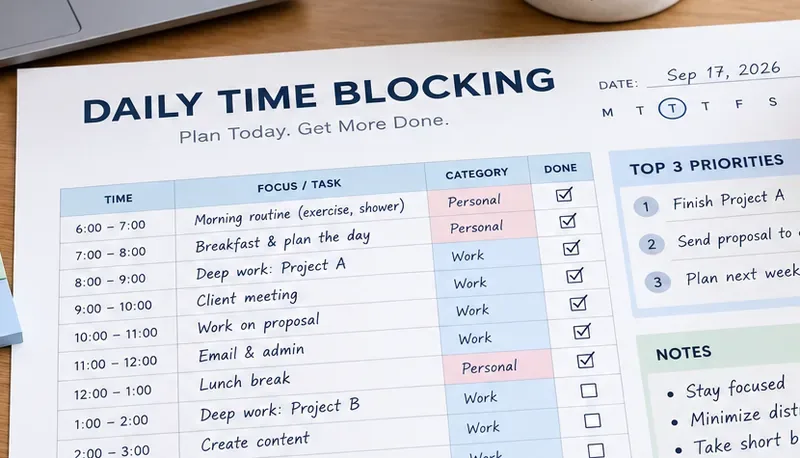
A daily planner with hourly rows, a date field, top-three priorities, categories, and completion boxes ready for a WFH schedule.
A useful rule for beginners is to reserve your clearest mental period for the most important task that actually requires concentration. You do not need to force an early-morning routine if your energy is better later. The template should reflect your real working pattern.
Step 2: Add fixed commitments before flexible work
Transfer meetings, interviews, appointments, team check-ins, and other nonmovable events from your calendar onto the printed page first. Include their real start and end times rather than rounding them down to make the page look tidy.
Then add lunch and any personal constraint that genuinely affects the workday. This prevents a common planning error: filling the day with tasks first and discovering afterward that the schedule overlaps with events you already agreed to attend.
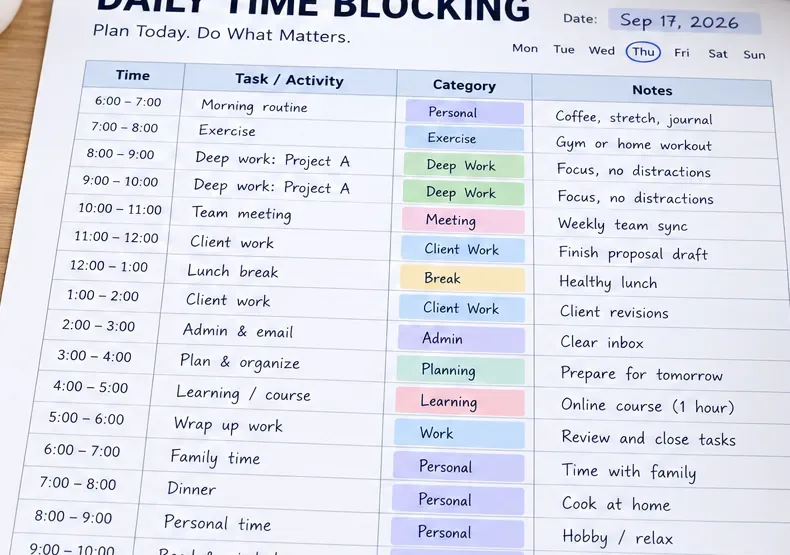
Fixed meetings, lunch, work periods, administrative time, and personal commitments placed into specific hourly rows.
If a meeting regularly needs preparation or follow-up, block that time too. A 30-minute meeting may consume 45 or 60 minutes of practical capacity when you include opening documents, switching context, writing notes, and sending an action item afterward.
Step 3: Add focus work, admin batches, breaks, and buffers
Now fill the remaining space with work that can move. Start with the highest-priority focus task, then add smaller work around it. Avoid dividing every 15 minutes into a different activity unless your role genuinely works that way. Frequent switching can make the plan harder to follow.
For a first template, it is reasonable to use a small number of block types:
Block type
Example
Beginner note
Focus
9:00–10:30: Draft client proposal
Protect one meaningful task rather than several unrelated tasks
Admin
10:45–11:15: Email and approvals
Batch small communications instead of checking constantly
Meeting
11:30–12:00: Team sync
Include setup or follow-up time if needed
Break
12:00–12:15: Away from screen
Use breaks as real recovery time, not another inbox session
Buffer
2:45–3:15: Unassigned
Leave it open until something actually needs the space
If notifications are the main reason a focus block fails, pair the paper schedule with the focus controls already available on your device or work calendar. For example, eligible Google Workspace users can create a Focus time event with a defined start and end time, while Windows Focus can turn on Do Not Disturb during a session. Use these controls only where appropriate for your role; some jobs require real-time availability.
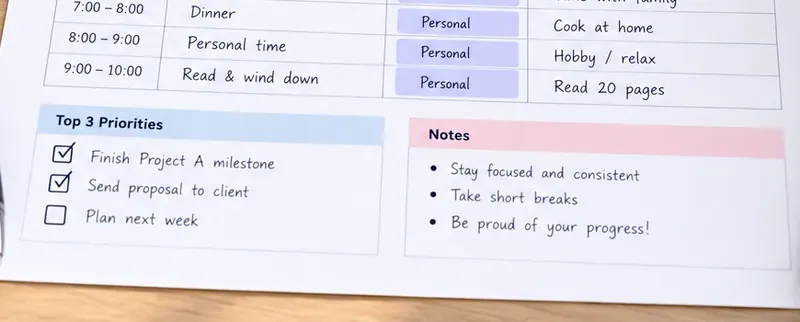
The priorities and notes area keeps the main outcomes visible while leaving room for reminders such as short breaks and focus rules.
There is a related research idea called an implementation intention: a plan that specifies when, where, or under what condition a person will perform an action. Research on implementation intentions is broader than time blocking and should not be treated as proof that a paper schedule will automatically raise productivity. Still, it supports the practical idea that plans become more concrete when they connect an intended action with a specific situation. See the research overview indexed by PubMed.
Step 4: Use the page as a live plan, then review it
Once the day begins, do not treat the printed blocks as a contract. Treat them as your current best plan. If a client call adds 30 minutes, mark the change and move something intentionally. Do not keep pretending the original schedule still exists.
At the end of the day, review three things:
Which blocks happened roughly as planned?
Which work consistently took longer than expected?
What should be changed in tomorrow’s template?
A small reflection box can be more useful than a perfect completion score. If you planned four hours of deep work but consistently completed two, tomorrow’s schedule should probably contain closer to two realistic hours plus space for the work that actually interrupted you.
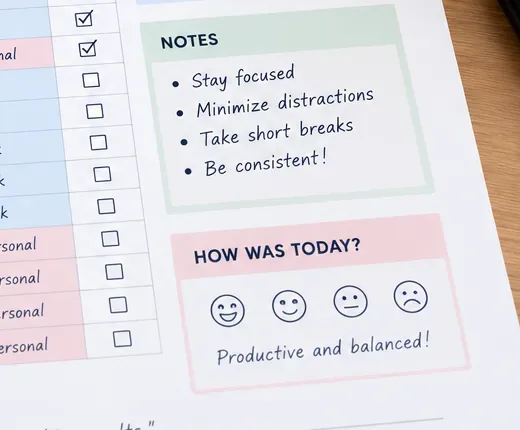
An end-of-day review area for checking completed blocks, noting distractions and breaks, and rating how the schedule felt in practice.
A sample WFH time-blocked day
Time
Block
Purpose
8:30–9:00
Plan and inbox scan
Confirm urgent changes before focus work
9:00–10:30
Focus block
Primary project deliverable
10:30–10:45
Break
Move, rest eyes, get water
10:45–11:15
Admin
Email and approvals
11:30–12:00
Team meeting
Fixed calendar commitment
12:00–1:00
Lunch
Meal and time away from work
1:00–2:15
Client work
Second important deliverable
2:15–2:30
Break
Short reset
2:30–3:00
Buffer
Absorb overruns or urgent requests
3:00–4:00
Calls and collaboration
Lower-focus interactive work
4:00–4:30
Admin closeout
Messages, files, next actions
4:30–4:45
Review tomorrow
Capture unfinished work and stop intentionally
This example is not an ideal schedule for everyone. A customer-support specialist, developer, manager, designer, or parent working from home may need very different block lengths. Use the structure, not the exact hours.
Common mistakes new time blockers make
Scheduling 100% of the workday
If every minute is assigned, the first unexpected call destroys the plan. Leave at least some flexible space, especially on meeting-heavy days.
Using task names that are too broad
“Work on project” gives no finish point. “Outline sections 1–3” or “review the first 20 customer records” is easier to start and easier to evaluate.
Turning breaks into hidden work
A break spent replying to messages is still screen work. NIOSH guidance specifically encourages breaks from screens and regular posture changes for home workers.
Ignoring transition time
Back-to-back blocks look efficient but often ignore setup, closing files, walking to another room, or writing down the next action. A five- or ten-minute transition can be more realistic than an immediate switch.
Rewriting the whole page every time something changes
Cross out, arrow, or move the block. A printable template should reduce planning effort, not create a second job maintaining a perfectly neat schedule.
Printable template checklist
Before using a daily time blocking PDF regularly, make sure the page has enough structure without becoming crowded:
Date and day field.
Visible start and stop times.
Hourly or half-hourly schedule rows.
Top one to three priorities.
Space for meetings and fixed commitments.
Room for focus, admin, breaks, and buffers.
A notes area for changes or follow-up items.
A small end-of-day review or carry-forward section.
Readable print size on one page.
Enough blank space to write by hand.
How to know whether the template is working
Do not judge the method by whether every checkbox is completed. After a week, look for practical signals: you start important work at a more intentional time, fewer tasks are forgotten between meetings, you can see when the day is overcommitted, and unfinished work is deliberately rescheduled instead of silently rolling forward.
If the template creates more anxiety or takes too long to maintain, simplify it. Use fewer block categories, make blocks longer, or plan only the first half of the day. If your work changes minute by minute, a detailed hourly PDF may be the wrong tool; a short priority list plus fixed calendar events may serve you better.
The most useful daily time blocking template is not the one with the most boxes. It is the one that makes the day visible enough to support decisions while leaving enough room for real work, real breaks, and the unexpected parts of working from home.